---
title: "Configuring the vRack on your dedicated servers"
description: "Find out how to configure the vRack on two or more dedicated servers"
url: https://docs.ovhcloud.com/en/guides/bare-metal-cloud/dedicated-servers/vrack-configuring-on-dedicated-server
lang: en
lastUpdated: 2026-05-28
---
# Configuring the vRack on your dedicated servers
## Objective
The OVHcloud vRack (virtual rack) allows multiple servers to be grouped together (regardless of number and physical location in our data centres) and connects them to a virtual switch within the same private network. Your servers can communicate privately and securely between each other, within a dedicated VLAN.
**This guide explains how to configure the vRack on two or more dedicated servers.**
## Requirements
- A [vRack](https://www.ovhcloud.com/en-gb/network/vrack/) service activated in your account
- Two or more [dedicated servers](https://www.ovhcloud.com/en-gb/bare-metal/) (compatible with vRack)
- Administrative access (sudo) to the server via SSH or RDP
- A private IP address range of your choice
:::warning
This feature might be unavailable or limited on servers of the [**Eco** product line](https://eco.ovhcloud.com/en-gb/about/).
Please visit our [comparison page](https://eco.ovhcloud.com/en-gb/compare/) for more information.
:::
***
### OVHcloud Control Panel Access
- **Direct link:** vRack
- **Navigation path:** Network > vRack private network
***
## Instructions
### Step 1: Ordering the vRack
Click the button `Add a service
` (shopping cart icon) in the left-hand menu. Use the filter at the top of the page or scroll down to find the service `vRack
`.
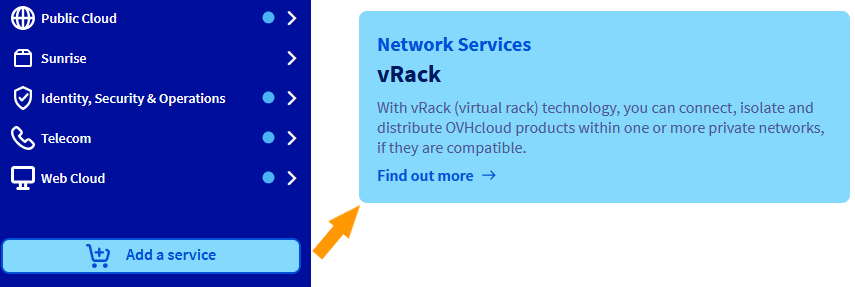
Click on the `vRack
` box to be redirected to the page where you can validate the order. It will take a few minutes for the vRack to be set up in your account.
### Step 2: Adding your servers to the vRack
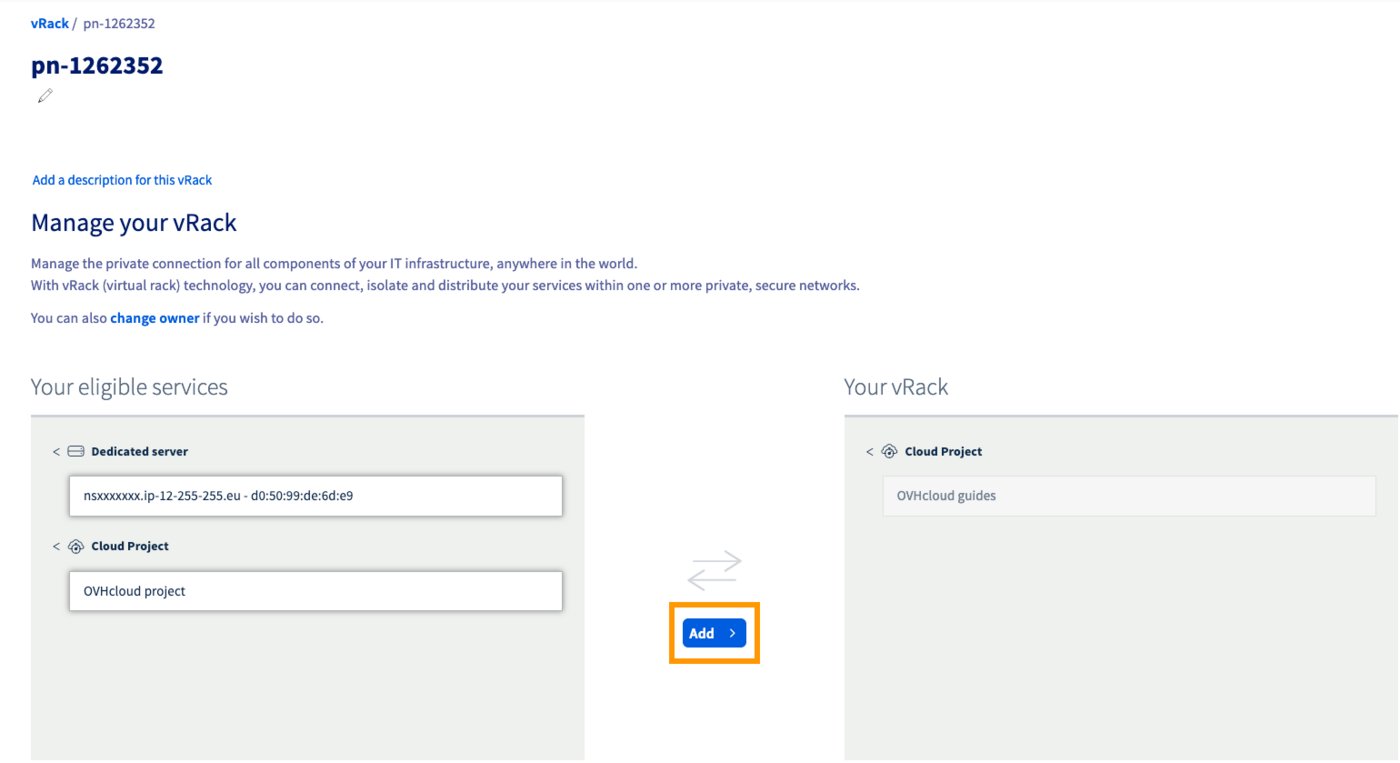
Once the vRack is activated in your account, select your vRack from the list to display the list of eligible services. Click on each server you want to add to the vRack and then click the `Add
` button.
### Step 3: Configuring your network interfaces
The following sections contain the configurations for the most commonly used recent distributions/operating systems. The first step is always to [log in to your server](/en/guides/bare-metal-cloud/dedicated-servers/getting-started-with-dedicated-server.md) via SSH or a RDP session (for Windows). The examples below presume you are logged in as a user with elevated permissions (Administrator/sudo).
:::info
Concerning different distribution releases, please note that the proper procedure to configure your network interface as well as the file names may have been subject to change. We recommend to consult the manuals and knowledge resources of the respective OS versions if you experience any issues.
For example purposes, the configuration details below will have the IP address range `192.168.0.0/16` (**Subnet mask**: `255.255.0.0`).
You can use any private IP range of your choice and any address within that range.
:::
#### Identifying the vRack interface [](#)
The network interface names of your servers are not always the same.
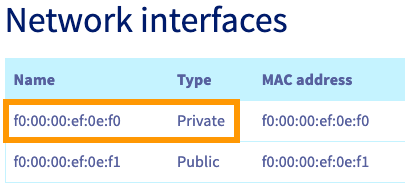
The sure way to verify the correct interface for the vRack is to check the tab `Network interfaces
` of your server in the OVHcloud Control Panel
. In the table at the bottom, take note of the MAC address which is also the **Name**
of the **Private**
interface.
Once connected to your server via SSH, you can list your network interfaces with the following command:
```bash
ip a
```
In the line that begins with ```link ether``, you can verify that this interface matches the **Private**
interface listed in your OVHcloud Control Panel
. Use this interface name to replace `NETWORK_INTERFACE`
in the configurations below (example: `eth1`
).
```console
link ether f0:00:00:ef:0e:f0
```
For example purposes, we will use the IP address range of `192.168.0.0/16` (**Subnet mask**: `255.255.0.0`).
#### GNU/Linux configurations
**Debian 11**
Using a text editor of your choice, open the network configuration file located in `/etc/network/interfaces.d` for editing. Here the file is called `50-cloud-init`.
```bash
sudo nano /etc/network/interfaces.d/50-cloud-init
```
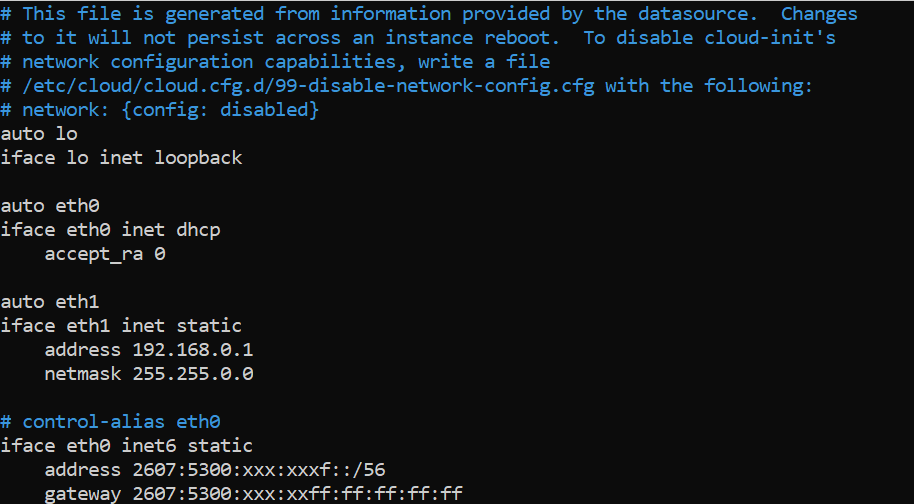
Add the following lines to the existing configuration, replace `NETWORK_INTERFACE`, `IP_ADDRESS` and `NETMASK` with your own values:
```console
auto NETWORK_INTERFACE
iface NETWORK_INTERFACE inet static
address IP_ADDRESS
netmask NETMASK
```
**Example**
Save your changes to the config file and exit the editor.
Restart the networking service to apply the configuration:
```bash
sudo systemctl restart networking
```
Repeat this process for your other server(s) and assign an unused IP address from your private range. Once you have done this, your servers will be able to communicate with each other on the private network.
**Ubuntu & Debian 12+**
Using a text editor of your choice, open the network configuration file located in `/etc/netplan/` for editing. Here the file is called `50-cloud-init.yaml`.
```bash
sudo nano /etc/netplan/50-cloud-init.yaml
```
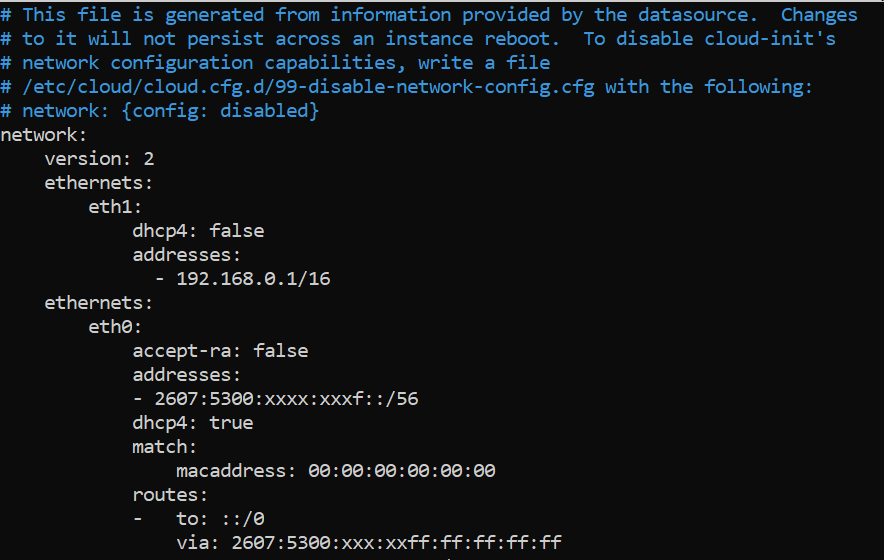
Add the following lines to the existing configuration after the line `version: 2`. Replace `NETWORK_INTERFACE` and `IP_ADDRESS/PREFIX` with your own values.
```yaml
ethernets:
NETWORK_INTERFACE:
dhcp4: false
addresses:
- IP_ADDRESS/PREFIX
```
**Example:**
:::warning
It is important to respect the alignment of each element in `yaml` files as represented in the example above. Do not use the tab key to create your spacing. Only the space key is needed.
:::
Save your changes to the config file and exit the editor.
Apply the configuration:
```bash
sudo netplan apply
```
Repeat this process for your other server(s) and assign an unused IP address from your private range. Once you have done this, your servers will be able to communicate with each other on the private network.
**AlmaLinux and Rocky Linux (8/9)**
Once you have identified your private network interface, use the following command to create a network configuration file.
Replace `NETWORK_INTERFACE` with your own value.
```bash
sudo touch /etc/sysconfig/network-scripts/ifcfg-NETWORK_INTERFACE
```
For example, if the private interface is named `eth1`, we have the following:
```bash
sudo touch /etc/sysconfig/network-scripts/ifcfg-eth1
```
Next, use a text editor of your choice to edit this file.
```bash
sudo nano /etc/sysconfig/network-scripts/ifcfg-eth1
```
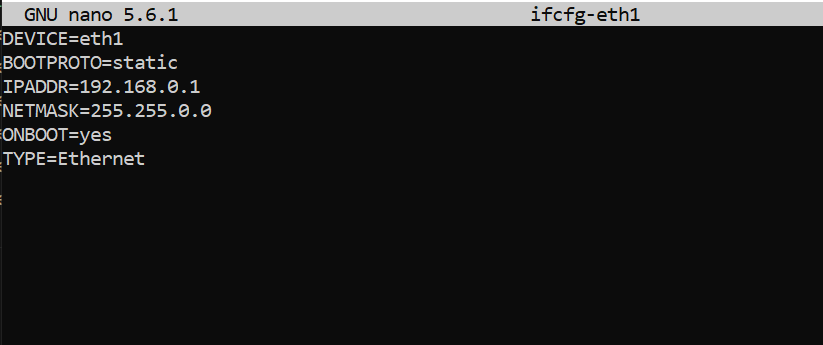
Add these lines, replacing `NETWORK_INTERFACE`, `IP_ADDRESS` and `NETMASK` with your own values:
```console
DEVICE=NETWORK_INTERFACE
BOOTPROTO=static
IPADDR=IP_ADDRESS
NETMASK=NETMASK
ONBOOT=yes
TYPE=Ethernet
```
**Example:**
Save your changes to the config file and exit the editor.
Restart the networking service to apply the changes:
```bash
sudo systemctl restart NetworkManager.service
```
Repeat this process for your other server(s) and assign an unused IP address from your private range. Once you have done this, your servers will be able to communicate with each other on the private network.
**Fedora 42+, AlmaLinux and Rocky Linux (10)**
Once you have identified the name of your private interface (as explained [here](#vrack-interface)), verify that is it connected. In our example, our interface is called `eno2`:
```bash
$ nmcli device status
DEVICE TYPE STATE CONNECTION
eno1 ethernet connected cloud-init eno1
lo loopback connected (externally) lo
eno2 ethernet disconnected --
```
If the `STATE` of the `DEVICE` appears as `disconnected`, it must be connected before configuring the IP.
When adding an **ethernet** connection, we have to create a configuration profile which we then assign to a device.
Run the following command, replacing `INTERFACE_NAME` and `CONNECTION_NAME` with your own values.
In our example, we named our configuration profile `private-interface`.
```bash
sudo nmcli connection add type ethernet con-name CONNECTION_NAME ifname INTERFACE_NAME
```
**Example:**
```bash
sudo nmcli connection add type ethernet con-name private-interface ifname eno2
```
- Check that the interface has been connected correctly:
```bash
$ nmcli device status
DEVICE TYPE STATE CONNECTION
eno1 ethernet connected cloud-init eno1
eno2 ethernet connected private-interface
lo loopback connected (externally) lo
```
Once this is done, a new configuration file named _xxxxxxxxxx.nmconnection_ will be created in the folder `/etc/NetworkManager/system-connections`.
```bash
[user@server ~]$ cd /etc/NetworkManager/system-connections
[user@server system-connections]$ ls
cloud-init-eno1.nmconnection private-interface.nmconnection
```
You can then edit this file using the `nmcli` handler, replacing `IP_ADDRESS`, `PREFIX` and `CONNECTION_NAME` with your own values.
- Add your IP:
```bash
sudo nmcli connection modify CONNECTION_NAME IPv4.address IP_ADDRESS/PREFIX
```
**Example:**
```bash
sudo nmcli connection modify private-interface IPv4.address 192.168.0.1/16
```
- Change the configuration from **auto** to **manual**:
```bash
sudo nmcli connection modify CONNECTION_NAME IPv4.method manual
```
**Example:**
```bash
sudo nmcli connection modify private-interface IPv4.method manual
```
- Make the configuration persistent:
```bash
sudo nmcli con mod CONNECTION_NAME connection.autoconnect true
```
**Example:**
```bash
sudo nmcli con mod private-interface connection.autoconnect true
```
Reboot your network with the following command:
```bash
sudo systemctl restart NetworkManager
```
#### Windows configuration
For example purposes, the following configurations will use the IP address range of `192.168.0.0/16` (**Subnet mask**: `255.255.0.0`).
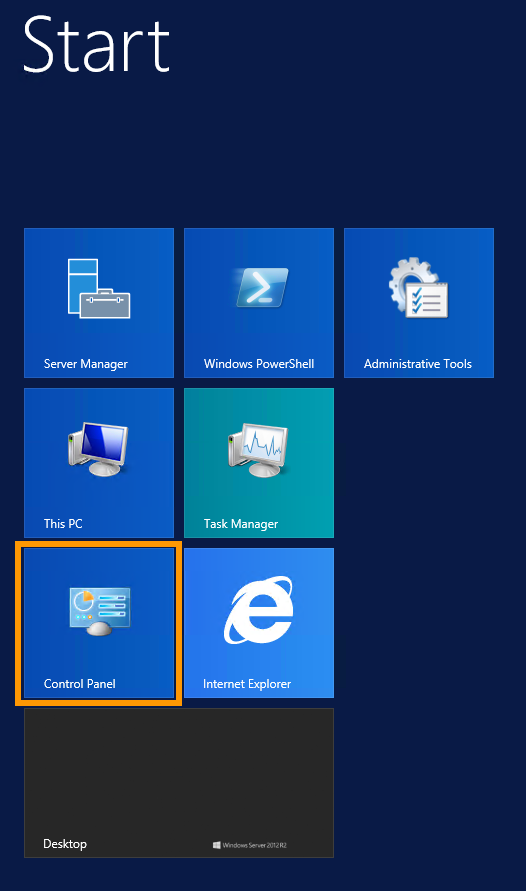
Log on to your Windows server via remote desktop and go to the **Control Panel**.
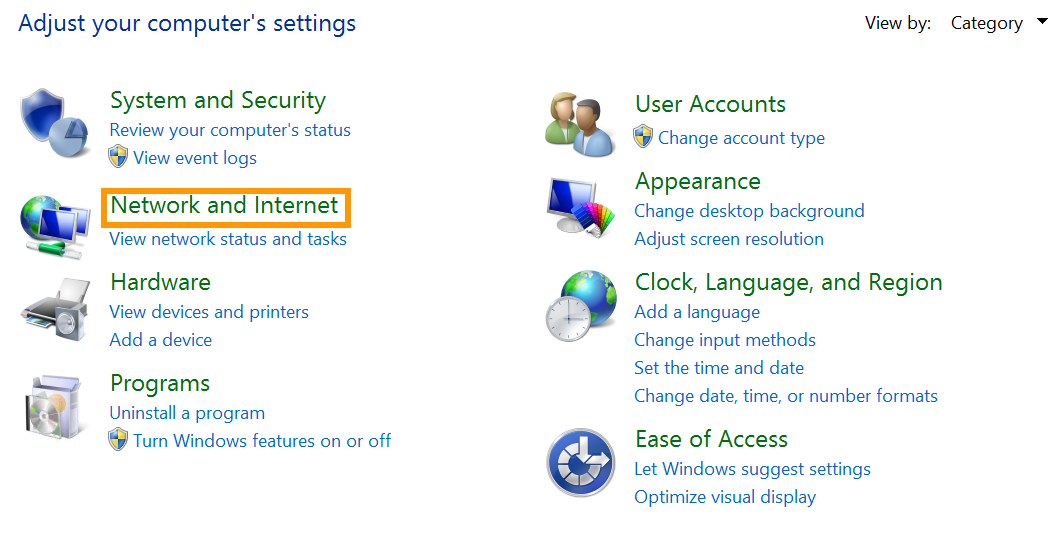
Click on `Network and Internet
`.
Open `Network and Sharing Center
`.

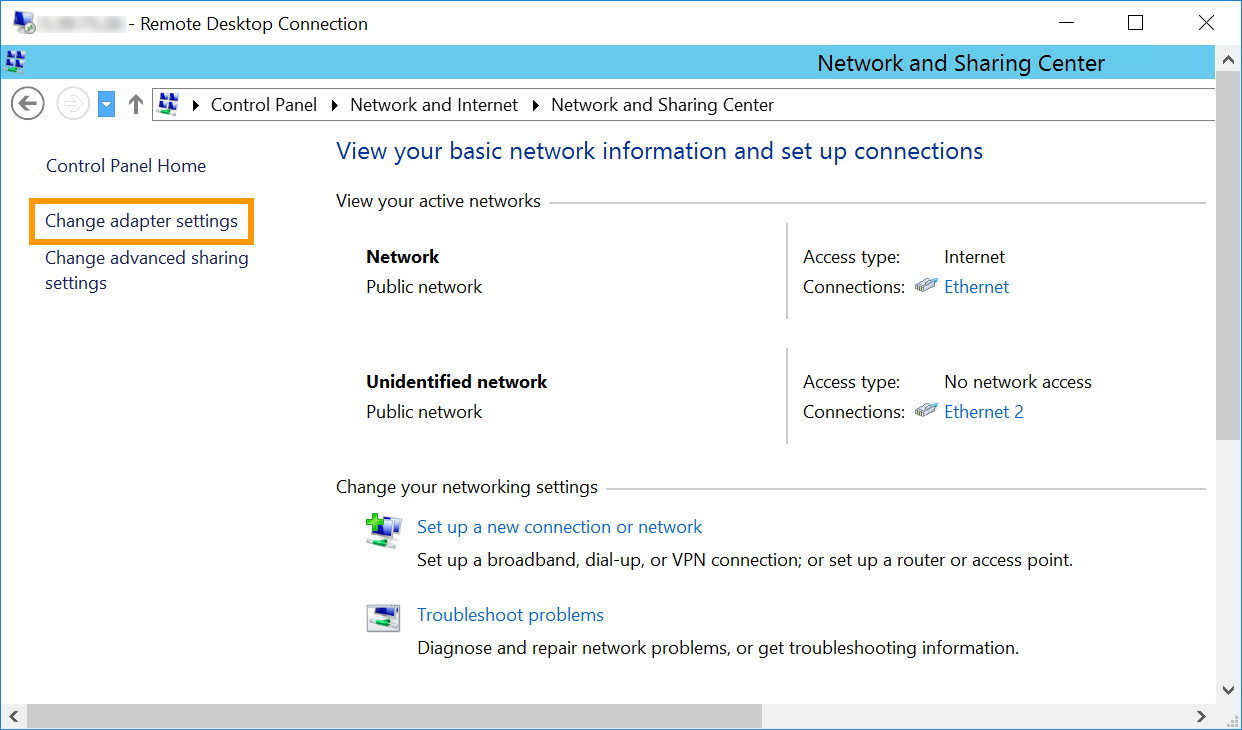
Click on `Change Adapter Settings
`.
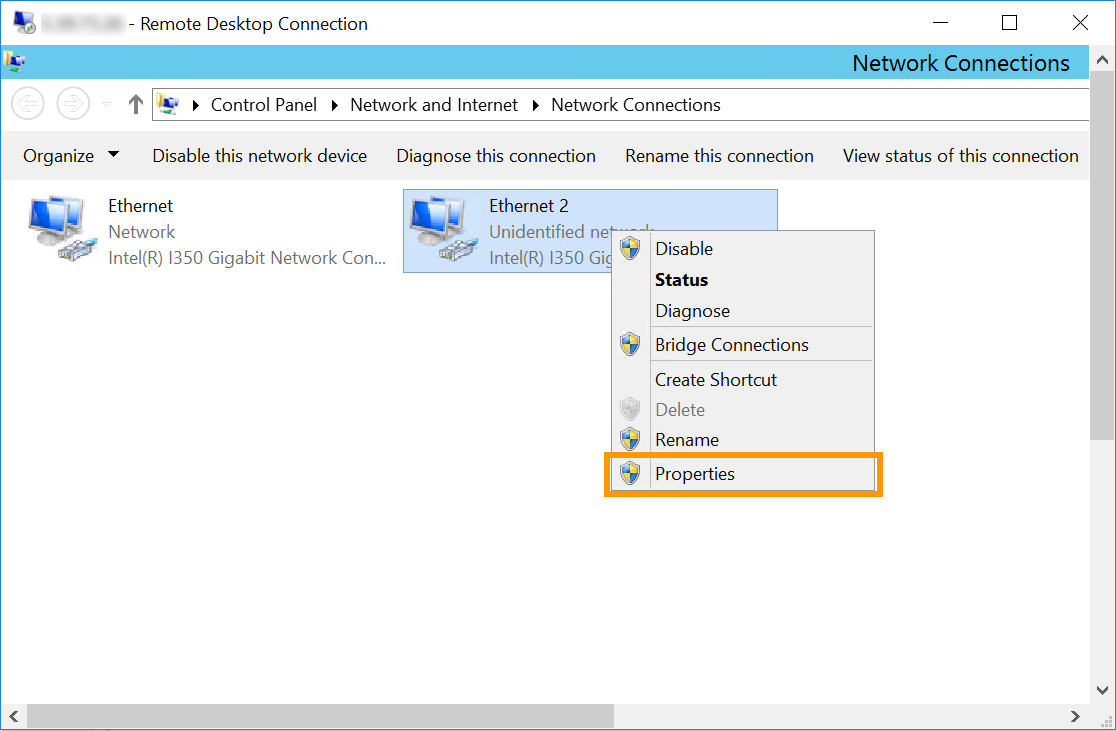
Right-click the secondary network interface and then click `Properties
`.
Note that in our example `Ethernet 2` is the interface used for the vRack. However, it is possible that the vRack NIC is a different interface in your configuration. The correct one to select will be the interface that does not have the server's main IP address or has a self-assigned IP.
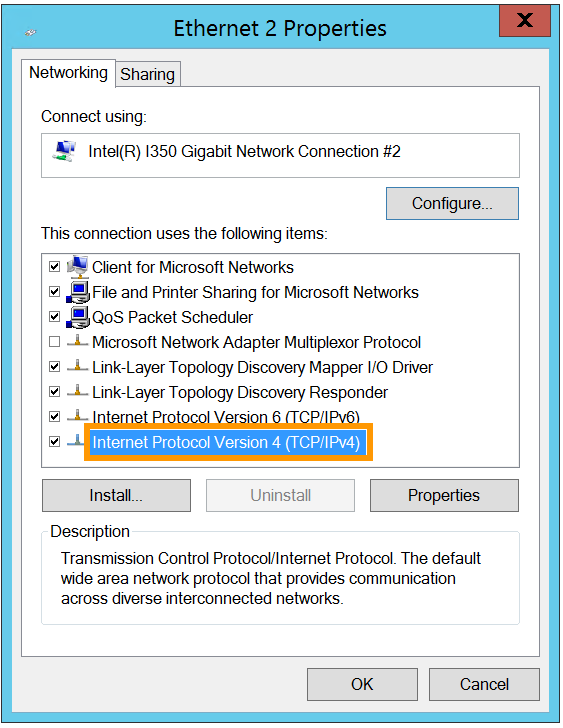
Double-click `Internet Protocol Version 4 (TCP/IPv4)
`.
Click on **Use the following IP address**. Enter any **IP address** from your private range and the appropriate **Subnet mask** (`255.255.0.0` in this example) into the corresponding fields.
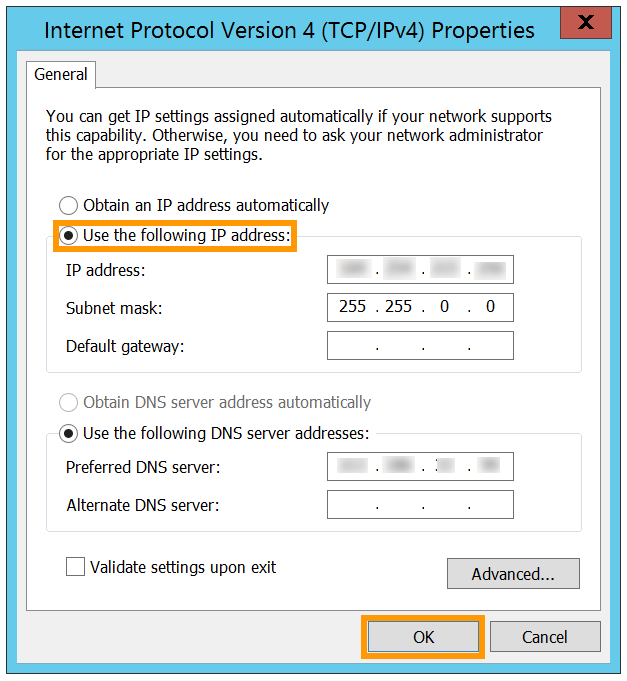
Click on `OK
` to save the changes and reboot your server to apply them.
Repeat this process for your other server(s) and assign an unused IP address from your private range. Once you have done this, your servers will be able to communicate with each other on the private network.
## Go further
[Creating multiple vLANs in a vRack](/en/guides/bare-metal-cloud/dedicated-servers/creating-multiple-vlans-in-a-vrack.md)
Join our [community of users](https://community.ovhcloud.com/).