---
title: "How to get started with SSH connections"
description: "Find out how you can use SSH to access your OVHcloud server from most desktop clients"
url: https://docs.ovhcloud.com/en/guides/bare-metal-cloud/dedicated-servers/ssh-introduction
lang: en
lastUpdated: 2024-12-03
---
# How to get started with SSH connections
## Objective
The SSH (Secure Shell) communication protocol is the preferred means of establishing encrypted host connections through public networks. The OpenSSH utility is available on all OVHcloud servers (VPS, dedicated servers, Public Cloud instances) to allow secure remote server logins and other operations.
**This guide explains how to securely log on to your server with the SSH protocol.**
:::warning
OVHcloud provides services for which you are responsible with regard to their configuration and management. It is therefore your responsibility to ensure that they function correctly.
This guide is designed to help you with common tasks. Nevertheless, we recommend contacting a [specialist service provider](https://partner.ovhcloud.com/en-gb/directory/) or reaching out to the [OVHcloud community](https://community.ovhcloud.com/community/en) if you encounter any difficulties. You can find more information in the [Go further](#gofurther) section of this guide.
:::
## Requirements
- A [dedicated server](https://www.ovhcloud.com/en-gb/bare-metal/) or a [VPS](https://www.ovhcloud.com/en-gb/vps/) in your OVHcloud account
:::info
This guide is not applicable for standard Windows server installations since they rely on the Remote Desktop Protocol (RDP) for connections. However, SSH connections are relevant when using the OVHcloud rescue mode. You can find more information in the [Go further](#gofurther) section of this guide.
:::
## Instructions
There are multiple ways to authenticate a connection to a remote host via SSH. The following instructions will involve the authentication method with **username and password**.\
You can also configure key-based authentication to enable secure logins without a password exchange. Find the details in our guides:
- [How to create and use keys for SSH authentication](/en/guides/bare-metal-cloud/dedicated-servers/creating-ssh-keys.md)
- [How to create and use keys for SSH authentication with PuTTY](/en/guides/web-cloud/web-hosting/ssh-using-putty-on-windows.md)
Login credentials (username and password) are sent to you by email at the first installation or when a server is reinstalled in the OVHcloud Control Panel
.
The username corresponds to the operating system, for example `ubuntu` or `debian`. To connect, you also need to specify the IP address or the `hostname` of the server. These details are available in the installation email and in the Control Panel.
Consult our "Getting started" guides if you require further details on this topic:
- For a [dedicated server](/en/guides/bare-metal-cloud/dedicated-servers/getting-started-with-dedicated-server.md)
- For a [dedicated server of the **Eco** product line](/en/guides/bare-metal-cloud/dedicated-servers/getting-started-with-dedicated-server-eco.md)
- For a [VPS](/en/guides/bare-metal-cloud/virtual-private-servers/starting-with-a-vps.md)
### How to connect to a remote server from a GNU/Linux distribution or macOS
Unfold this section
#### Establishing a connection
A command line client for SSH (OpenSSH protocol) is usually available by default. Open the command line application (Terminal) and connect to the server with the following command:
```bash
ssh username@server_IP
```
If you have changed the SSH port of the server, use this command instead:
```bash
ssh username@server_IP -p port_number
```
#### Login and fingerprint
When prompted, type the password of the connecting user (or paste it with a middle-click) and press `Enter`.
If this is a new connection, your SSH client will receive a **key fingerprint** from the server. Enter "yes" to confirm and then the password of the connecting user to log in.
Example output:
```bash
ssh ubuntu@203.0.113.100
```
```console
The authenticity of host '203.0.113.100 (203.0.113.100)' can't be established.
ECDSA key fingerprint is SHA256:rRwrdsmJfzvJF5k0a4JmMSdaWbTlCgRKBukbmQ3gmso.
Are you sure you want to continue connecting (yes/no/[fingerprint])?
Warning: Permanently added '203.0.113.100' (ECDSA) to the list of known hosts.
ubuntu@203.0.113.100's password:
```
The fingerprint will be stored on your device and verified for each new connection. If the key has changed on the remote host, you will receive a warning message when trying to connect.
Example output:
```console
@@@@@@@@@@@@@@@@@@@@@@@@@@@@@@@@@@@@@@@@@@@@@@@@@@@@@@@@@@@
@ WARNING: REMOTE HOST IDENTIFICATION HAS CHANGED! @
@@@@@@@@@@@@@@@@@@@@@@@@@@@@@@@@@@@@@@@@@@@@@@@@@@@@@@@@@@@
Host key verification failed.
Offending ECDSA key in /home/user/.ssh/known_hosts:3
```
It means that one the following events has occurred:
- The server has been reinstalled.
- The SSH service on the server has been reinstalled.
- You are connecting to a different host with the same IP address.
:::info
The warning message does not necessarily indicate a security issue. If you have not initiated one of these incidents however, the remote server might be compromised.
:::
To resolve this, use the following command with the IP address of your server:
```bash
ssh-keygen -f ~/.ssh/known_hosts -R 203.0.113.100
```
Alternatively, you can edit the `known_hosts` file located in your local user account's `home` folder with a text editor.
Example:
```bash
nano ~/.ssh/known_hosts
```
Locate the "offending" line that was specified in the warning message, in this example it would be the third one. Highlight and delete the entire line.
Save the changes and exit the editor. You will have to confirm the new fingerprint at the next server login.
### How to connect to a remote server from a Windows device
Unfold this section
#### Establishing a connection
Recent versions of the Windows OS include OpenSSH, so you can use it directly from the native command line applications (PowerShell or Command Prompt).
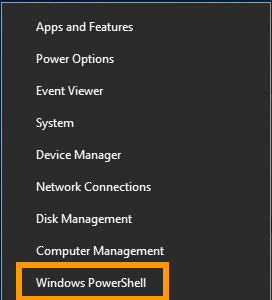
Right-click on the Windows Start button and select Windows PowerShell. Alternatively, use the search field to start one of the command line applications.
Connect to the server with the following command:
```bash
ssh username@server_IP
```
If you have changed the SSH port of the server, use this command instead:
```bash
ssh username@server_IP -p port_number
```
#### Login and fingerprint
When prompted, type the password of the connecting user (or paste it with a right-click) and press `Enter`.
If this is a new connection, your SSH client will receive a **key fingerprint** from the server. Enter "yes" to confirm and then the password of the connecting user to log in.
Example output:
```bash
ssh ubuntu@203.0.113.100
```
```console
The authenticity of host '203.0.113.100 (203.0.113.100)' can't be established.
ECDSA key fingerprint is SHA256:rRwrdsmJfzvJF5k0a4JmMSdaWbTlCgRKBukbmQ3gmso.
Are you sure you want to continue connecting (yes/no/[fingerprint])?
Warning: Permanently added '203.0.113.100' (ECDSA) to the list of known hosts.
ubuntu@203.0.113.100's password:
```
The fingerprint will be stored on your device and verified for each new connection. If the key has changed on the remote host, you will receive a warning message when trying to connect.
Example output:
```console
@@@@@@@@@@@@@@@@@@@@@@@@@@@@@@@@@@@@@@@@@@@@@@@@@@@@@@@@@@@
@ WARNING: REMOTE HOST IDENTIFICATION HAS CHANGED! @
@@@@@@@@@@@@@@@@@@@@@@@@@@@@@@@@@@@@@@@@@@@@@@@@@@@@@@@@@@@
Host key verification failed.
Offending ECDSA key in C:\\Users\\Name_Windows_User/.ssh/known_hosts:3
```
It means that one the following events has occurred:
- The server has been reinstalled.
- The SSH service on the server has been reinstalled.
- You are connecting to a different host with the same IP address.
:::info
The warning message does not necessarily indicate a security issue. If you have not initiated one of these incidents however, the remote server might be compromised.
:::
To resolve this, enter the following command with the name of your local Windows user account and the IP address of your server:
```bash
ssh-keygen -f "C:\Users\Name_Windows_User\.ssh\known_hosts" -R 203.0.113.100
```
Alternatively, you can navigate to this folder, right-click on the file and open it with a text editor (Notepad, Notepad++, etc.)
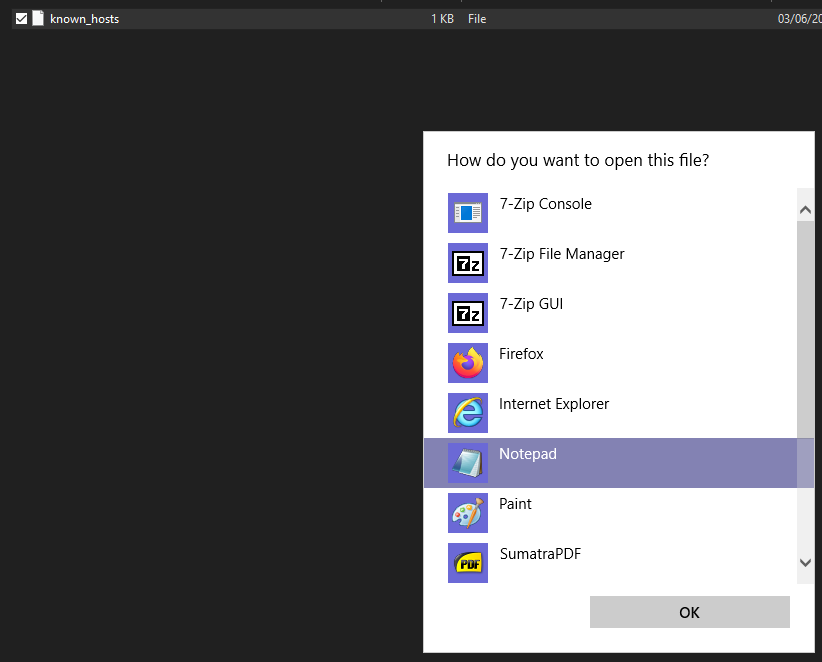Locate the "offending" line that was specified in the warning message, in this example it would be the third one. Highlight and delete the entire line.
Save the changes and exit the editor. You will have to confirm the new fingerprint at the next server login.
### Using dedicated GUI clients or software compatible with SSH
If you prefer a graphical user interface, you can find many software applications for every type of OS that enable you to connect to remote hosts via the SSH protocol.
For example, [PuTTY](https://www.chiark.greenend.org.uk/~sgtatham/putty/latest.html) is an open-source SSH client software with many useful features. Find out how to use it for connections to OVHcloud servers in our detailed tutorial:
[How to use PuTTY](/en/guides/web-cloud/web-hosting/ssh-using-putty-on-windows.md)
[](#)
## Go further
[How to configure user accounts and root access on a server](/en/guides/bare-metal-cloud/dedicated-servers/changing-root-password-linux-ds.md)
[How to create and use keys for SSH authentication](/en/guides/bare-metal-cloud/dedicated-servers/creating-ssh-keys.md)
[How to create and use keys for SSH authentication with PuTTY](/en/guides/web-cloud/web-hosting/ssh-using-putty-on-windows.md)
[Dedicated server rescue mode](/en/guides/bare-metal-cloud/dedicated-servers/rescue-mode.md)
[VPS rescue mode](/en/guides/bare-metal-cloud/virtual-private-servers/rescue.md)
For specialized services (SEO, development, etc.), contact [OVHcloud partners](https://partner.ovhcloud.com/en-gb/directory/).
If you would like assistance using and configuring your OVHcloud solutions, please refer to our [support offers](https://www.ovhcloud.com/en-gb/support-levels/).
Join our [community of users](https://community.ovhcloud.com/).