---
title: "Assigning a Virtual MAC to an Additional IP"
description: "Find out how to create a virtual MAC address and assign it to an Additional IP address"
url: https://docs.ovhcloud.com/en/guides/bare-metal-cloud/dedicated-servers/network-virtual-mac
lang: en
lastUpdated: 2025-05-16
---
# Assigning a Virtual MAC to an Additional IP
## Objective
OVHcloud allows you to associate a virtual MAC address with an IP address, so that you can set up virtual machines with a bridge configuration on your server.
**This guide will show you how to create a virtual MAC address and assign it to an Additional IP address.**
## Requirements
- A [dedicated server](https://www.ovhcloud.com/en-gb/bare-metal/) that supports virtual MACs. To determine this, consult [this guide](/en/guides/bare-metal-cloud/dedicated-servers/network-support-virtual-mac.md).
- An [Additional IP address](https://www.ovhcloud.com/en-gb/network/additional-ip/) or an Additional IP block (RIPE).
***
### OVHcloud Control Panel Access
- **Direct link:** Public IP
- **Navigation path:** Network > Public IP Addresses
***
:::warning
- This feature might be unavailable or limited on servers of the [**Eco** product line](https://eco.ovhcloud.com/en-gb/about/). Please visit our [comparison page](https://eco.ovhcloud.com/en-gb/compare/) for more information.
- Third generation Advance servers (powered by EPYC 4004 Series processors) support 32 different vMACs.
- As of May 2025, this feature is available on the Scale and High Grade ranges.
:::
:::info
If you are not familiar with using the OVHcloud API, please refer to our guide on [First steps with the OVHcloud APIs](/en/guides/manage-and-operate/api/first-steps.md).
:::
## Instructions
### Assign a MAC address
:::warning
If an IP block has been moved to the vRack, it is no longer assigned to a physical server, as such, you cannot assign a virtual MAC address to any IP.
:::
#### Via the OVHcloud Control Panel
Click the `Additional IP
` tab.
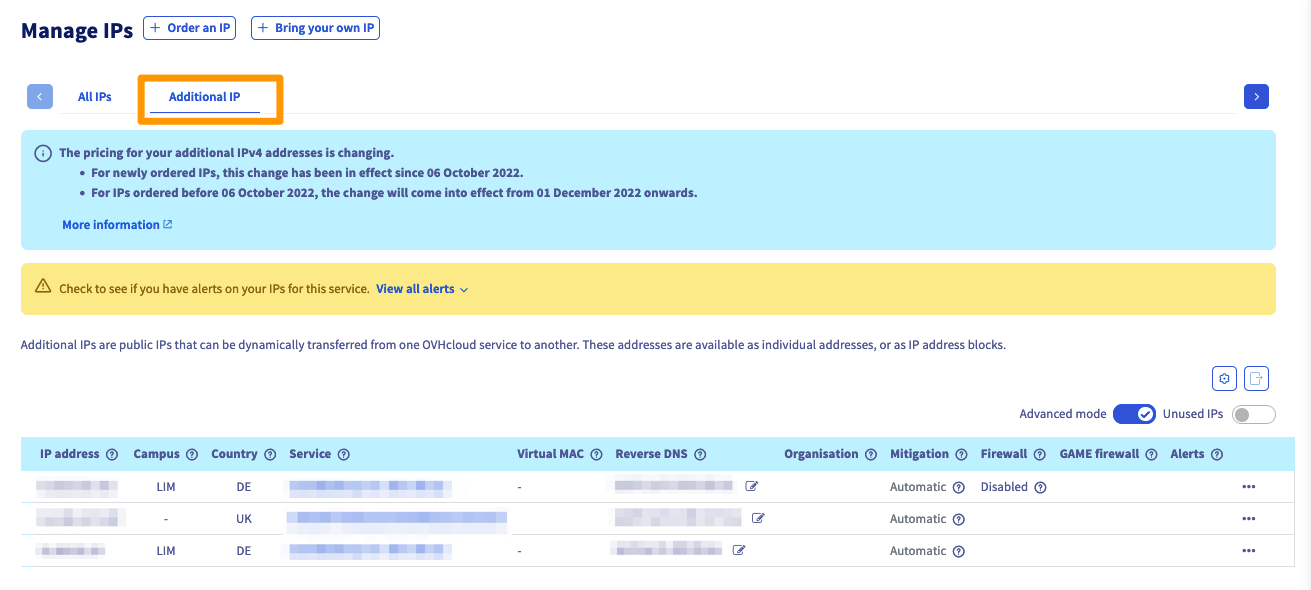
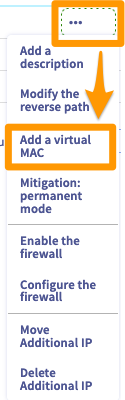
Once you're in the IP section, locate your Additional IP address (or block) in the list and then click the `...
` button to bring up the list of options.
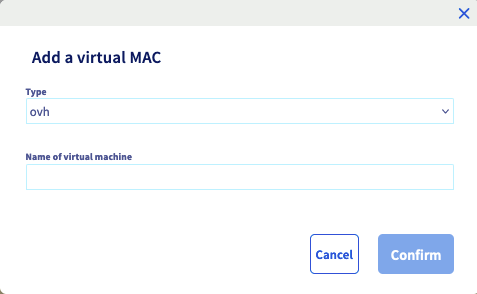
When the 'Add a virtual MAC' box appears, select a type from the dropdown list, enter a virtual machine name, and then click `Confirm
`.
:::info
**Type:** Refers to the virtual MAC address type ('VMware' will be a MAC address made for the VMware ESXi system, while 'ovh' will be for any other type of virtualisation system).
**Name of virtual machine:** Refers to the desired name for the virtual MAC address, in order to make it easy to identify this IP/MAC pair in the future.
:::
:::info
Do not forget to assign the virtual MAC address created in your virtual machine configuration.
:::
#### Via the OVHcloud API
Use the following API call:
🇪🇺EU▾
[POST/dedicated/server/{serviceName}/virtualMac/{macAddress}/virtualAddress/{ipAddress}](https://eu.api.ovh.com/console/?section=/dedicated/server&branch=v1#post-/dedicated/server/-serviceName-/virtualMac/-macAddress-/virtualAddress/-ipAddress-)
### Delete a MAC address
:::warning
When a MAC address is deleted, it will not be recoverable.
:::
#### Via the OVHcloud Control Panel
Log in to the OVHcloud Control Panel
, open the `Network
` menu in the left-hand sidebar and click `Public IP Addresses
`. Select the correct server, so that the Additional IP (or IP block) attached to it appears.
Finally, click on the `...
` button on the right, then click `Delete a Virtual MAC
`.
#### Via the OVHcloud API
Use the following API call:
🇪🇺EU▾
[DELETE/dedicated/server/{serviceName}/virtualMac/{macAddress}/virtualAddress/{ipAddress}](https://eu.api.ovh.com/console/?section=/dedicated/server&branch=v1#delete-/dedicated/server/-serviceName-/virtualMac/-macAddress-/virtualAddress/-ipAddress-)
## FAQ
- **What happens if I move a block with vMACs on a 3rd generation Advance server (powered by an EPYC 4004 Series processor) that already has 32 vMACs?**
The block will not be moved.
Example: if you try to move a block of 4 IPs with different vMACs attached on a server that already has 30 vMACs the block will not be moved because the total of vMACs would be greater than the 32 vMACs allowed.
## Go further
Join our [community of users](https://community.ovhcloud.com/).