---
title: "What are the IP addresses of the OVHcloud monitoring?"
description: "Find here the IP addresses to fill in when setting up a firewall so that OVHcloud monitoring will continue to work on your server"
url: https://docs.ovhcloud.com/en/guides/bare-metal-cloud/dedicated-servers/network-ip-monitoring
lang: en
lastUpdated: 2025-06-04
---
# What are the IP addresses of the OVHcloud monitoring?
## Objective
The monitoring service allows OVHcloud to monitor the status of your machine and automatically trigger the intervention of a technician in the datacenter.
All the servers of our customers and the entire network are monitored 24/7 by OVHcloud technical teams.
OVHcloud intervenes as soon as an alert (non-response to the pings) is triggered in order to minimize the downtime of the servers and the network.
To implement a restrictive firewall, especially on ICMP, and continue to benefit from OVHcloud monitoring, it is necessary to authorize the IPs that you will find below.
## Requirements
- An OVHcloud service on which you have installed a firewall
- Access to the firewall rules
***
### OVHcloud Control Panel Access
- **Direct link:** Dedicated Servers
- **Navigation path:** Bare Metal Cloud > Dedicated servers > Select your server
***
## Instructions
### IP addresses to be authorised
| Reverse | IP | Protocol |
| ---------------- | -------------------------------------------------- | ----------------------------------------------- |
| netmon-rbx-probe | 92.222.184.0/24 | icmp |
| netmon-sbg-probe | 92.222.185.0/24 | icmp |
| netmon-gra-probe | 92.222.186.0/24 | icmp |
| netmon-bhs-probe | 167.114.37.0/24 | icmp |
| netmon-sgp-probe | 139.99.1.144/28 | icmp |
| netmon-waw-probe | 193.70.125.118/32 | icmp |
| netmon-mum-probe | 148.113.25.1/32 | icmp |
| netmon-syd-probe | 139.99.187.247/32 | icmp |
| netmon-tor-probe | 72.251.7.222/32 | icmp |
| netmon-eri-probe | 51.195.135.163/32 | icmp |
| netmon-lim-probe | 51.38.117.56 | icmp |
| netmon-sbg-probe | 51.38.25.100 | icmp |
| netmon-par-probe | 57.130.4.212 | icmp |
| ping.ovh.net | 213.186.33.13 | icmp |
| --- | --- | --- |
| | xxx.xxx.xxx.250 (xxx.xxx.xxx.aaa is the server ip) | icmp |
| | xxx.xxx.xxx.251 (xxx.xxx.xxx.aaa is the server ip) | icmp + Port monitored by the monitoring service |
**Communication between the RTM service and your server also requires that you allow inbound and outbound connections on UDP ports 6100 through 6200.**
:::info
If your server is located in Roubaix 3, you have to retrieve the last IP via tcpdump:
````
tcpdump host server_ip | grep ICMP
````
:::
### Server monitoring [](#)
You can set the monitoring status for a dedicated server from the `General information
` tab (section **Service status**
).
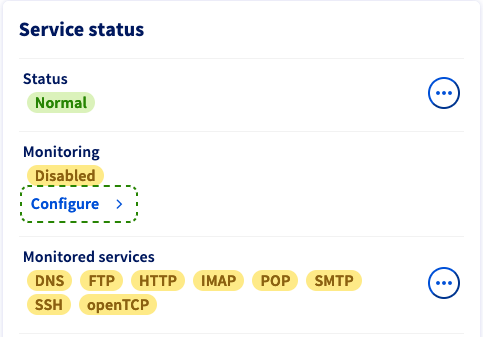
Click on the button `Configure
`. In the popup window, you have three options for the monitoring behaviour:
- **Disabled**: This option stops alert messages and interventions by OVHcloud. Choose this if you are executing pertinent administrative actions on the server which prevent an ICMP response.
- **Enabled with proactive intervention**: If the server stops responding, an alert email is sent to you and the server will be checked by a technician.
- **Enabled without proactive intervention**: You will receive an alert message by email in case the server stops responding. To initiate an intervention, you will need to create a support request.
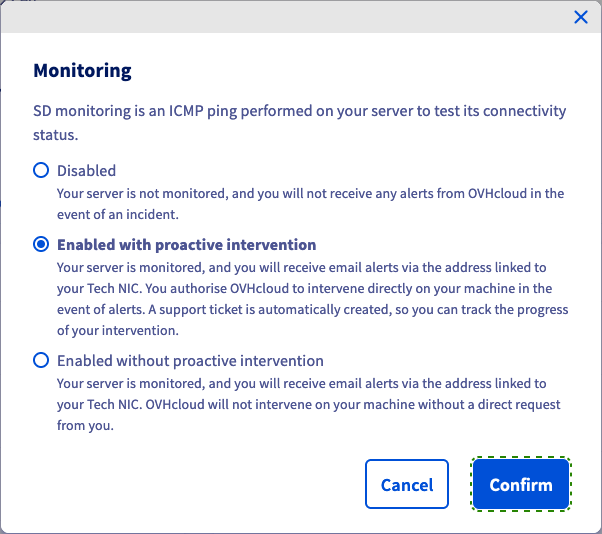
Click on `Confirm
` to update your monitoring configuration.
## Go further
[Configure the Network Firewall](/en/guides/bare-metal-cloud/dedicated-servers/firewall-network.md).
Join our [community of users](https://community.ovhcloud.com/).