---
title: "How to configure Link Aggregation with LACP in Debian 12 or Ubuntu 24.04"
description: "Enable Link Aggregation in your Debian 12 or Ubuntu 24.04 server (Netplan) to increase your server’s availability and boost the efficiency of your network connections"
url: https://docs.ovhcloud.com/en/guides/bare-metal-cloud/dedicated-servers/lacp-enable-netplan
lang: en
lastUpdated: 2026-05-28
---
# How to configure Link Aggregation with LACP in Debian 12 or Ubuntu 24.04
## Objective
Link Aggregation Control Protocol (LACP) technology is designed to increase your server’s availability, and boost the efficiency of your network connections. You can aggregate your network cards and make your network links redundant. This means that if one link goes down, traffic is automatically redirected to another available link. The available bandwidth is also doubled thanks to aggregation.
**This guide explains how to bond your interfaces to use them for link aggregation in Debian 12 (_or newer_) / Ubuntu 24.04 (Netplan configuration).**
:::warning
While Debian 12 and newer images provided by OVHcloud utilize Netplan by default, there are two key exceptions where `ifupdown` (/etc/network/interfaces) is used instead:
- **Rescue mode**: Although based on Debian 12, the rescue environment relies on the `ifupdown` utility.
- **Custom images**: Debian installations performed using your own image may still use `ifupdown` for networking.
If you wish to configure link aggregation in rescue mode, or on a custom OS relying on `ifupdown`, please refer to [this guide](/en/guides/bare-metal-cloud/dedicated-servers/ola-enable-debian9.md) instead.
:::
## Requirements
***
### OVHcloud Control Panel Access
- **Direct link:** Dedicated Servers
- **Navigation path:** Bare Metal Cloud > Dedicated servers > Select your server
***
## Instructions
:::info
The values (MAC addresses, IP addresses, etc.) shown in the configurations and examples below are provided as examples. Of course, you must replace these values with your own.
:::
### Retrieving MAC addresses
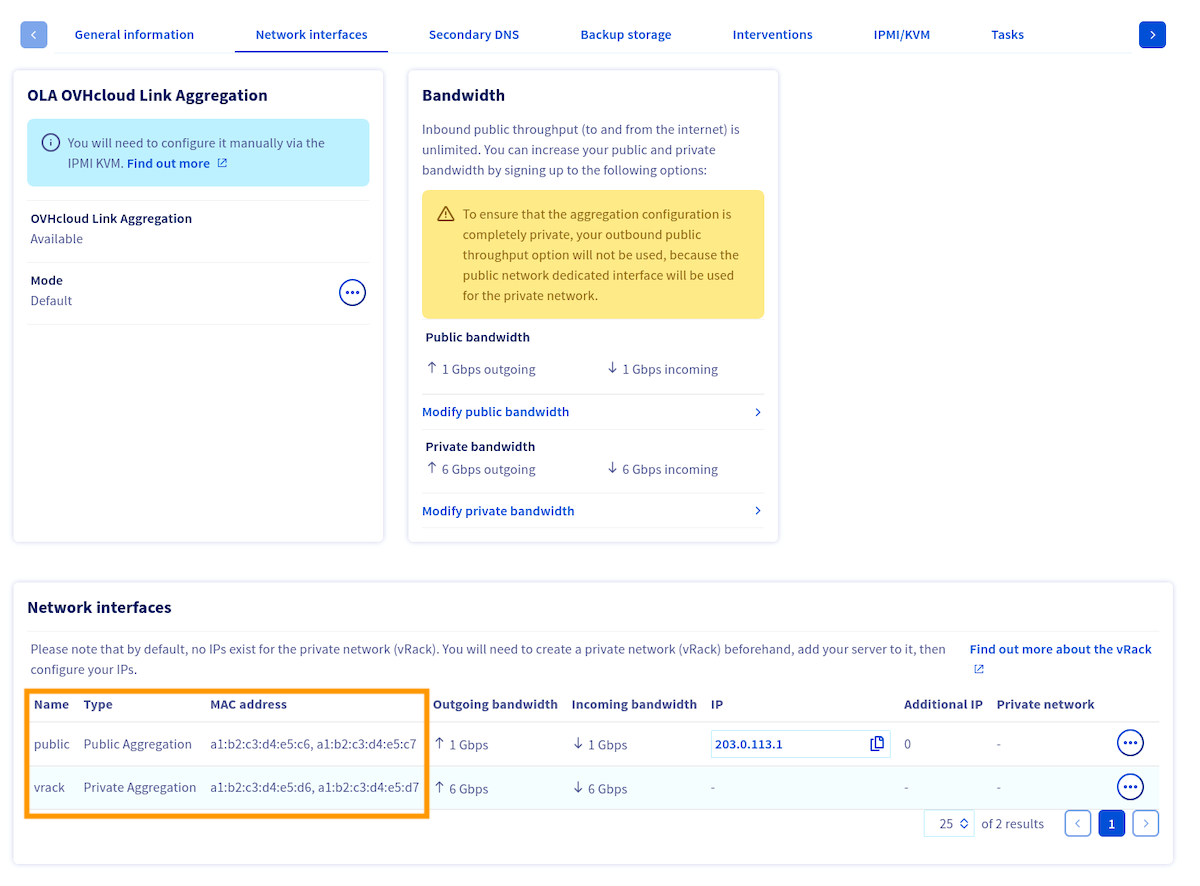
Switch to the tab `Network Interfaces
` and take note of the MAC addresses for each interface (public/private) which are displayed at the bottom of the menu.
:::info
Please note that the MAC address of the **main public** interface is the one receiving DHCP offers, both in the server's operating system and in rescue mode. This interface handles public connectivity in the default configuration.
:::
Now that you know which MAC addresses are associated to each type (public/private) of interface, you need to retrieve the interfaces names.
### Retrieving interfaces names
:::info
If you lose network connection to your server, follow the "**Open KVM**" steps from [this guide](/en/guides/bare-metal-cloud/dedicated-servers/ipmi.md).
:::
To retrieve the names of the interfaces, execute the following command:
```bash
ip a
```
:::info
This command will yield numerous interfaces. If you are having trouble determining which ones are your physical interfaces, the first interface will still have the server's public IP address attached to it by default.
:::
Here's an output example:
```text
1: lo: mtu 65536 qdisc noqueue state UNKNOWN group default qlen 1000
link/loopback 00:00:00:00:00:00 brd 00:00:00:00:00:00
inet 127.0.0.1/8 scope host lo
valid_lft forever preferred_lft forever
inet6 ::1/128 scope host noprefixroute
valid_lft forever preferred_lft forever
2: ens22f0np0: mtu 1500 qdisc mq state UP group default qlen 1000
link/ether a1:b2:c3:d4:e5:c6 brd ff:ff:ff:ff:ff:ff
inet 203.0.113.1/32 metric 100 scope global dynamic ens22f0np0
valid_lft 71613sec preferred_lft 71613sec
inet6 2001:db8:1:1b00:203:0:112:0/56 scope global
valid_lft forever preferred_lft forever
inet6 fe80::a6b2:c3ff:fed4:e5c6/64 scope link
valid_lft forever preferred_lft forever
3: ens22f1np1: mtu 1500 qdisc noop state DOWN group default qlen 1000
link/ether a1:b2:c3:d4:e5:c7 brd ff:ff:ff:ff:ff:ff
4: ens33f0np0: mtu 1500 qdisc noop state DOWN group default qlen 1000
link/ether a1:b2:c3:d4:e5:d6 brd ff:ff:ff:ff:ff:ff
5: ens33f1np1: mtu 1500 qdisc noop state DOWN group default qlen 1000
link/ether a1:b2:c3:d4:e5:d7 brd ff:ff:ff:ff:ff:ff
```
Once you have determined the names of your interfaces, you can configure interfaces bonding in the OS.
### Static IP configuration
Replace the content of `/etc/netplan/50-cloud-init.yaml` with the following:
```yaml
network:
version: 2
ethernets:
ens22f0np0:
match:
macaddress: a1:b2:c3:d4:e5:c6
ens22f1np1:
match:
macaddress: a1:b2:c3:d4:e5:c7
ens33f0np0:
match:
macaddress: a1:b2:c3:d4:e5:d6
ens33f1np1:
match:
macaddress: a1:b2:c3:d4:e5:d7
bonds:
bond0:
# MAC address of the server's main public interface
macaddress: a1:b2:c3:d4:e5:c6
accept-ra: false
addresses:
- 203.0.113.1/32
- 2001:db8:1:1b00:203:0:112:0/56
routes:
- on-link: true
to: default
via: 100.64.0.1
- on-link: true
to: default
via: fe80::1
nameservers:
addresses:
- 213.186.33.99
- 2001:41d0:3:163::1
interfaces:
- ens22f0np0
- ens22f1np1
parameters:
mode: 802.3ad
lacp-rate: fast
transmit-hash-policy: layer3+4
# Optional: private bond configuration
bond1:
# MAC address of the first private interface
macaddress: a1:b2:c3:d4:e5:d6
accept-ra: false
interfaces:
- ens33f0np0
- ens33f1np1
parameters:
mode: 802.3ad
lacp-rate: fast
transmit-hash-policy: layer3+4
```
DHCP configuration
Replace the content of `/etc/netplan/50-cloud-init.yaml` with the following:
```yaml
network:
version: 2
ethernets:
ens22f0np0:
match:
macaddress: a1:b2:c3:d4:e5:c6
ens22f1np1:
match:
macaddress: a1:b2:c3:d4:e5:c7
ens33f0np0:
match:
macaddress: a1:b2:c3:d4:e5:d6
ens33f1np1:
match:
macaddress: a1:b2:c3:d4:e5:d7
bonds:
bond0:
# MAC address of the server's main public interface
macaddress: a1:b2:c3:d4:e5:c6
accept-ra: false
dhcp4: true
addresses:
- 2001:db8:1:1b00:203:0:112:0/56
routes:
- on-link: true
to: default
via: fe80::1
nameservers:
addresses:
- 2001:41d0:3:163::1
interfaces:
- ens22f0np0
- ens22f1np1
parameters:
mode: 802.3ad
lacp-rate: fast
transmit-hash-policy: layer3+4
# Optional: private bond configuration
bond1:
# MAC address of the first private interface
macaddress: a1:b2:c3:d4:e5:d6
accept-ra: false
interfaces:
- ens33f0np0
- ens33f1np1
parameters:
mode: 802.3ad
lacp-rate: fast
transmit-hash-policy: layer3+4
```
### Applying the configuration
:::info
The `netplan try` command can't be used when configuring bonds.
:::
Apply the configuration using the following command:
```bash
sudo netplan apply
```
It may take several seconds for the bond interfaces to come up.
## Go further
Join our [community of users](https://community.ovhcloud.com/).