---
title: "How to store public authentication keys in the OVHcloud Control Panel"
description: "Find out how to import public SSH keys into your OVHcloud Control Panel"
url: https://docs.ovhcloud.com/en/guides/bare-metal-cloud/dedicated-servers/import-keys-control-panel
lang: en
lastUpdated: 2024-12-04
---
# How to store public authentication keys in the OVHcloud Control Panel
## Objective
Key pairs are used to authenticate SSH connections between hosts, for example a desktop client and a remote server. When reinstalling a dedicated server or a VPS from the OVHcloud Control Panel, you have the option to add a public key to the operating system. Storing public keys in your Control Panel makes this process more convenient.
**This guide explains how to store your public authentication keys in the OVHcloud Control Panel.**
## Requirements
- A [dedicated server](https://www.ovhcloud.com/en-gb/bare-metal/) or a [VPS](https://www.ovhcloud.com/en-gb/vps/) in your OVHcloud account
:::info
For information about using authentication keys with [Public Cloud](https://www.ovhcloud.com/en-gb/public-cloud/) services, refer to our dedicated guide:
[How to create SSH keys with OpenSSH for Public Cloud instances](/en/guides/public-cloud/compute/creating-ssh-keys.md)
:::
***
### OVHcloud Control Panel Access
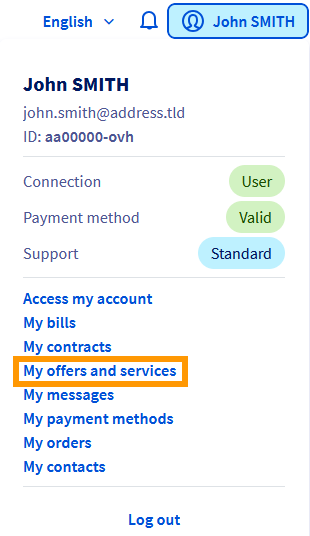
- **Direct link:** My offers and services
- **Navigation path:** Click your name in the top right > My offers and services
***
## Instructions
If you have not created a key pair yet, consult our guides first:
- [How to create and use keys for SSH authentication](/en/guides/bare-metal-cloud/dedicated-servers/creating-ssh-keys.md)
- [How to create and use keys for SSH authentication with PuTTY](/en/guides/web-cloud/web-hosting/ssh-using-putty-on-windows.md)
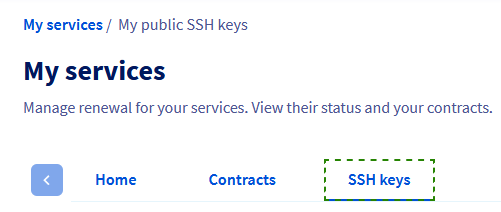
In the Control Panel section `My services`
, click `SSH keys
`.
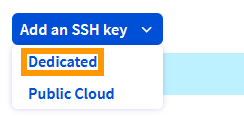
Click the button `Add an SSH key
` and select `Dedicated
` from the menu.
In the popup window, enter a label for the key in the first field.\
Copy the entire public key string and paste it into the second field.
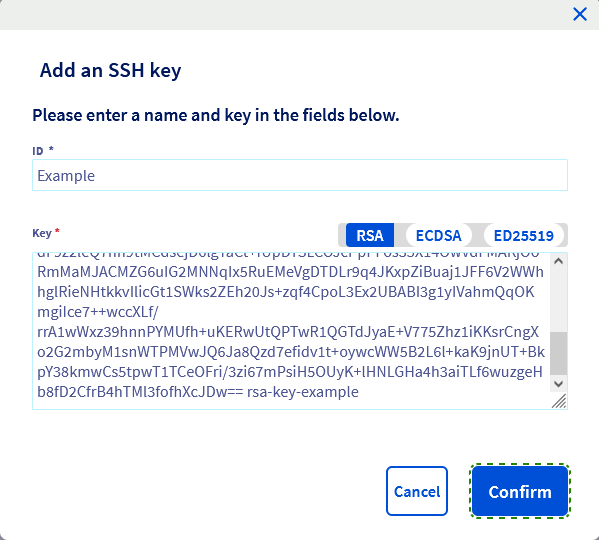
Click the button `Confirm
`.
The key will now be available when you reinstall a dedicated server or a VPS in the OVHcloud Control Panel.
Consult our "Getting started" guides for further details on this topic:
- [Dedicated server](/en/guides/bare-metal-cloud/dedicated-servers/getting-started-with-dedicated-server.md)
- [Dedicated server of the **Eco** product line](/en/guides/bare-metal-cloud/dedicated-servers/getting-started-with-dedicated-server-eco.md)
- [VPS](/en/guides/bare-metal-cloud/virtual-private-servers/starting-with-a-vps.md)
## Go further
For specialized services (SEO, development, etc.), contact [OVHcloud partners](https://partner.ovhcloud.com/en-gb/directory/).
If you would like assistance using and configuring your OVHcloud solutions, please refer to our [support offers](https://www.ovhcloud.com/en-gb/support-levels/).
Join our [community of users](https://community.ovhcloud.com/).