---
title: "How to install VMware ESXi 8 on a dedicated server"
description: "Find out how to install and configure VMware ESXi 8 on a dedicated server using an OVHcloud provided image"
url: https://docs.ovhcloud.com/en/guides/bare-metal-cloud/dedicated-servers/esxi-partitioning
lang: en
lastUpdated: 2025-10-03
---
# How to install VMware ESXi 8 on a dedicated server
## Objective
:::info
Since September 15, 2025, OVHcloud provides an ESXi 8 installation template for its dedicated servers.
:::
This guide will show you how to install ESXi 8 on your dedicated servers, and select a partitioning layout in the OVHcloud Control Panel
or via the [OVHcloud API](https://eu.api.ovh.com/)
.
## Requirements
- A [dedicated server](https://www.ovhcloud.com/en-gb/bare-metal/) **ready to be installed/reinstalled** in your OVHcloud account that is compatible with [ESXi 8 hardware requirements](https://techdocs.broadcom.com/us/en/vmware-cis/vsphere/vsphere/8-0/esxi-upgrade-8-0/upgrading-esxi-hosts-upgrade/esxi-requirements-upgrade/esxi-hardware-requirements-upgrade.html)
- Access to the [OVHcloud API](https://eu.api.ovh.com/) (optional)
***
### OVHcloud Control Panel Access
- **Direct link:** Dedicated Servers
- **Navigation path:** Bare Metal Cloud > Dedicated servers > Select your server
***
:::danger
Reinstalling a dedicated server deletes all data currently stored on it.
:::
## Instructions
With OVHcloud dedicated servers, you can freely [configure partitioning](/en/guides/bare-metal-cloud/dedicated-servers/partitioning-ovh.md). This gives customers a wide range of options when installing an operating system. ESXi is an exception because it is a UNIX-based, proprietary system with a proprietary installer.
OVHcloud installations of ESXi are therefore compliant with the configuration set by the software publisher.
ESXi 7.0 and later versions introduced a [boot option to configure the size of ESXi system partitions](https://kb.vmware.com/s/article/81166)
because the increased size of the system partition could cause issues, especially on systems with small disks. OVHcloud includes this feature in the OVHcloud Control Panel
and the [OVHcloud API](https://eu.api.ovh.com/)
.
Even with multiple disks available on a server, the ESXi OS installation uses only the first disk of the targeted disk group (see [OVHcloud API and OS Installation - Disk Groups](/en/guides/bare-metal-cloud/dedicated-servers/partitioning-ovh.md#disk-group)). Other disks may be configured afterwards to be used for virtual machines (see [How to add a datastore](/en/guides/bare-metal-cloud/dedicated-servers/hgrstor2-system-configuration.md#add-datastore)).
There are 4 predefined partitioning layouts:
| Value | System size¹ | Datastore³ |
| --------- | -------------------- | -------------------- |
| `default` | 130 GiB | All remaining space² |
| `min` | 32 GiB | All remaining space² |
| `small` | 64 GiB | All remaining space² |
| `max` | All available space² | ❌⁴ |
¹ On the first disk of the targeted disk group for the OS installation.
² Space on the disk on which the OS will be installed.
³ A datastore is a disk partition (sometimes also called "container") that ESXi will use to store the virtual machines. [More details](https://docs.vmware.com/en/VMware-vSphere/7.0/com.vmware.vsphere.storage.doc/GUID-5EE84941-366D-4D37-8B7B-767D08928888.html)
.
⁴ Customers can still [add a datastore](/en/guides/bare-metal-cloud/dedicated-servers/hgrstor2-system-configuration.md#add-datastore)
afterwards on the other disks.
As you can see, no datastore is created on the first disk with the `max` partitioning layout.
:::info
Did you know?
[VMware on OVHcloud solutions](https://www.ovhcloud.com/en-gb/hosted-private-cloud/vmware/) are based on ESXi with the partitioning layout `small`.
:::
### How to select the partitioning scheme
The `default` partitioning scheme will be used unless another one is selected.
#### Via the OVHcloud Control Panel
:::info
The procedure is very similar [to other operating systems](/en/guides/bare-metal-cloud/dedicated-servers/getting-started-with-dedicated-server.md)
, with the exception that you cannot tick the checkbox `Customise the partitioning configuration
` and that you have a dropdown menu to choose the partitioning layout at the fourth and final step.
:::
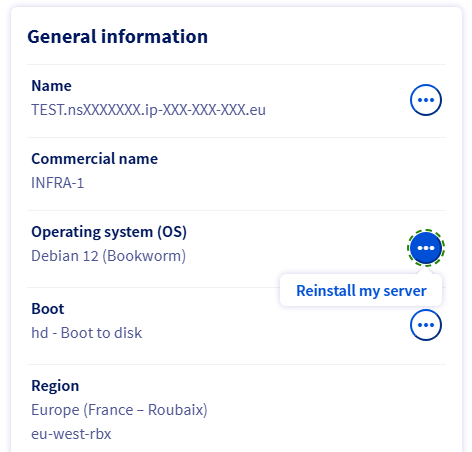
From the `General information
` tab, click the `...
` button next to the operating system and then click `Reinstall my server
`.
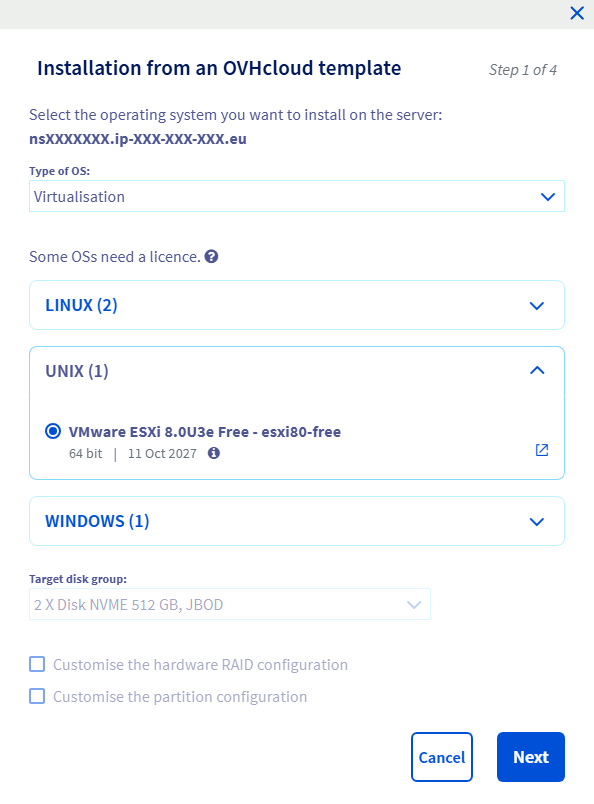
Then choose `Virtualisation
`, `UNIX
` and select the version of ESXi you want to install on your dedicated server.
:::info
The `Customise the hardware RAID configuration
` option is only available if your dedicated server has a hardware RAID controller.
:::
:::info
The `Customise the partition configuration
` option is not available, for the above reasons.
:::
Choose the disk group on which you want ESXi to be installed. Note that only the first disk of this group will be used to install the OS. Find more information in [this guide](/en/guides/bare-metal-cloud/dedicated-servers/partitioning-ovh.md#disk-group).
Click `Next
` to continue.
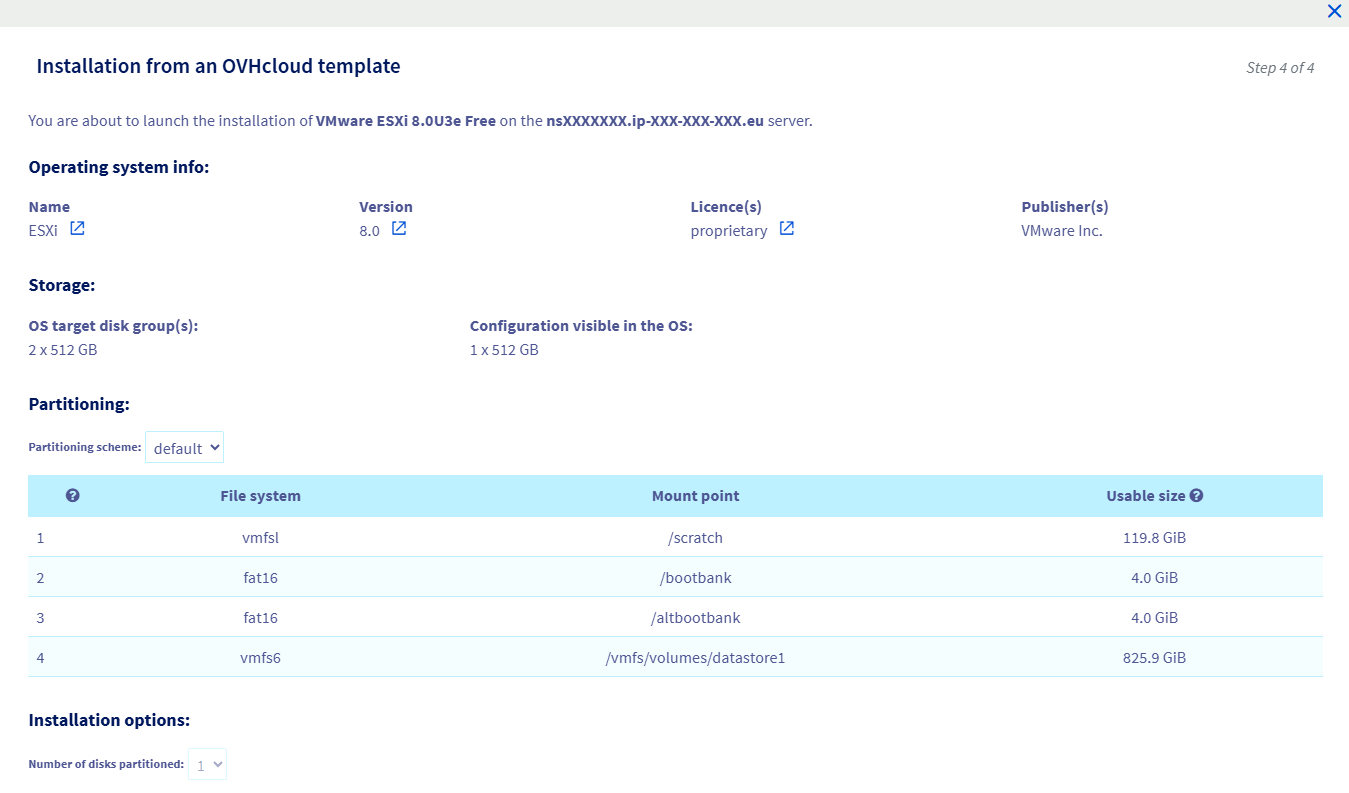
In the `Partitioning scheme
` dropdown menu, select the desired partitioning scheme. The overview is updated as soon as you select another partitioning scheme, so you can get an idea of how the partitioning will look like on your dedicated server.
Fill in the other details and click `Confirm
` to start the ESXi installation on your dedicated server.
:::info
The `Number of disks partitioned
` field is greyed out and set to 1, even if your server has more than 1 disk on the target disks group for OS installation, as explained above.
:::
#### Via the OVHcloud API
When triggering an OS installation, the customer can optionally provide a `partitionSchemeName` in order to specify which partitioning layout must be used:
🇪🇺EU▾
[POST/dedicated/server/{serviceName}/reinstall](https://eu.api.ovh.com/console/?section=/dedicated/server&branch=v1#post-/dedicated/server/-serviceName-/reinstall)
Example of payload:
```json
{
"operatingSystem": "esxi80_64",
"storage": [
{
"partitioning": {
"schemeName": "small"
}
}
]
}
```
To list the different available partitioning schemes for an OVHcloud template, you can use the following API call:
🇪🇺EU▾
[GET/dedicated/installationTemplate/{templateName}/partitionScheme](https://eu.api.ovh.com/console/?section=/dedicated/installationTemplate&branch=v1#get-/dedicated/installationTemplate/-templateName-/partitionScheme)
For example, using the template name `esxi80_64` will return:
```json
[
"default"
"max"
"small"
"min"
]
```
In order to get the details of the partitioning scheme dynamically, you can use the following API call:
🇪🇺EU▾
[GET/dedicated/installationTemplate/{templateName}/partitionScheme/{schemeName}/partition](https://eu.api.ovh.com/console/?section=/dedicated/installationTemplate&branch=v1#get-/dedicated/installationTemplate/-templateName-/partitionScheme/-schemeName-/partition)
For example, using the scheme name `default` will return:
```json
[
"/scratch",
"/bootbank",
"/altbootbank",
"/vmfs/volumes/datastore1"
]
```
You can use the following API call to get the details for each partition:
🇪🇺EU▾
[GET/dedicated/installationTemplate/{templateName}/partitionScheme/{schemeName}/partition/{mountpoint}](https://eu.api.ovh.com/console/?section=/dedicated/installationTemplate&branch=v1#get-/dedicated/installationTemplate/-templateName-/partitionScheme/-schemeName-/partition/-mountpoint-)
For example, using the mountpoint `/bootbank` will return:
```json
{
"order": 2,
"filesystem": "fat16",
"mountpoint": "/bootbank",
"size": {
"value": 4095,
"unit": "MB"
},
"raid": "0",
"type": "primary",
"volumeName": ""
}
```
## Go further [](#)
[Boot option to configure the size of ESXi system partitions](https://kb.vmware.com/s/article/81166)
[Getting started with a dedicated server](/en/guides/bare-metal-cloud/dedicated-servers/getting-started-with-dedicated-server.md)
[Getting started with a Kimsufi, So You Start or Rise dedicated server](/en/guides/bare-metal-cloud/dedicated-servers/getting-started-with-dedicated-server-eco.md)
[OVHcloud API & OS installation](/en/guides/bare-metal-cloud/dedicated-servers/api-os-installation.md)
[OVHcloud API and Storage](/en/guides/bare-metal-cloud/dedicated-servers/partitioning-ovh.md)
[Managing hardware RAID](/en/guides/bare-metal-cloud/dedicated-servers/raid-hard.md)
[Hot Swap - Hardware RAID](/en/guides/bare-metal-cloud/dedicated-servers/hotswap-raid-hard.md)
Join our [community of users](https://community.ovhcloud.com/).