---
title: "Configuring the vRack between the Public Cloud and a Dedicated Server"
description: "Find out how to configure private networking between a Public Cloud instance and a Dedicated Server"
url: https://docs.ovhcloud.com/en/guides/bare-metal-cloud/dedicated-servers/configuring-the-vrack-between-the-public-cloud-and-a-dedicated-server
lang: en
lastUpdated: 2026-02-20
---
# Configuring the vRack between the Public Cloud and a Dedicated Server
## Objective
The OVHcloud [vRack](https://www.ovhcloud.com/en-gb/network/vrack/) allows you to configure private network addressing between two or more OVHcloud [Dedicated Servers](https://www.ovhcloud.com/en-gb/bare-metal/). But it also allows you to add [Public Cloud instances](https://www.ovhcloud.com/en-gb/public-cloud/compute/) to your private network so that you can create an infrastructure of both physical and virtual resources.
**This guide will show you how to configure private networking between a [Public Cloud instance](/en/guides/public-cloud/compute/first-steps-with-public-cloud-instance.md) and a [Dedicated Server](https://www.ovhcloud.com/en-gb/bare-metal/).**
## Requirements
- An [OVHcloud Public Cloud instance](/en/guides/public-cloud/compute/first-steps-with-public-cloud-instance.md)
- A [vRack](https://www.ovhcloud.com/en-gb/network/vrack/) service activated in your account
- A [Dedicated Server](https://www.ovhcloud.com/en-gb/bare-metal/) compatible with the vRack
- A private IP address range of your choice
- Both services must be in the same vRack.
***
### OVHcloud Control Panel Access
- **Direct link:** Public Cloud Projects
- **Navigation path:** Public Cloud > Select your project
***
:::warning
This feature might be unavailable or limited on servers of the [**Eco** product line](https://eco.ovhcloud.com/en-gb/about/).
Please visit our [comparison page](https://eco.ovhcloud.com/en-gb/compare/) for more information.
:::
## Instructions
### Add a Public Cloud project to the vRack
:::info
This does not apply to newly created projects, which are automatically delivered with a vRack. Once the project has been created, you can view the vRack by opening the `Network
` menu in the left-hand sidebar and selecting `vRack Private Network
`.
You can also remove the project from its allocated vRack and attach it to another vRack if you wish, particularly if you already had an existing vRack with your dedicated server(s).
:::
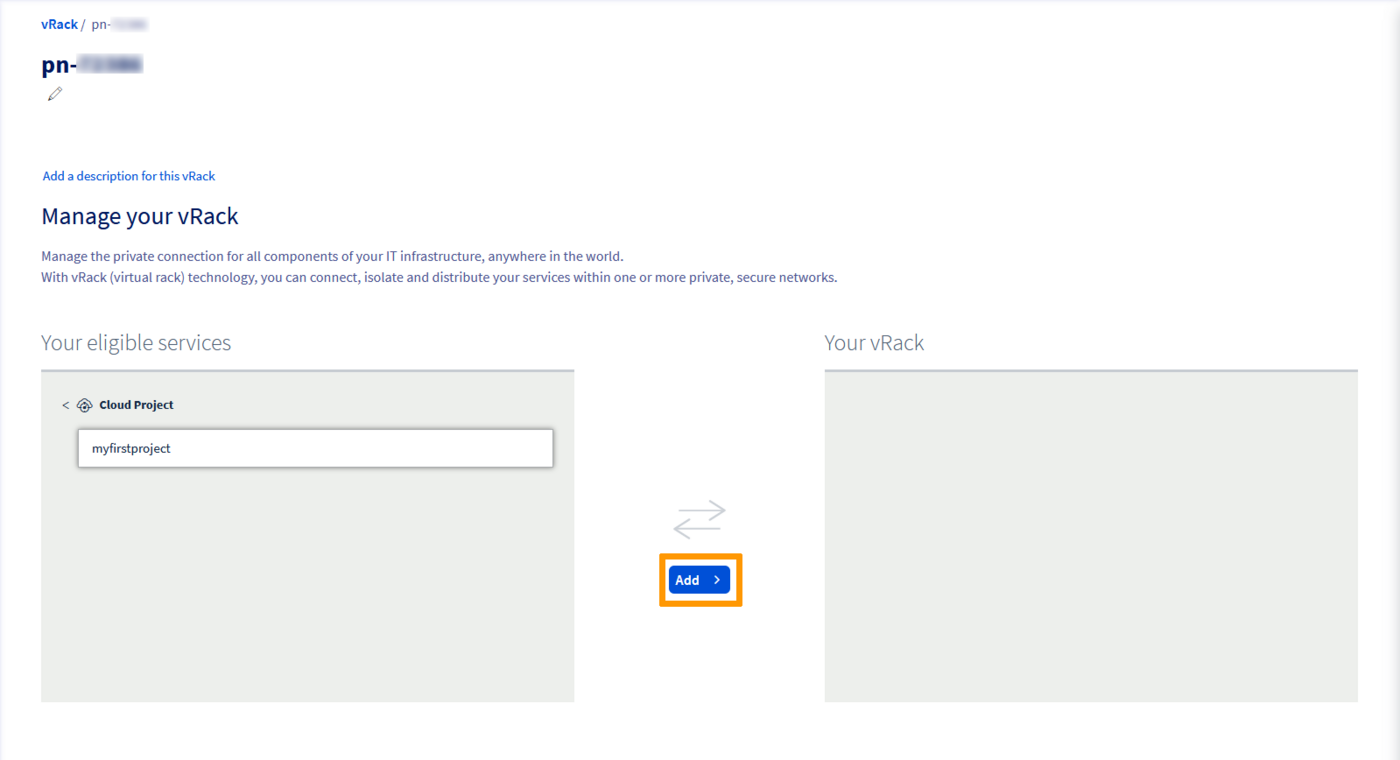
From the list of eligible services, select the project you want to add to the vRack and click the `Add
` button.
### Integrating an instance into the vRack
:::info
This guide focuses on a simple vRack configuration between a Public Cloud instance and a dedicated server.
If you have set up your instance(s) with a deployment mode such as local zones or multi AZ, note that local zones do not support the vRack for now.
Additionally, the **vRack** is a global L2 network and does not support "zone" or "region" level resilience.
:::
Two situations may arise:
- The instance does not exist yet.
- The instance already exists and you must attach a private network to it.
#### In case of a new instance
If you need assistance, follow this guide first: [Creating your first Public Cloud instance](/en/guides/public-cloud/compute/first-steps-with-public-cloud-instance.md). When creating an instance, you can choose, in Step 5, a network mode, followed by a private network to integrate your instance into.
#### In case of an existing instance
Once your project is linked to a vRack, you can create a private network and attach it to existing instances.
Go to the `Public Cloud
` tab, then click `Private Network
` under **Network**
in the left sidebar.
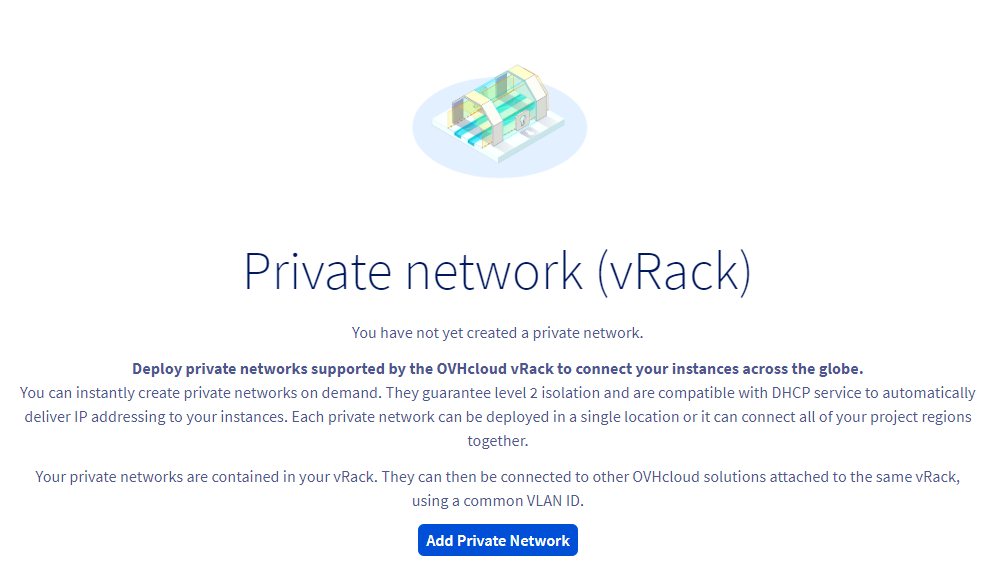
Click on `Add Private Network
`.
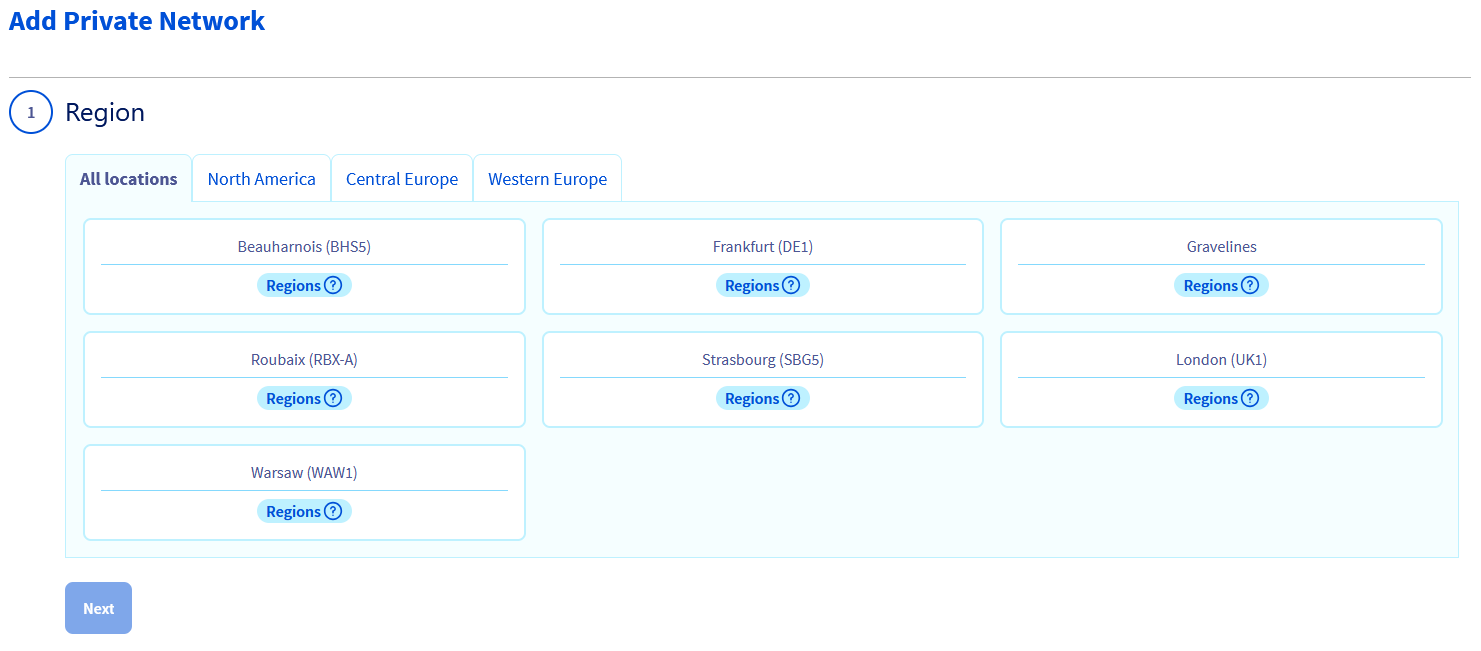
The following page allows you to customise multiple settings.
Select the region in which you want the private network to be located. Make sure it is in the same region as the existing instance.
For both services to communicate with each other, they have to be tagged with the same **VLAN ID**.
This can be configured in the next step.
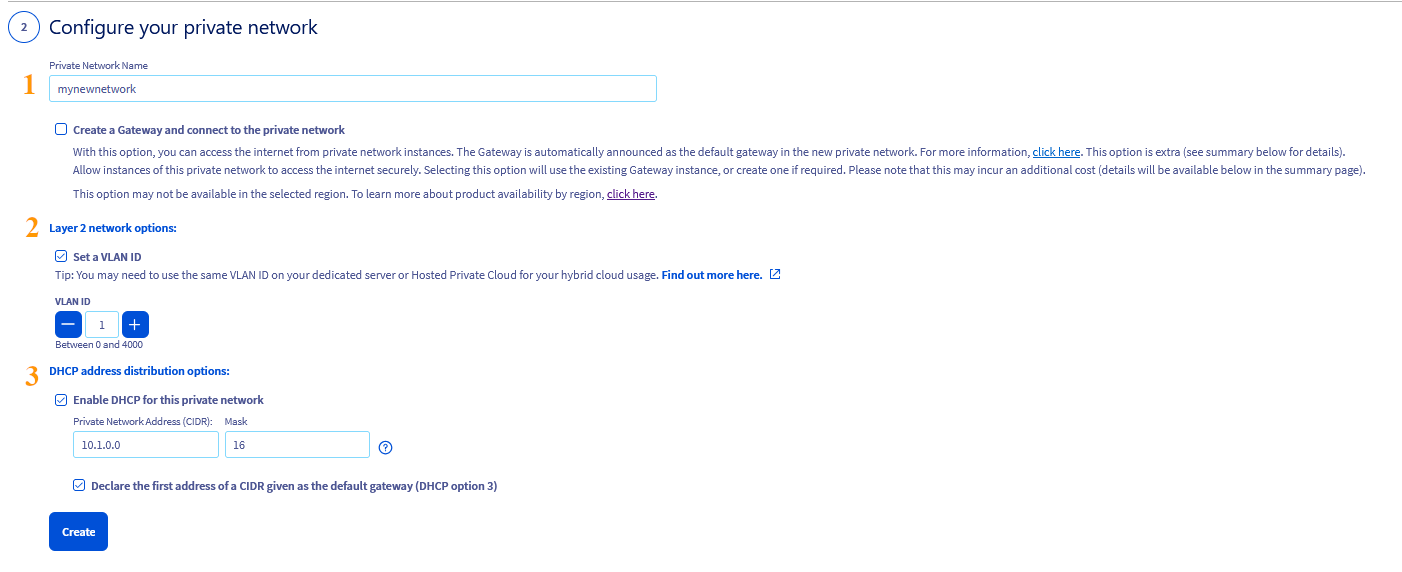
This section offers several configuration options. For the purpose of this guide, we will focus on the necessary ones. Click on the tabs below to view the details:
**Private Network Name**
Enter a name for your private network.
**Layer 2 network options**
By default, the VLAN ID for dedicated servers is **0**. To use this VLAN ID for an instance, it will be necessary to tag the private network with VLAN **0** as well.
Tick the **Set a VLAN ID** box and select VLAN ID **0**.
If you do not tick the box, the system will assign a random VLAN ID to your private network.
**Using a different VLAN ID**
If you do not intend to use VLAN ID 0, you may select a different ID between 1 and 4000. In this case:
- When configuring the vRack on the dedicated server, this VLAN ID must be included in the network configuration file(s).
:::info
It is possible to use the same VLAN ID for multiple private networks; however, this requires careful management of private IP addresses. Using non-overlapping DHCP pool allocations is one way to resolve this issue.
:::
:::info
Unlike dedicated servers (when you use a VLAN ID other than 0), there is no need to include the VLAN ID directly in the Public Cloud instance's network configuration file once it has been defined in the OVHcloud Control Panel.
:::
Example: if the private network of the instance is tagged with VLAN 2, this VLAN ID must be included only in the network configuration of the dedicated server. For further information, please consult the following guide: [Create multiple VLANs in the vRack](/en/guides/bare-metal-cloud/dedicated-servers/creating-multiple-vlans-in-a-vrack.md).
**DHCP address distribution options**
You can keep the default private IP range or use a different one.
Select "Enable DHCP for this private network" to automatically assign and configure the private IP address on the instance. You will then only need to configure the dedicated server’s network interfaces.
When this option is not selected, manual configuration is required on both the Public cloud instance and the dedicated server.
**Network Gateway Options**
Make sure both options are unchecked.
Once done, click on `Configure your private network
`. This will take a few minutes.
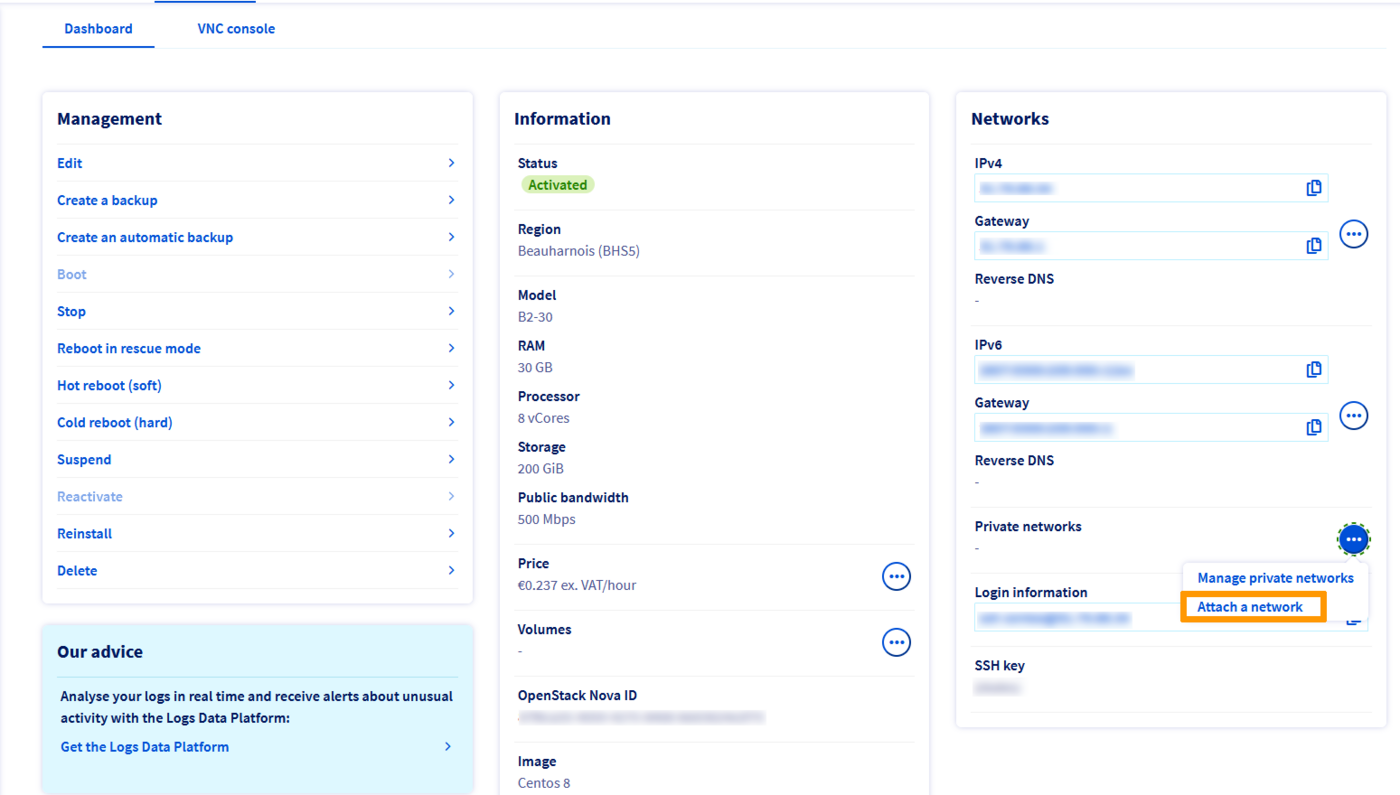
In the dashboard of the instance concerned, locate the "Networks" section and click on the `...
` button next to "Private networks". Select `Attach a network
`.
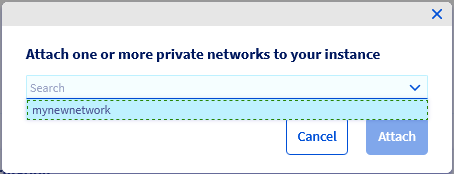
In the popup window, select the private network(s) to attach to your instance and click on `Attach
`.
### Configure your network interfaces
:::info
If you chose the option to configure the private network on your instance using DHCP, you only need to configure the network interfaces on the dedicated server.
:::
#### Configuration when using the default VLAN ID 0
Before you begin, connect to your server via SSH and list your network interfaces with the following command:
```bash
ip a
```
For dedicated servers, locate the line that begins with `link ether`
and verify that this interface matches the **Private**
interface listed in the `Network interfaces
` tab of your server’s dashboard.
Use this interface name to replace `NETWORK_INTERFACE` in the configurations below (example: `eth1`).
For example purposes, we will use the IP address range of `192.168.0.0/16` (**Subnet mask**: `255.255.0.0`).
**Debian 11**
Using a text editor of your choice, open the network configuration file located in `/etc/network/interfaces.d` for editing. Here the file is called `50-cloud-init`.
```bash
sudo nano /etc/network/interfaces.d/50-cloud-init
```
Add the following lines to the existing configuration, replace `NETWORK_INTERFACE`, `IP_ADDRESS` and `NETMASK` with your own values:
```console
auto NETWORK_INTERFACE
iface NETWORK_INTERFACE inet static
address IP_ADDRESS
netmask NETMASK
```
**Example**
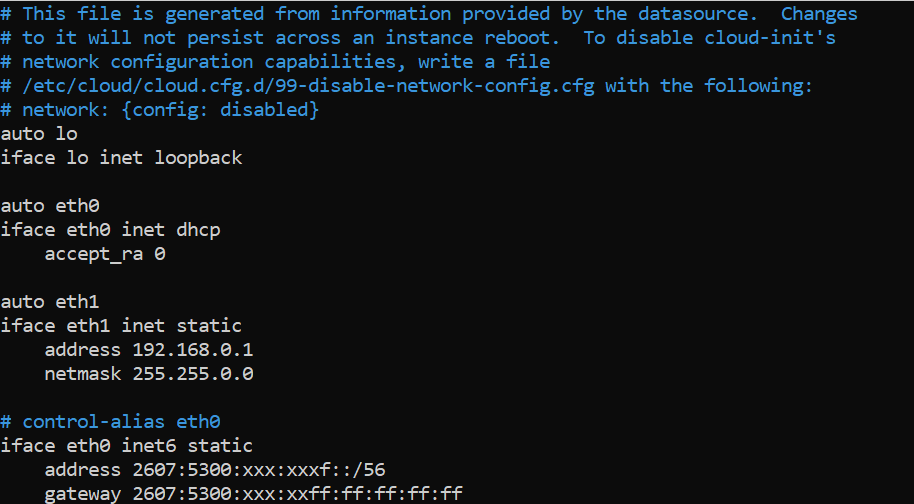Save your changes to the config file and exit the editor.
Restart the networking service to apply the configuration:
```bash
sudo systemctl restart networking
```
**Ubuntu & Debian 12+**
Using a text editor of your choice, open the network configuration file located in `/etc/netplan/` for editing. Here the file is called `50-cloud-init.yaml`.
```bash
sudo nano /etc/netplan/50-cloud-init.yaml
```
Add the following lines to the existing configuration after the line `version: 2`. Replace `NETWORK_INTERFACE` and `IP_ADDRESS/PREFIX` with your own values.
```yaml
ethernets:
NETWORK_INTERFACE:
dhcp4: false
addresses:
- IP_ADDRESS/PREFIX
```
**Example:**
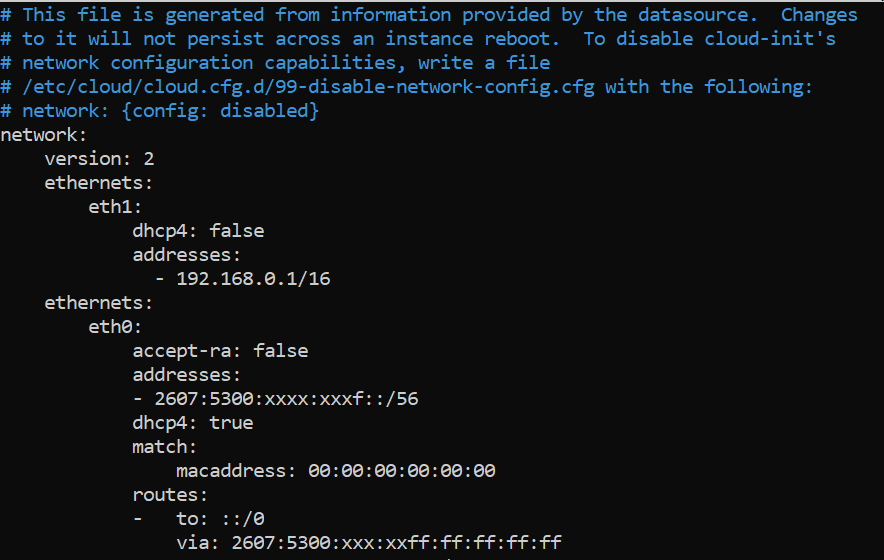:::warning
It is important to respect the alignment of each element in `yaml` files as represented in the example above. Do not use the tab key to create your spacing. Only the space key is needed.
:::
Save your changes to the config file and exit the editor.
Apply the configuration:
```bash
sudo netplan apply
```
**AlmaLinux and Rocky Linux (8/9)**
Once you have identified your private network interface, use the following command to create a network configuration file.
Replace `NETWORK_INTERFACE` with the name of your private interface.
```bash
sudo touch /etc/sysconfig/network-scripts/ifcfg-NETWORK_INTERFACE
```
For example, if the private interface is named `eth1`, we have the following:
```bash
sudo touch /etc/sysconfig/network-scripts/ifcfg-eth1
```
Next, use a text editor of your choice to edit this file.
```bash
sudo nano /etc/sysconfig/network-scripts/ifcfg-eth1
```
Add these lines, replacing `NETWORK_INTERFACE`, `IP_ADDRESS` and `NETMASK` with your own values:
```console
DEVICE=NETWORK_INTERFACE
BOOTPROTO=static
IPADDR=IP_ADDRESS
NETMASK=NETMASK
ONBOOT=yes
TYPE=Ethernet
```
**Example**
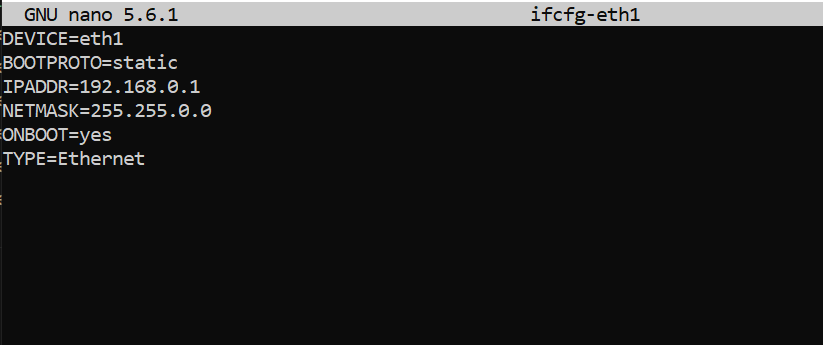Save your changes to the config file and exit the editor.
Restart the networking service to apply the changes:
```bash
sudo systemctl restart NetworkManager
```
**Fedora 42+, AlmaLinux and Rocky Linux (10)**
Once you have identified the name of your private interface, run the following command to verify that is it connected. In our example, our interface is called `eno2`:
```bash
$ nmcli device status
DEVICE TYPE STATE CONNECTION
eno1 ethernet connected cloud-init eno1
lo loopback connected (externally) lo
eno2 ethernet disconnected --
```
If the `STATE` of the `DEVICE` appears as `disconnected`, it must be connected before configuring the IP.
When adding an **ethernet** connection, we have to create a configuration profile which we then assign to a device.
Run the following command, replacing `INTERFACE_NAME` and `CONNECTION_NAME` with your own values.
In our example, we named our configuration profile `private-interface`.
```bash
nmcli connection add type ethernet con-name CONNECTION_NAME ifname INTERFACE_NAME
```
**Example:**
```bash
nmcli connection add type ethernet con-name private-interface ifname eno2
```
Check that the interface has been connected correctly:
```bash
$ nmcli device status
DEVICE TYPE STATE CONNECTION
eno1 ethernet connected cloud-init eno1
eno2 ethernet connected private-interface
lo loopback connected (externally) lo
```
Once this is done, a new configuration file named _xxxxxxxxxx.nmconnection_ will be created in the folder `/etc/NetworkManager/system-connections`.
```bash
[user@server ~]$ cd /etc/NetworkManager/system-connections
[user@server system-connections]$ ls
cloud-init-eno1.nmconnection private-interface.nmconnection
```
You can then edit this file using the `nmcli` handler, replacing `IP_ADDRESS`, `PREFIX` and `CONNECTION_NAME` with your own values.
- Add your IP:
```bash
nmcli connection modify CONNECTION_NAME IPv4.address IP_ADDRESS/PREFIX
```
**Example:**
```bash
nmcli connection modify private-interface IPv4.address 192.168.0.1/16
```
- Change the configuration from **auto** to **manual**:
```bash
sudo nmcli connection modify CONNECTION_NAME IPv4.method manual
```
**Example:**
```bash
sudo nmcli connection modify private-interface IPv4.method manual
```
- Make the configuration persistent:
```bash
sudo nmcli con mod CONNECTION_NAME connection.autoconnect true
```
**Example:**
```bash
sudo nmcli con mod private-interface connection.autoconnect true
```
Reboot your network with the following command:
```bash
sudo systemctl restart NetworkManager
```
**Windows configuration**
Log on to your Windows server via remote desktop and go to the **Control Panel**.
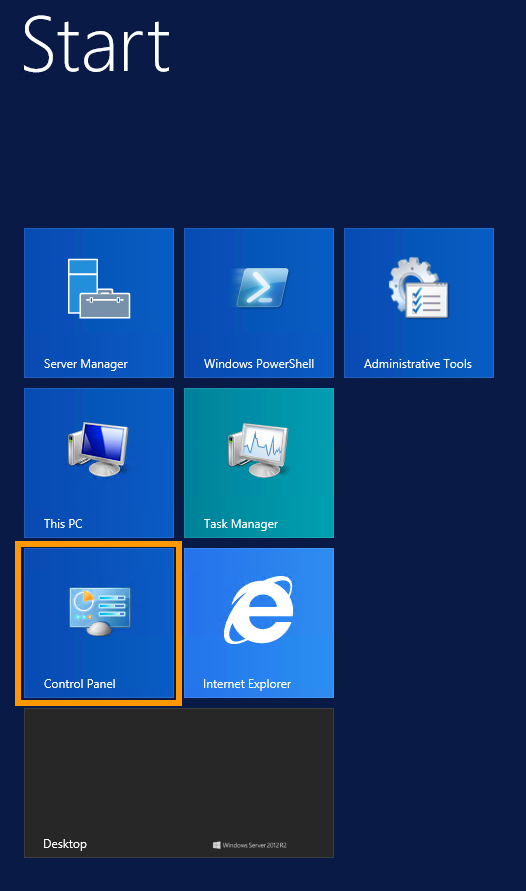Click on Network and Internet.
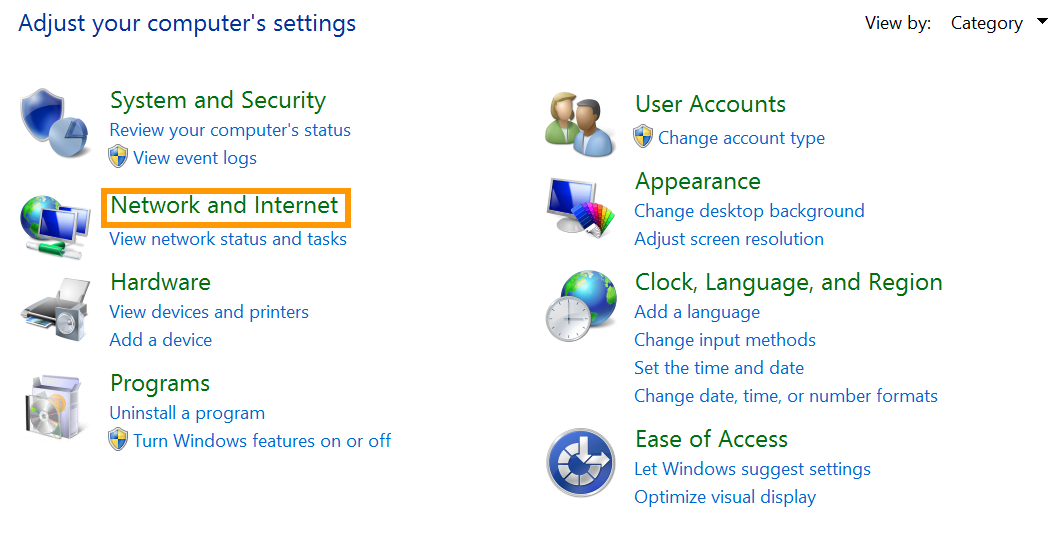Open Network and Sharing Center.
Click on Change Adapter Settings.
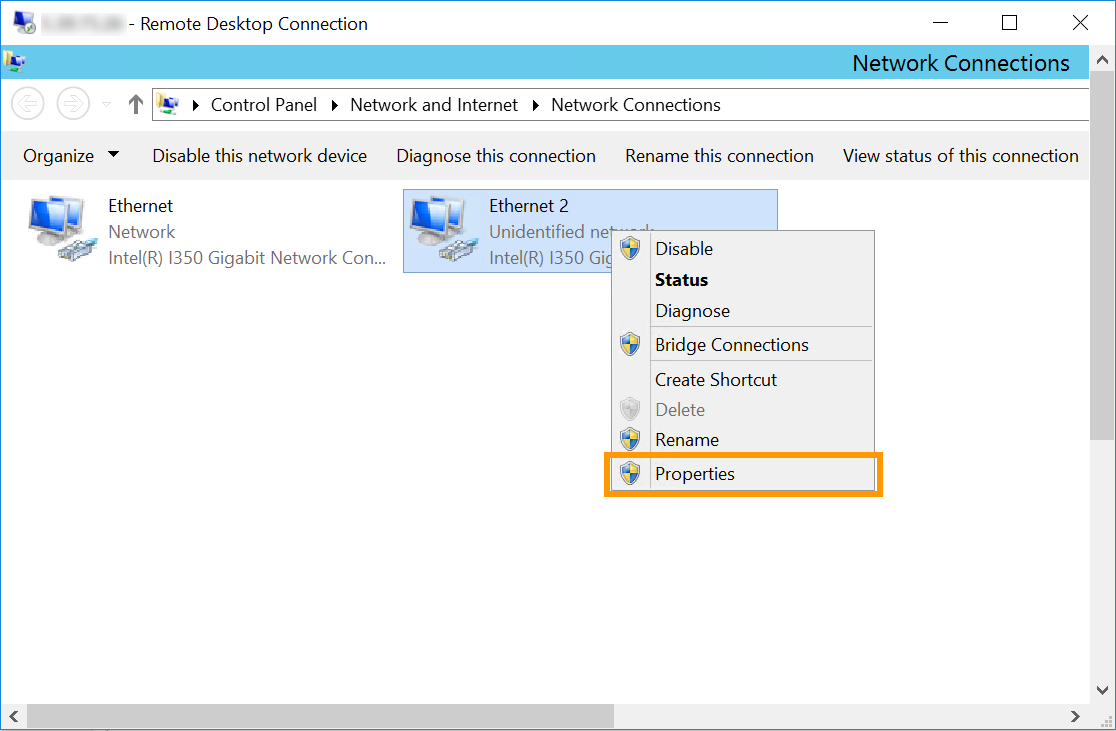
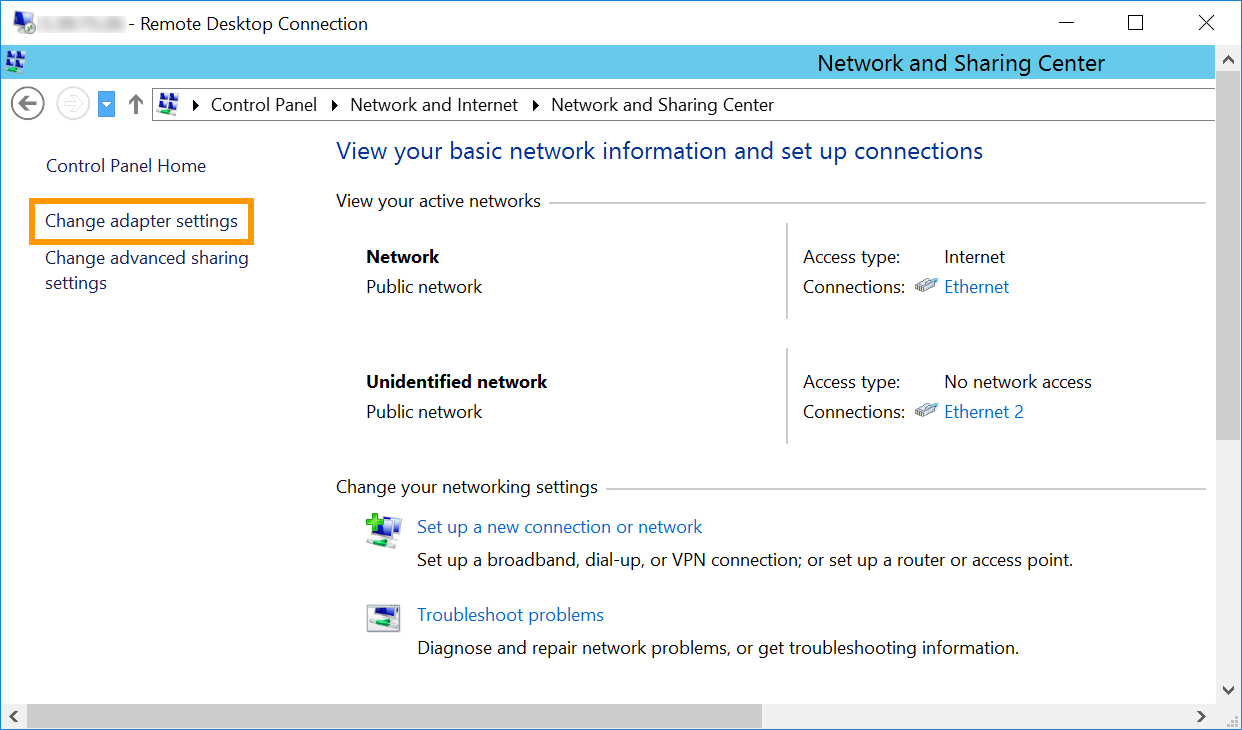Right-click the secondary network interface and then click Properties.
Note that in our example `Ethernet 2` is the interface used for the vRack. However, it is possible that the vRack NIC is a different interface in your configuration. The correct one to select will be the interface that does not have the server's main IP address or has a self-assigned IP.
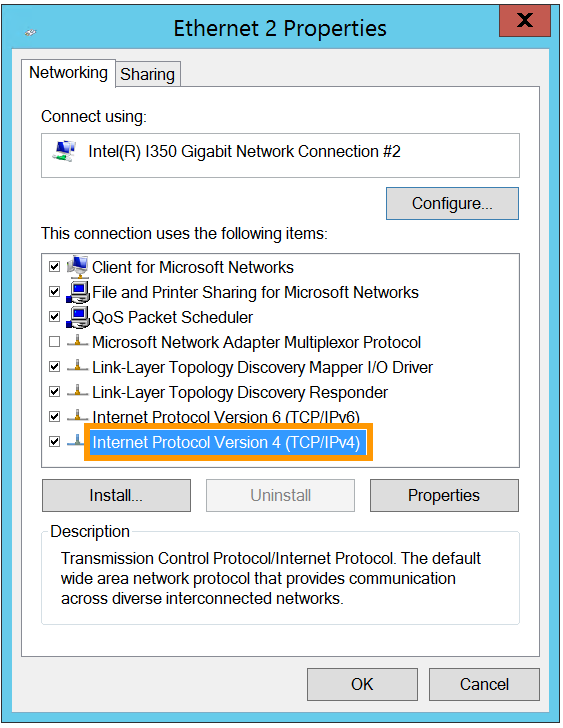
Double-click Internet Protocol Version 4 (TCP/IPv4).
Click on **Use the following IP address**. Enter any **IP address** from your private range and the appropriate **Subnet mask** (`255.255.0.0` in this example) into the corresponding fields.
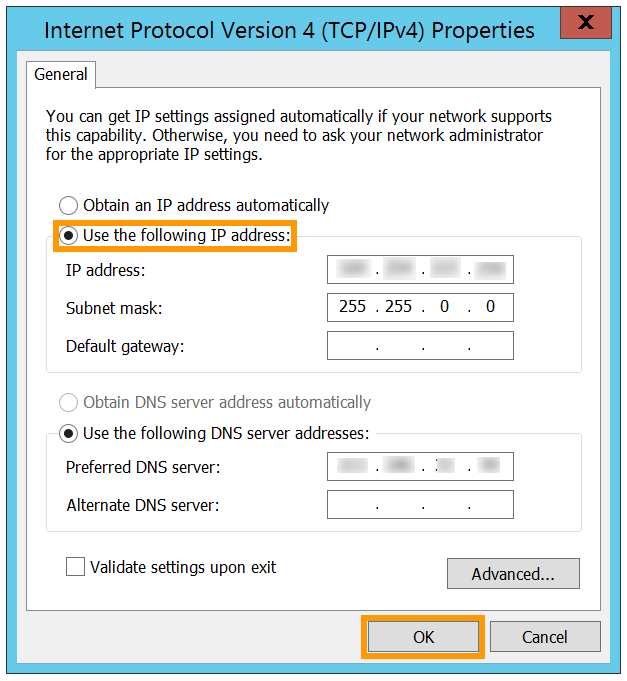Click on OK to save the changes and reboot your server to apply them.
**Configuration when using a different VLAN ID**
In this example, we'll use **10** as the VLAN ID (tag), and **192.168.0.0/16** as the private IP address range.
**Debian 11**
The configuration below is based on Debian 11 (Bullseye).
- Before you begin, establish an SSH connection to your server and run the following commands to install the VLAN package:
```sh
sudo apt update
sudo apt install vlan
```
- Next, load the 8021q kernel module:
```sh
sudo modprobe 8021q
```
- To verify that the module is loaded:
```sh
user@server:~$ lsmod | grep 8021q
8021q 40960 0
garp 16384 1 8021q
mrp 20480 1 8021q
```
- Run the following command to ensure the modules are permanently loaded at boot:
```sh
sudo su -c 'echo "8021q" >> /etc/modules'
```
- Retrieve the interface names and identify the private interface:
```sh
ip a
```
In this example, the private network interface is identified as `eno2`.
- Next, create a VLAN subinterface for the network interface (non-persistent configuration) and assign (tag) it the VLAN ID. In this example, the VLAN ID is 10.
Replace the values with your own.
```sh
sudo ip link add link eno2 name eno2.10 type vlan id 10
```
- Next, assign a private IP address to the newly created VLAN subinterface:
```sh
sudo ip addr add 192.168.0.14/16 dev eno2.10
```
- Next, activate the private interface and the VLAN subinterface:
```sh
sudo ip link set dev eno2 up
sudo ip link set dev eno2.10 up
```
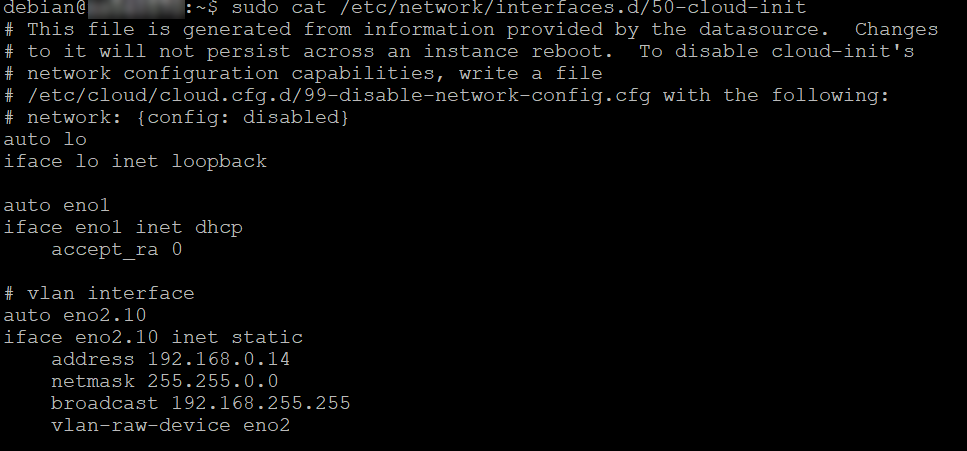
- To make the configuration persistent, add the following entries to the configuration file:
```sh
sudo nano /etc/network/interfaces.d/50-cloud-init
```
```console
auto eno2.10
iface eno2.10 inet static
address 192.168.0.14
netmask 255.255.0.0
broadcast 192.168.255.255
vlan-raw-device eno2
```
- Overview:
- Restart the network to apply the changes:
```sh
sudo systemctl restart networking
```
**Ubuntu and Debian 12+**
The configuration below is based on Ubuntu 24.04 (Noble Numbat).
- Before you begin, establish an SSH connection to your server and run the following command to install the VLAN package:
```sh
sudo apt update
sudo apt install vlan
```
- Next, load the 8021q kernel module:
```sh
sudo modprobe 8021q
```
- To verify that the module is loaded:
```sh
user@server:~$ lsmod | grep 8021q
8021q 40960 0
garp 16384 1 8021q
mrp 20480 1 8021q
```
- Run the following command to ensure the modules are permanently loaded at boot:
```sh
sudo su -c 'echo "8021q" >> /etc/modules'
```
- Create or edit the `cloud.cfg` configuration file to prevent automatic changes to the network configuration:
```sh
sudo nano /etc/cloud/cloud.cfg.d/99-disable-network-config.cfg
```
- Add this line:
```sh
network: {config: disabled}
```
Save and exit the file.
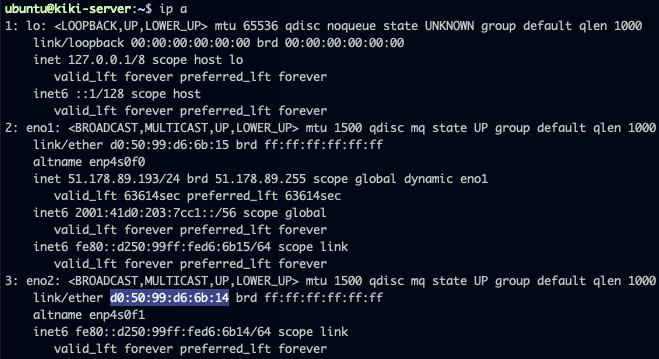
- To obtain the network interface name and its MAC address:
```sh
ip a
```
- Here, the interface we want to configure is `eno2` with MAC address: `d0:50:99:d6:6b:14`.
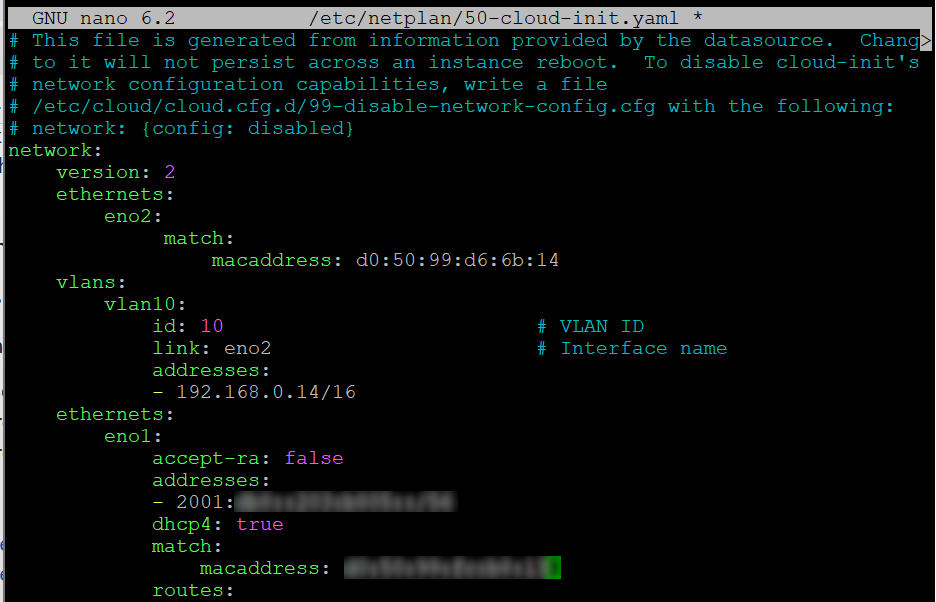
- Add the network configuration for this interface and the VLAN declaration to the configuration file, ensuring it is placed directly beneath the `version: 2` line. Replace the values with your own:
```sh
sudo nano /etc/netplan/50-cloud-init.yaml
```
```yaml
network:
version: 2
ethernets:
eno2:
match:
macaddress: d0:50:99:d6:6b:14
vlans:
vlan10:
id: 10 # VLAN ID
link: eno2 # Interface name
addresses:
- 192.168.0.14/16
```
- Overview:
- Save and close the file, then run the following command:
```sh
sudo netplan apply
```
- If you receive the following message:
```console
WARNING:root:Cannot call Open vSwitch: ovsdb-server.service is not running.
```
- You can resolve this by installing the following package:
```sh
sudo apt install openvswitch-switch
```
- Verify that the configuration has been properly applied:
```sh
ip a
```
**AlmaLinux and Rocky Linux (8/9)**
The configuration below is based on Almalinux 9.
- Before you begin, establish an SSH connection to your server and run the following command to load the 8021q kernel module:
```sh
sudo modprobe 8021q
```
- To verify that the module is loaded:
```sh
user@server:~$ lsmod | grep 8021q
8021q 40960 0
garp 16384 1 8021q
mrp 20480 1 8021q
```
- Run the following command to ensure the modules are permanently loaded at boot:
```sh
sudo su -c 'echo "8021q" >> /etc/modules'
```
- Retrieve the interface names and identify the private interface:
```sh
ip a
```
In this example, the private interface is `eno2`.
- Next, create a subinterface configuration file for the VLAN in the main network configuration file. In this example, the file is named `ifcfg-eno2.10`, here eno2 refers to the private network interface and `10` the VLAN ID.
```sh
sudo nano /etc/sysconfig/network-scripts-ifcfg-eno2.10
```
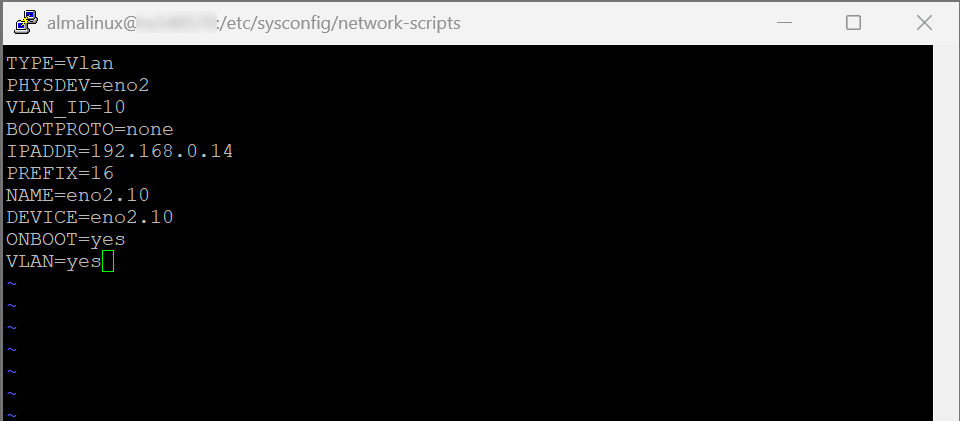
- Add the following entries to the configuration file. Replace the values with your own.
```console
TYPE=Vlan
PHYSDEV=eno2
VLAN_ID=10
BOOTPROTO=none
IPADDR=192.168.0.14
PREFIX=16
NAME=eno2.10
DEVICE=eno2.10
ONBOOT=yes
VLAN=yes
```
- Save and exit the file.
- Overview:
- Restart the network interface:
```sh
sudo systemctl restart NetworkManager
```
**Fedora 42+, AlmaLinux & Rocky Linux (10)**
The configuration below is based on Fedora 43.
- Before you begin, establish an SSH connection to your server and run the following command to load the 8021q kernel module:
```sh
sudo modprobe 8021q
```
- To verify that the module is loaded:
```sh
user@server:~$ lsmod | grep 8021q
8021q 40960 0
garp 16384 1 8021q
mrp 20480 1 8021q
```
- Run the following command to ensure the modules are permanently loaded at boot:
```sh
sudo su -c 'echo "8021q" >> /etc/modules'
```
- To obtain the network interface name:
```sh
ip a
```
In this example, the interface is called `eno2`. We will need to create a VLAN subinterface before assigning a private IP address to it.
- Use the following command to create the VLAN interface:
```sh
sudo nmcli con add type vlan con-name dev id .
```
Replace `vlan-name` with the name of the VLAN subinterface, `parent-interface` with the name of the private interface and `vlan-id` with the VLAN ID.
**In this example:**
```sh
sudo nmcli con add type vlan con-name eno2.10 dev eno2 id 10
Connection 'eno2.10' successfully added.
```
- Assign a private IP address to the VLAN subinterface:
```sh
sudo nmcli con mod ipv4.addresses ipv4.method manual
```
**In this example:**
```sh
sudo nmcli con mod eno2.10 ipv4.addresses 192.168.0.14/16 ipv4.method manual
```
- Next, bring the up the VLAN subinterface:
```sh
sudo nmcli con up .
```
**In this example:**
```sh
sudo nmcli con up eno2.10
# Connection successfully activated
```
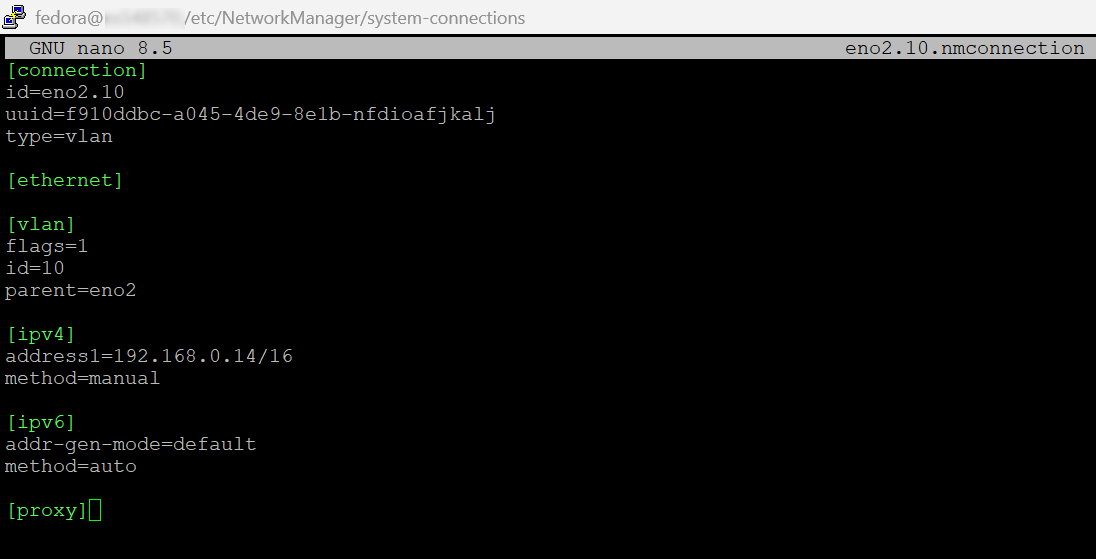
The steps above create a configuration file for the VLAN interface. This file is located at `/etc/NetworkManager/system-connections/` and follows the naming format `vlan-name.nmconnection`.
In this example, the file is called `eno2.10.nmconnection`.
- Overview:
**Windows**
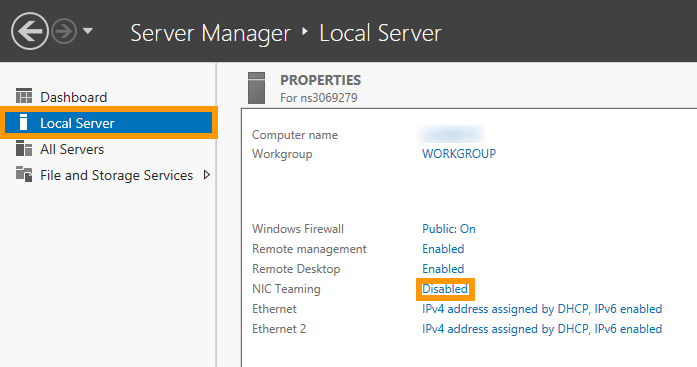
Log on to your server via a remote desktop connection, and open the Server Manager app. Then select Local Server. Now click the Disabled link next to **NIC Teaming**:
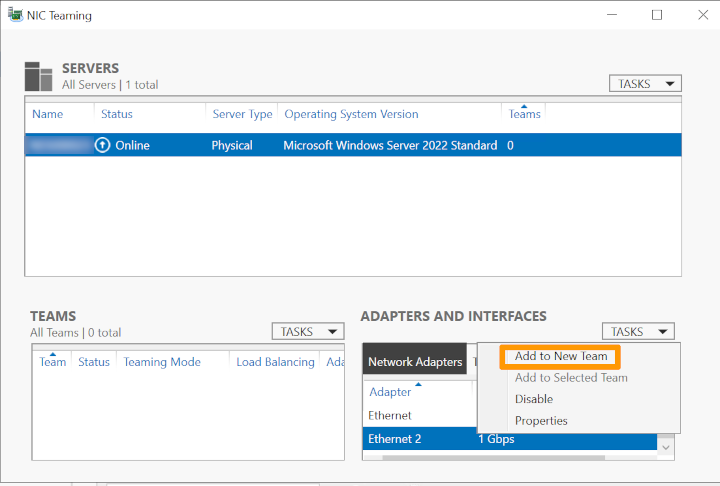
Next, right-click on the network interface and select Add to New Team.
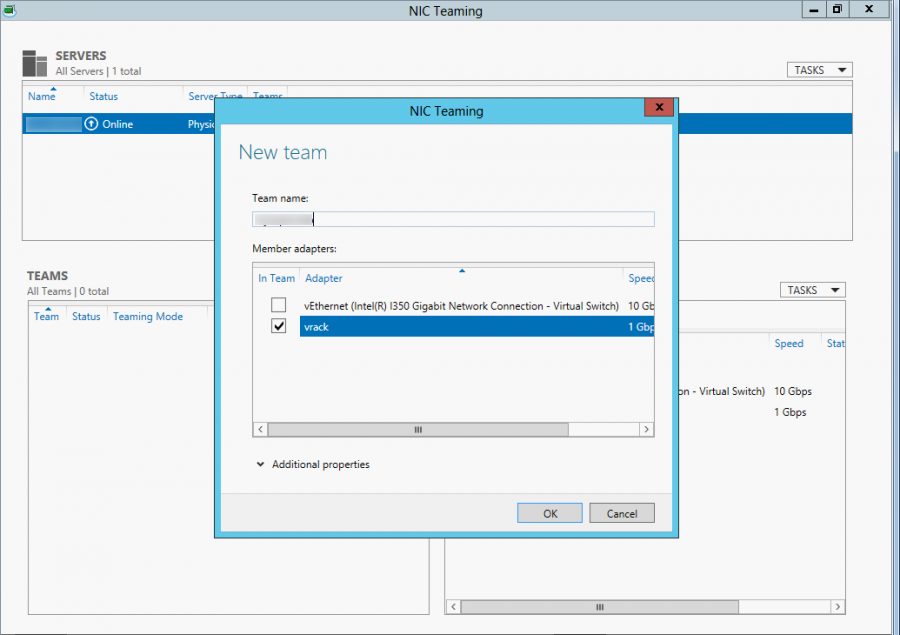
In the popup window, create a new team by typing a team name into the **Team name** field. When you have finished, click OK.
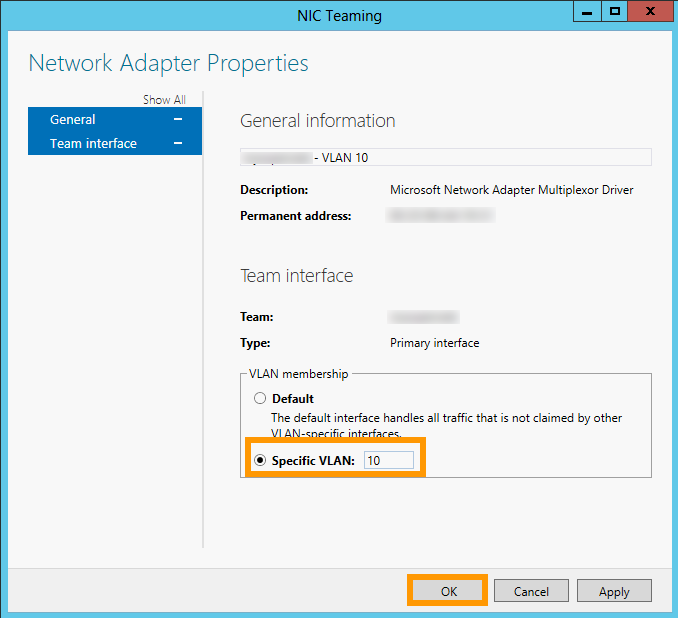
Next, we need to define the vLAN tag. In the **ADAPTERS AND INTERFACES** pane of the **NIC Teaming** screen, go to the Team Interfaces tab and right-click the interface you have just added to the new team, then click Properties. Now click Specific VLAN, and define the tag:
Next, we need to configure the IP address of the vLAN. Click the Start button on your keyboard, then click Control Panel:
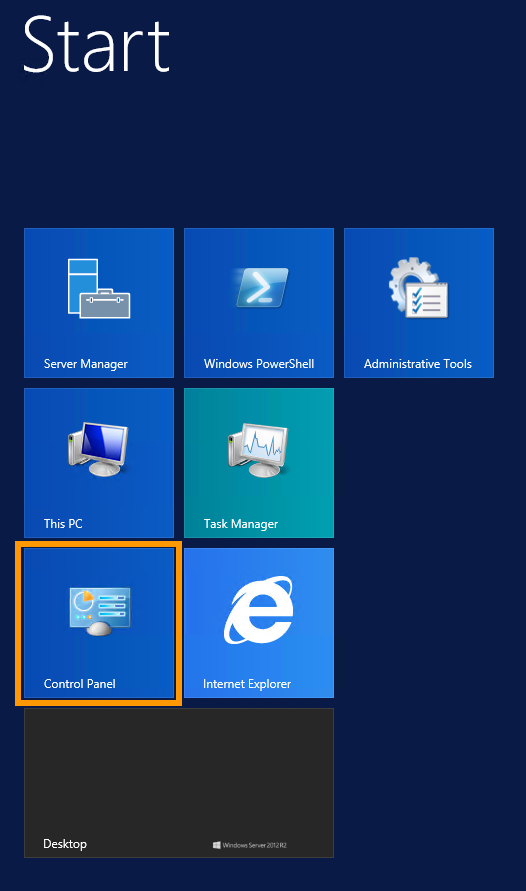Next, click Network and Internet:
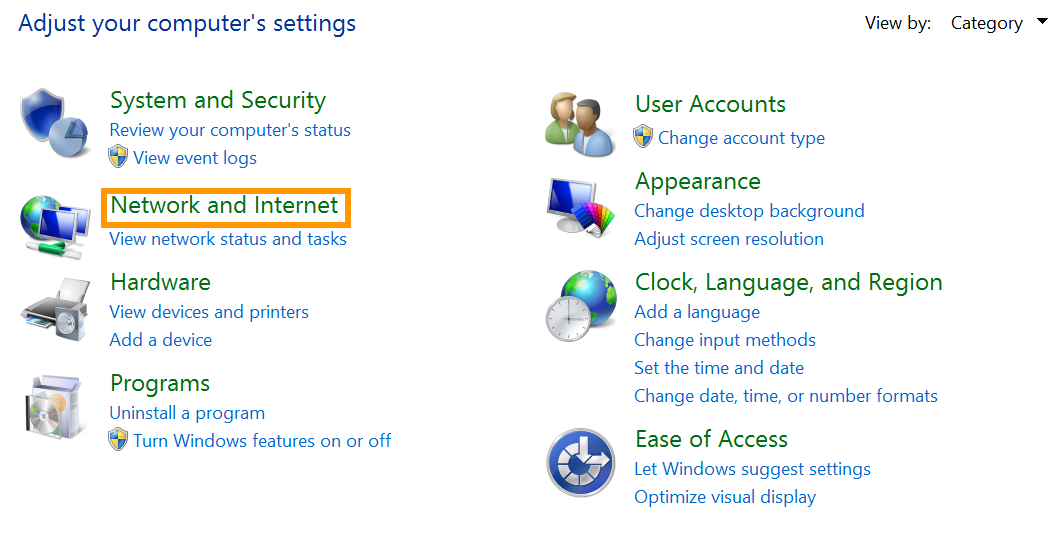Then Network and Sharing Center:
Then click Change adapter settings:
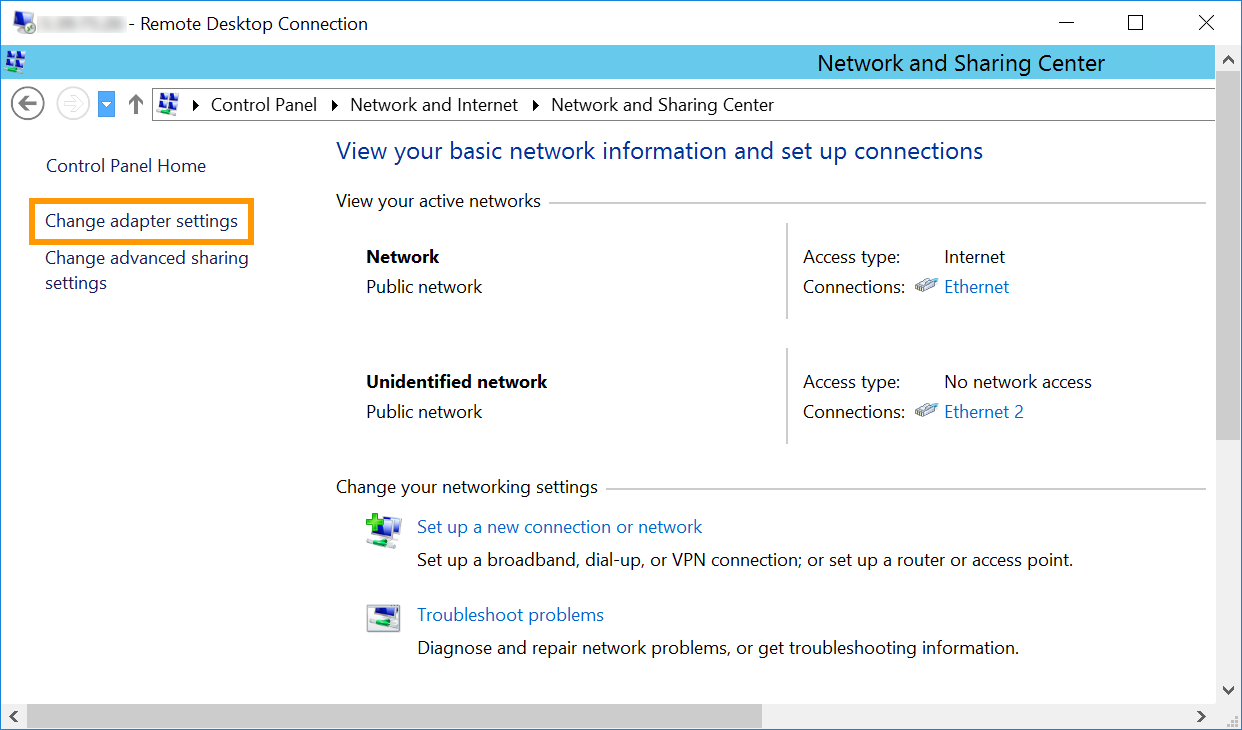Next, right-click the vLAN interface, and click Properties:
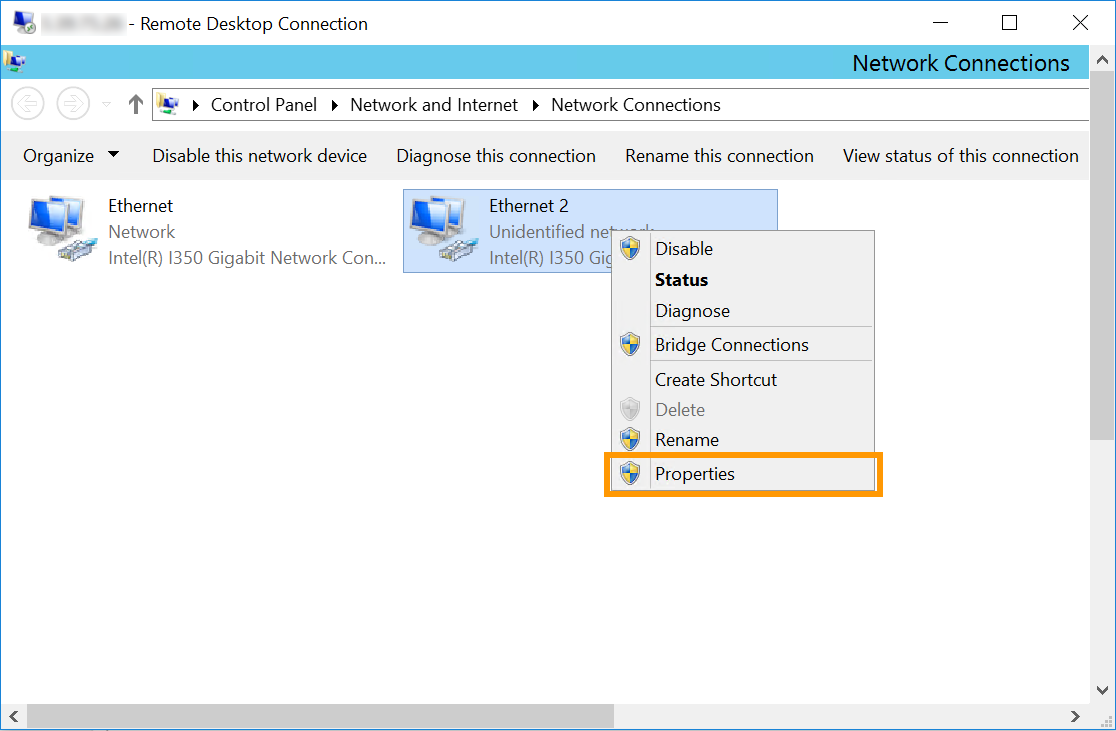Note that in our example `Ethernet 2` is the interface used for the vRack. However, it is possible that the vRack NIC is a different interface in your configuration. The correct one to select will be the interface that does not have the server's main IP address or has a self-assigned IP.
Then double-click Internet Protocol Version 4 (TCP/IPv4):
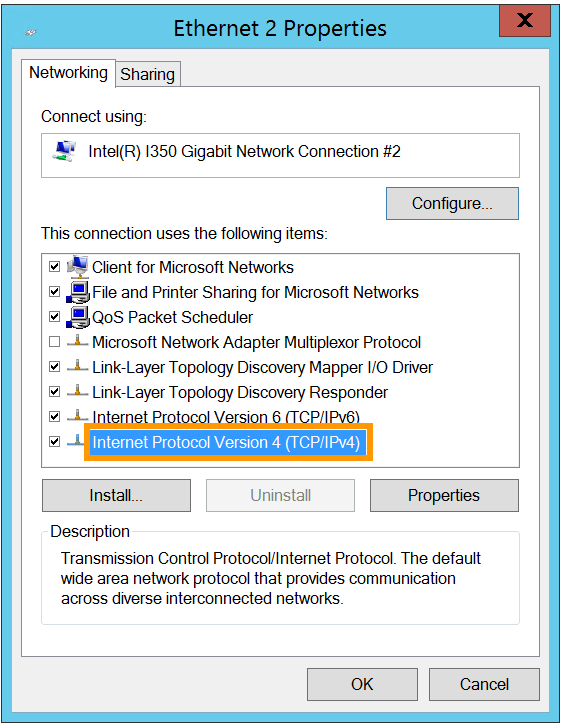Next, click Use the following IP address. For **IP address**, type in an IP from your internal range. For **Subnet mask**, type in 255.255.0.0.
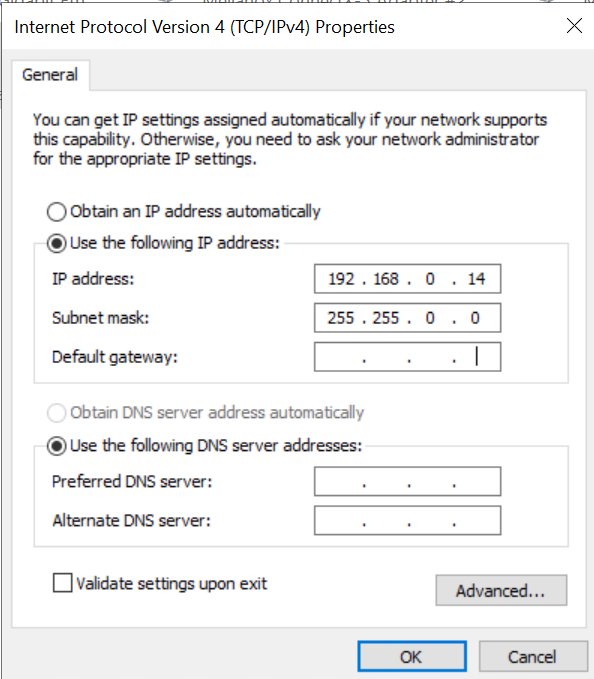Finally, click the OK button to save the changes, then reboot your server.
## Go further
[Creating multiple vLANs in a vRack](/en/guides/bare-metal-cloud/dedicated-servers/creating-multiple-vlans-in-a-vrack.md)
Join our [community of users](https://community.ovhcloud.com/).