---
title: "Purchase Order (PO)"
description: "Understanding the notion of a Purchase Order number, and applying it when paying OVHcloud bills"
url: https://docs.ovhcloud.com/en/guides/account-and-service-management/managing-billing-payments-and-services/purchase-order
lang: en
lastUpdated: 2025-04-28
---
# Purchase Order (PO)
## Objective
**This guide explains the Purchase Order (PO) number applied to OVHcloud billing.**
***
### OVHcloud Control Panel Access
- **Direct link:** My orders
- **Navigation path:** Click your name in the top right > My orders
***
## Instructions
### Purchase Order (PO) number
When purchasing goods or services, companies are required to validate purchase orders. Typically, this validation is done by returning a document (paper or digital format) on the company's letterhead that recalls the goods or services purchased and specifying an order number. This document is usually called **Purchase Order** and is abbreviated to **PO**.
For the company issuing the PO, the purpose of this document is to control purchases of goods and services from its suppliers, including by requiring that all invoices issued include a PO Number.
There are essentially two types of orders, described below.
#### Closed order / Purchase Order (PO)
This is a document confirming the order of goods or services for a fixed quantity and for a fixed duration.
For OVHcloud, the document must contain at least the following information:
- Company name of the contractor
- Order number
- Type(s) of services ordered
- Quantities
- Unit prices
- Effective date
- End date
#### Open order / Blanket Purchase Order (BPO)
This is a document confirming the order of goods or services for a variable quantity with a maximum amount and for a fixed duration.
For OVHcloud, the document must contain at least the following information:
- Company name of the contractor
- Order number
- Type(s) of services ordered
- Unit prices
- Total order amount
- Effective date
- End date
### How to enter a Purchase Order (PO) reference in your OVHcloud Control Panel
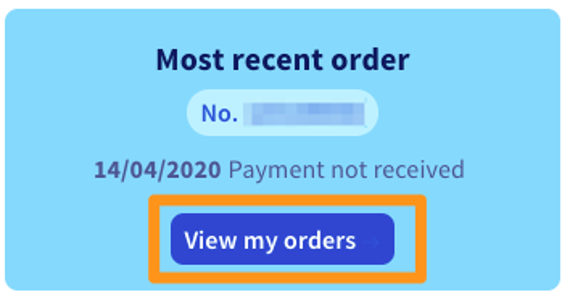
Open the My orders
page.
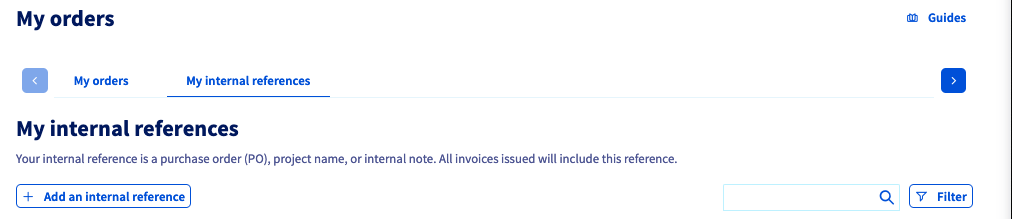
Click the `My Internal References
` tab and then click the `\+ Add an internal reference
` button.
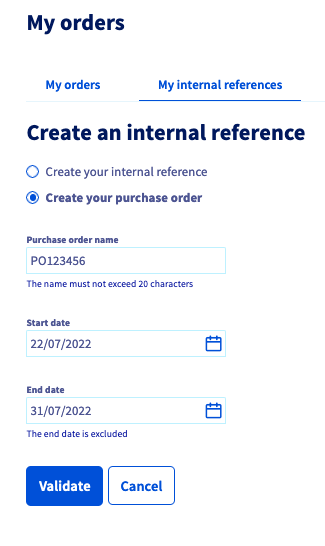
You can use two different wordings, depending on whether you want to display the notation `Internal reference`
**or**
the notation `Purchase order`
on your invoices.
Select either `Create your internal reference
` or `Create your purchase order
`.
Give your internal reference / purchase order a name in the field provided, enter a **start date**
and an **end date**
(the end date is excluded) then click `Validate
`.
:::info
You cannot create 2 internal references / Purchase Orders over the same time period.
:::
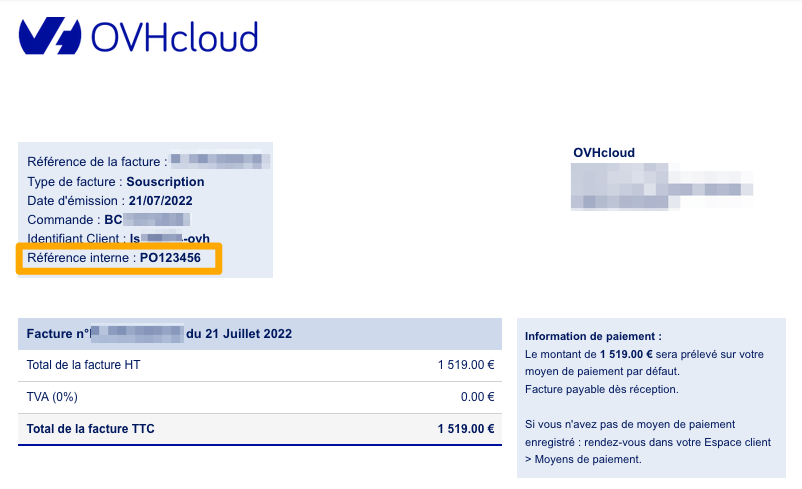
This reference will then appear on your next invoices, for the time period that you have set.
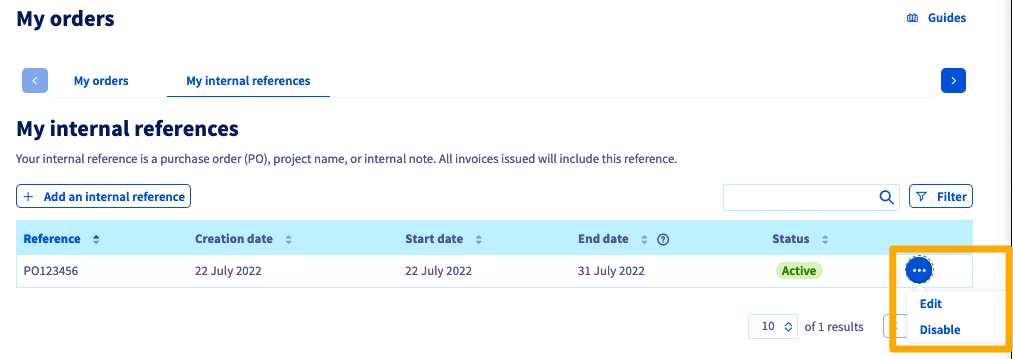
From the `My internal references
` tab, you can edit or deactivate a reference that has already been created by clicking the `...
` to the right of the reference concerned.
:::info
If you want to disable/modify one reference for another **on the same time interval**
, you must use the `Edit
` option to change the time interval of the first reference.
:::
## Go further
Join our [community of users](https://community.ovhcloud.com/).