---
title: "Managing OVHcloud orders"
description: "Find out how to manage your OVHcloud orders"
url: https://docs.ovhcloud.com/en/guides/account-and-service-management/managing-billing-payments-and-services/ovh-orders
lang: en
lastUpdated: 2025-04-28
---
# Managing OVHcloud orders
## Objective
When you place an order, you can track and interact with it from the My orders
page.
**This guide explains how to manage orders via the OVHcloud Control Panel.**
:::info
Depending on your place of residence and its local legislation, as well as the products concerned, some details may vary from the information provided in this guide, and some information may not apply to your situation. If you have any doubts, please refer to the OVHcloud contracts (available on the Contract list
page).
:::
## Requirements
- At least one OVHcloud product order
***
### OVHcloud Control Panel Access
- **Direct link:** My orders
- **Navigation path:** Click your name in the top right > My orders
***
## Instructions
### Purchase order
The purchase order is created when you place your order. It lists the products ordered, their price and any reductions you may receive.
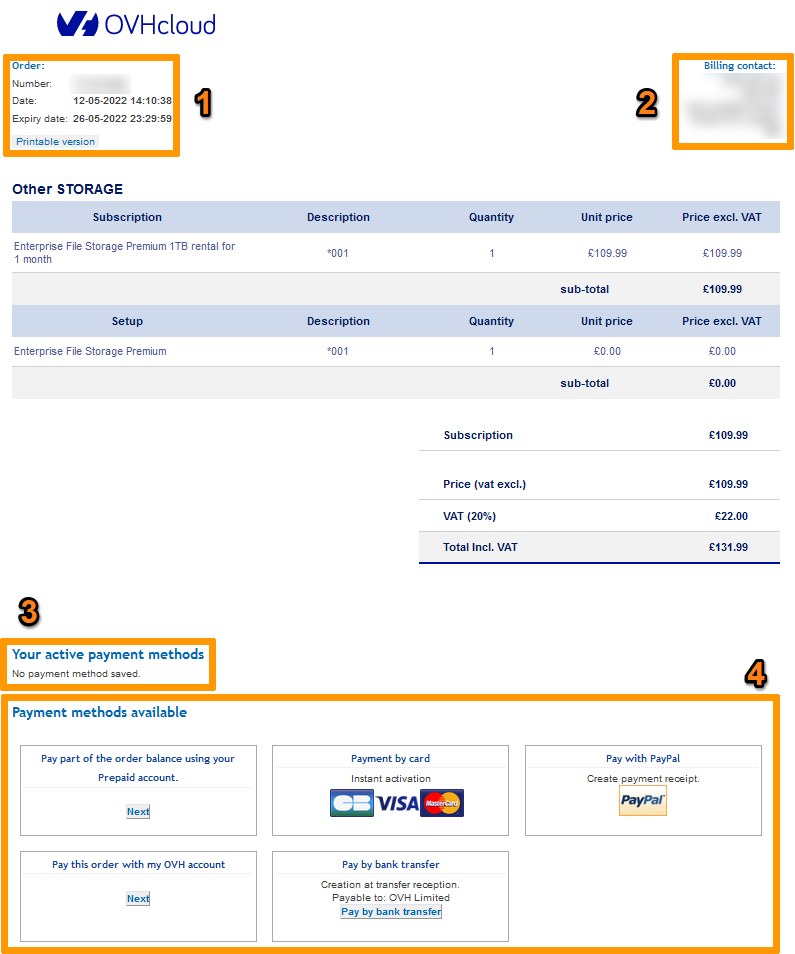
| Number | Description |
| ------ | --------------------------------------------------------------------------------------------------------------------------------------------------------------------------------------------------------------------------------------- |
| 1 | Purchase order number, creation date and expiration date. If it has expired, you will have to reorder. |
| 2 | Your billing details. You must be logged in to view and pay your purchase order. |
| 3 | Payment methods saved to your customer account. For more information, please refer to our guide [Managing payment methods](/en/guides/account-and-service-management/managing-billing-payments-and-services/manage-payment-methods.md). |
| 4 | Payment methods available. You will only be offered payment methods that are authorised in the account’s country of origin, or those linked to the account type you have registered. |
You can view your purchase order at any time on the My orders
page, as explained below.
### Access purchase orders via the OVHcloud Control Panel
Open the My orders
page.
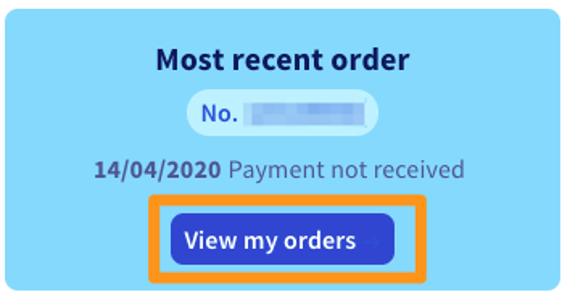
A summary of the various orders placed appears as below:
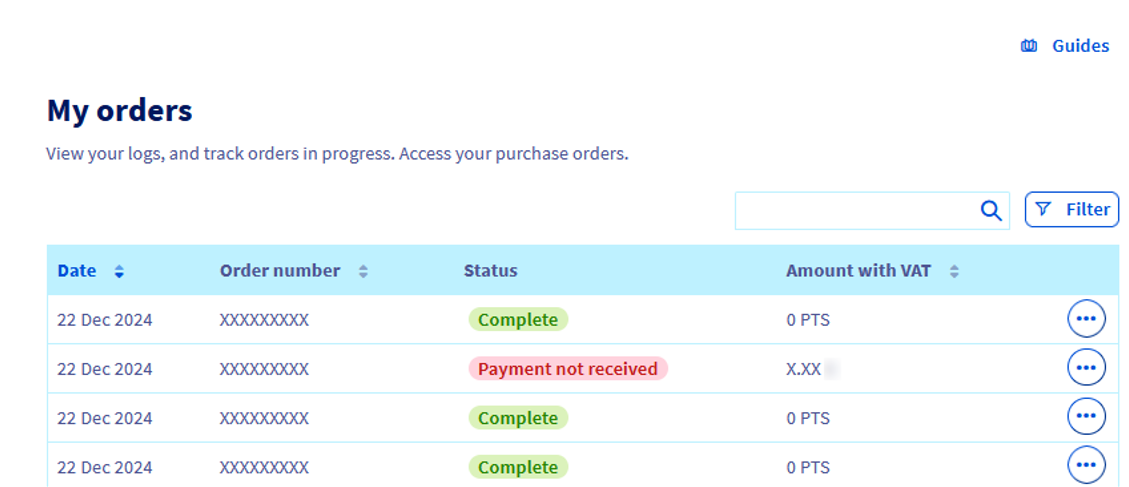
On this page, you will see the following information:
- The date the purchase order was created
- The order number
- The order status
- The purchase order amount, including VAT
The various order statuses are listed below:
| Status | Definition |
| --------------- | ----------------------------------------------------------------------------------------------------------------------------------------------------------------------------------------------------------------------------------------------------------------------------------------------- |
| Unpaid | This status means that the payment has not yet been received for the purchase order. If you do not pay, the order will expire and be cancelled on the date indicated on the purchase order. After this period, if you want to make this purchase, you will simply have to place an order again. |
| Confirmation | Your order is in the process of being verified manually by our internal services (working days only). The validation will be complete once this step is finalised. If the operation cannot be finalised, you will be sent an email request to provide supporting documents. |
| Being processed | Your order is in the process of being delivered — please wait. Depending on the service you have ordered, this step may last a few minutes or a few hours. |
| Complete | You have received your order and your access details have been sent to you by email (if access details are required). |
You can also view the purchase order in HTML format by clicking on `...
` to the right of your order, then `View order in HTML format
`.

### Track your order
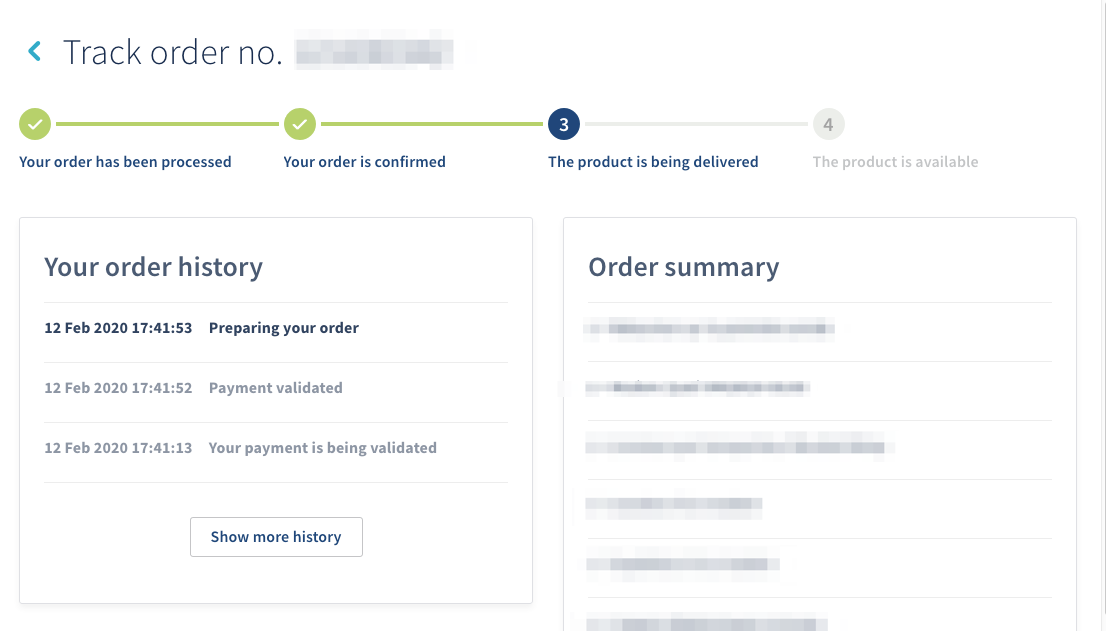
After generating your purchase order, you can track it from the My orders
page:
- Click the ... button to the right of your order.
- Select Order tracking. Order tracking can also be displayed by clicking the status of an order in the `Status` column.

The window below will appear, allowing you to follow it in four steps.
### Apply the right of withdrawal
Article 14.1.2 of our [General Terms of Service](https://contract.eu.ovhapis.com/1.0/pdf/contrat_genServices-gb.pdf) states that "_Pursuant to the Consumer Contracts Regulations 2013, the Client enjoys the statutory right of cancellation. Client may exercise this right, without having to justify its reasons nor pay any penalties other than any return fees, within a period of fourteen (14) days from the day after the Order._"
The terms and conditions for the right of withdrawal can be found in the remainder of that article.
:::warning
The right of withdrawal applies only to individuals and applies only to new orders. You cannot therefore argue:
- for renewals;
- if your OVHcloud customer account is [different from Private](/en/guides/account-and-service-management/account-information/all-about-username.md#changing-the-account-type).
In addition, the right of withdrawal does not apply to unpaid orders, as they are automatically cancelled when the purchase order expires.
Finally, it does not apply to certain services (notably [domain names](https://www.ovhcloud.com/en-gb/domains/) and [Sectigo SSL certificates](https://www.ovhcloud.com/en-gb/web-hosting/options/ssl/)). When you order these products, you are therefore asked to expressly waive your right of withdrawal, in accordance with article L.221-28 of the French Consumer Code.
:::
If the eligibility criteria for the right of withdrawal are met, it can be applied directly from the My orders
page:
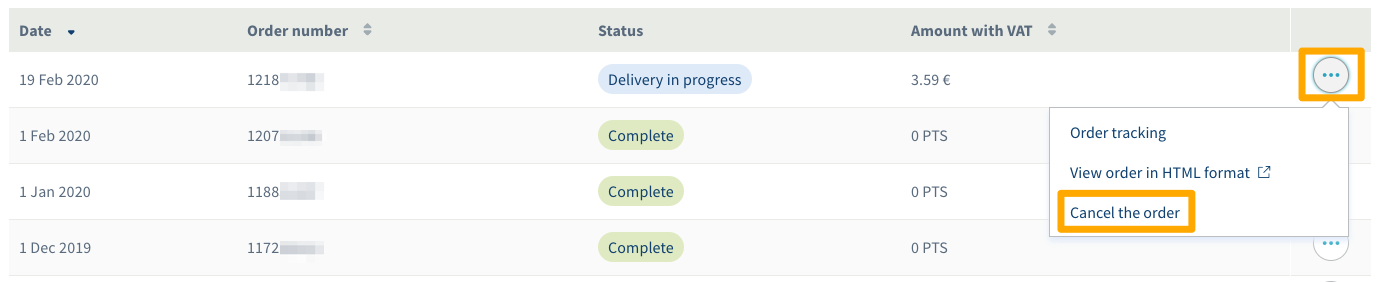
- Click the ... button to the right of your order.
- Select Cancel the order.
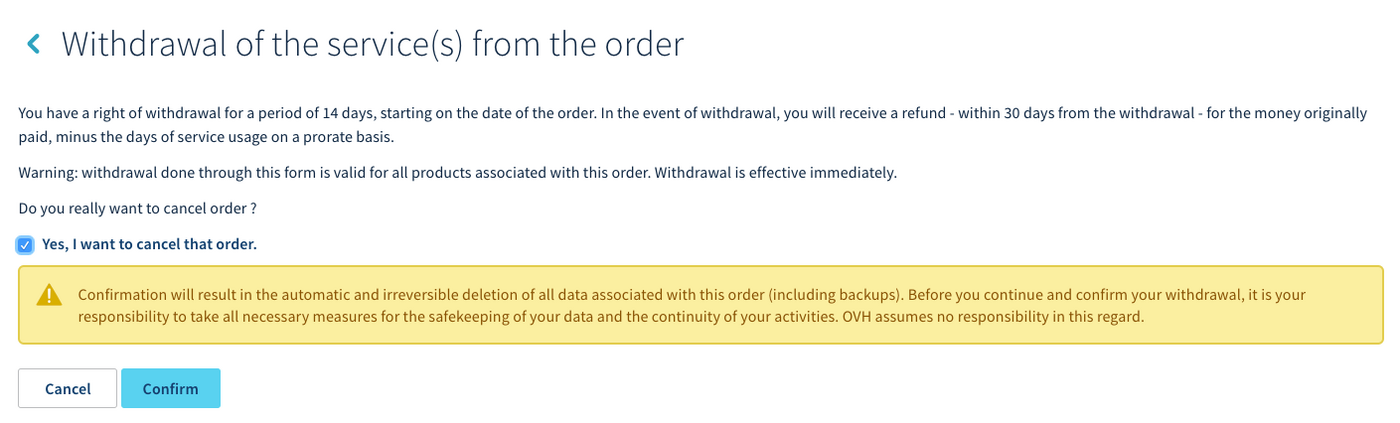
You can confirm the order cancellation by simply ticking the box saying `Yes, I want to cancel that order
`, then click on `Confirm
`.
:::info
You will be refunded the amount initially paid, minus the days of services consumed on a pro rata basis, within 30 days of the withdrawal request.
:::
## Go further
Join our [community of users](https://community.ovhcloud.com/).