---
title: "Managing commitments in the OVHcloud Control Panel"
description: "Find out how to start, manage, and cancel service commitments for your Dedicated Servers and VPS in the OVHcloud Control Panel"
url: https://docs.ovhcloud.com/en/guides/account-and-service-management/managing-billing-payments-and-services/manage-commitments
lang: en
lastUpdated: 2026-07-21
---
# Managing commitments in the OVHcloud Control Panel
## Objective
OVHcloud offers you the ability to commit to your Dedicated Servers and VPS for a period of time, in exchange for a discount that depends on the specific product you subscribe to. When you take out a longer commitment, you can pay for it up front for the whole period.
**This guide explains how to start, manage, and cancel a commitment on your Dedicated Servers and VPS via the OVHcloud Control Panel.**
:::info
Commitments are a legacy feature. If your service is already under a commitment, you can still manage it as described in this guide. Commitments are billed **annually and up front only** — monthly commitment payments are no longer offered.
:::
:::info
Not all Dedicated Server and VPS ranges are eligible for a commitment. If your service is eligible, the commitment option appears in its **My offer** box, as described below; if it is not, the option is not shown.
:::
## Requirements
- An active Dedicated Server or VPS in your OVHcloud account.
- You are the [administrative contact](/en/guides/account-and-service-management/account-information/managing-contacts.md#definition) of the service concerned.
- You have a valid payment method in your OVHcloud account (see our guide [Managing your payment methods](/en/guides/account-and-service-management/managing-billing-payments-and-services/manage-payment-methods.md)).
***
### OVHcloud Control Panel Access
- **Direct link:** Bare Metal Cloud
- **Navigation path:** Use the left-hand navigation menu to access Bare Metal Cloud, then Dedicated servers or Virtual private servers
***
## Instructions
:::info
In this guide, we use a Dedicated Server as an example. However, the process is the same for a VPS.
:::
:::info
Depending on your interface version, the commitment button in the **My offer** box may appear under different wordings. For a service **without** a commitment, it is labelled `Commit` or `Commit and get a discount`. For a service **already under** a commitment, it is labelled `Commit`, `Re-commit and get a discount`, or `Manage my commitment`. They all open the same commitment page, and the steps that follow are identical.
:::
### Starting a commitment [](#)
In the OVHcloud Control Panel
, use the left-hand navigation menu to access `Bare Metal Cloud
`, then `Dedicated servers
` or `Virtual private servers
`.
Select the name of your service from the list displayed. Scroll down to the **My offer**
box: when the service has no commitment, the `Commitment`
field shows `No commitment`
. Click `Commit
` (or `Commit and get a discount
`, depending on your interface).
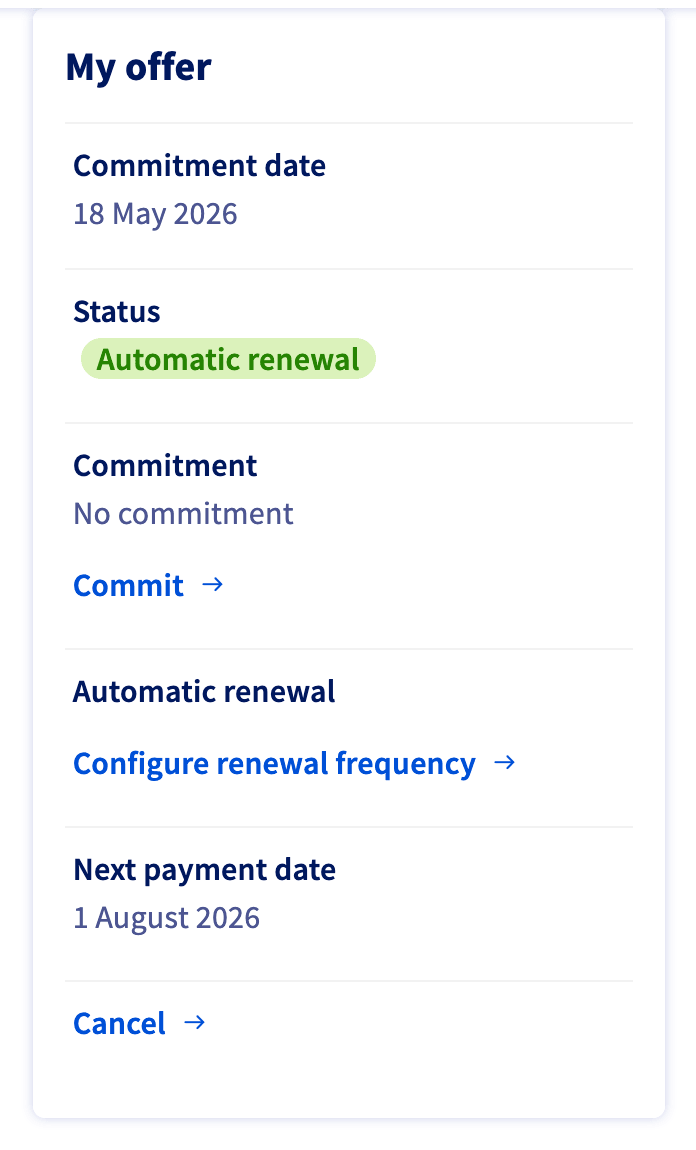
You will be taken to the **Commit** page, where you can select your commitment.
:::warning
- Different servers may have different options for commitment periods; your options may not match the example below.
- You may choose to commit to a longer term for a larger discount.
- If you do nothing at all, your commitment will automatically renew for the same price and terms.
- Once you have a commitment in place, you can only cancel it early by paying the remainder of what you owe on the commitment. To do so, [contact OVHcloud support](https://help.ovhcloud.com/csm?id=csm_get_help).
:::
Proceed through the order funnel:
1. **Select a commitment** — choose the commitment duration (for example, 12 months or 24 months). A longer duration gives a larger discount.
2. **Select a payment option** — pay the total price up front for the whole commitment period. Up-front annual payment is the only option available.
3. **Confirm** — review the summary. Your default payment method will be billed for the entire commitment period, and the service will automatically be renewed for the same duration at the end of the commitment, billed via the same payment method.
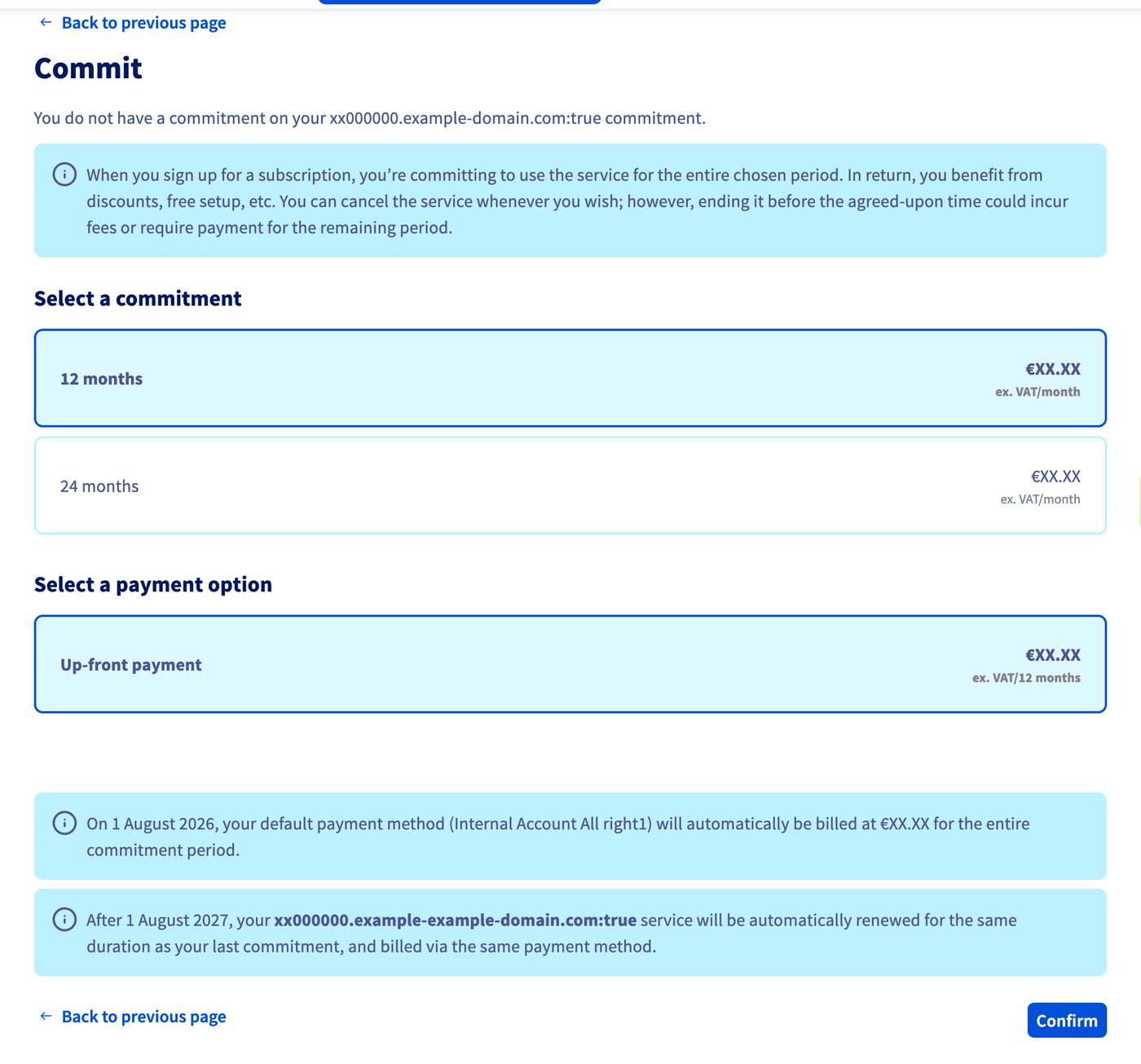
Click `Confirm
` to process your commitment.
Once you are finished, your new commitment will begin on your next renewal date. You can view your renewal date in the **My offer** box on the service's General information tab.
### Renewing or extending a commitment [](#)
When a service is already under a commitment, its **My offer** box shows the commitment end date next to the `Commitment` field (for example, `Renews on 1 February 2028`).
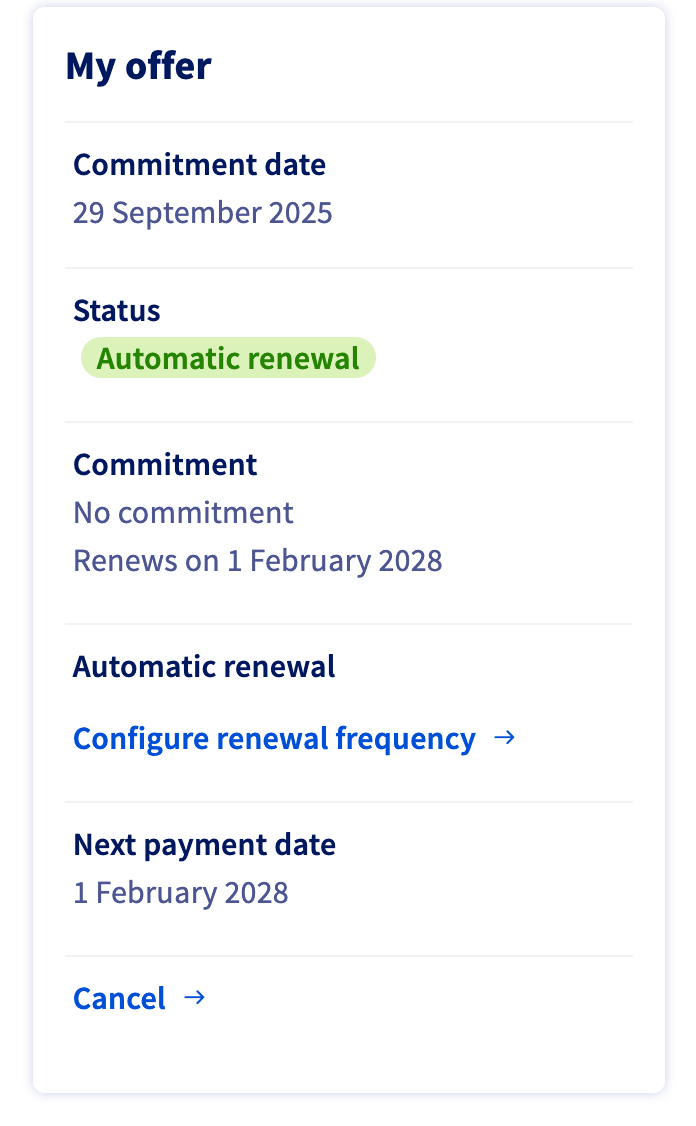
To renew or extend the commitment before its end date, go to the OVHcloud Control Panel
, open the service, scroll down to the **My offer**
box, and click `Commit
` under the `Commitment`
field (depending on your interface, this button may instead read `Re-commit and get a discount
` or `Manage my commitment
`). As your service is already committed, you will be taken to the **Re-commit**
page.
:::warning
- You can only commit for a period that is longer than the remaining time on your current commitment.
- You may choose to commit to a longer term for a larger discount.
- If you do nothing at all, your commitment will automatically renew for the same price and terms.
- Once you have a commitment in place, you can only cancel it early by paying the remainder of what you owe on the commitment. To do so, [contact OVHcloud support](https://help.ovhcloud.com/csm?id=csm_get_help).
:::
By extending your commitment, you can maintain your discount for the new commitment period. You can also increase your commitment duration. The **Re-commit** page offers the same steps as the **Commit** page shown above:
1. **Select a commitment** — choose the new commitment duration.
2. **Select a payment option** — pay the total price up front for the whole commitment period (up-front annual payment only).
3. **Confirm** — review the summary. From your next renewal date onwards, your default payment method will be billed for the service period until the end of the new commitment.
Click `Confirm
` to process your commitment.
### Checking whether a service is under commitment [](#)
There are two ways to check whether one of your services is currently under a commitment.
**In the OVHcloud Control Panel**
Open the service's General information tab and look at the **My offer** box:
- The `Commitment` field shows either **No commitment**, or **Renews on ``** when a commitment is active.
- The `Status` field shows the renewal type applied to the service (for example, `Automatic renewal`).
**On your invoice**
A commitment is also reflected in the corresponding invoice, through the billing period and line items that cover it. You can consult your invoices from the My bills
page (see our guide [Managing your OVHcloud bills](/en/guides/account-and-service-management/managing-billing-payments-and-services/invoice-management.md)
).
### Canceling commitments [](#)
If you already have a commitment, you can cancel it. The cancellation becomes effective at the **end of the commitment period**.
:::info
**Automatic renewal of a commitment**
If you take no action before the end of the commitment period, your commitment **and its associated discount are automatically renewed** for a new period of the same duration, at the same price and terms. To stop the commitment from renewing, you must cancel it before the end of the current period.
:::
To cancel a commitment **early** — that is, before the end of the commitment period — you must [contact OVHcloud support](https://help.ovhcloud.com/csm?id=csm_get_help). Early cancellation requires you to pay the remainder of what you owe on the commitment.
To cancel the underlying service at the end of its commitment period, open the service, scroll down to the **My offer**
box, and click `Cancel
`. For the full cancellation procedure, follow our guide:
- [How to cancel your OVHcloud services](/en/guides/account-and-service-management/managing-billing-payments-and-services/how-to-cancel-services.md)
## FAQ
Can I still take out a new commitment?
Commitments are a legacy feature. If your service already has a commitment, you can continue to manage and renew it as described in this guide. Availability of new commitments depends on your commercial zone and the product concerned.
Can I pay for my commitment on a monthly basis?
No. Commitments are billed **annually and up front**. There is no monthly payment option for commitments.
What happens if I do nothing before the end of my commitment period?
Your commitment and its associated discount are **automatically renewed** for a new period of the same duration, at the same price and terms. No action is required on your part to keep the commitment and the discount.
Can I cancel a commitment before its expiry date?
A commitment cancellation is normally effective at the **end of the commitment period**. To cancel a commitment before its expiry date, you must [contact OVHcloud support](https://help.ovhcloud.com/csm?id=csm_get_help) and pay the remainder of what you owe on the commitment.
Which services are eligible for a commitment?
Commitments are available for eligible Dedicated Servers and VPS. Eligibility depends on the specific product range. If your service is eligible, the commitment option appears in its **My offer** box; if it is not, the option is not shown.
## Go further
[Managing renewal for OVHcloud services](/en/guides/account-and-service-management/managing-billing-payments-and-services/automatic-renewal.md)
[How to cancel your OVHcloud services](/en/guides/account-and-service-management/managing-billing-payments-and-services/how-to-cancel-services.md)
[Managing OVHcloud bills](/en/guides/account-and-service-management/managing-billing-payments-and-services/invoice-management.md)
Join our [community of users](https://community.ovhcloud.com/).