---
title: "Managing OVHcloud bills"
description: "Find out how to manage your bills and the payments associated with them"
url: https://docs.ovhcloud.com/en/guides/account-and-service-management/managing-billing-payments-and-services/invoice-management
lang: en
lastUpdated: 2025-04-28
---
# Managing OVHcloud bills
## Objective
OVHcloud provides a space for you to view, manage and pay your various bills.
**Find out how to manage bills in the OVHcloud Control Panel.**
:::info
Depending on your place of residence and its local legislation, as well as the products concerned, some details may vary from the information provided in this guide, and some information may not apply to your situation. If you have any doubts, please refer to the OVHcloud contracts (available on the Contract list
page).
:::
## Requirements
- Being the [Billing contact](/en/guides/account-and-service-management/account-information/managing-contacts.md) of your service
***
### OVHcloud Control Panel Access
- **Direct link:** My bills
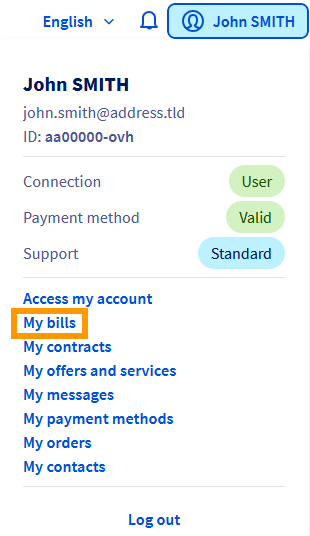
- **Navigation path:** Click your name in the top right > My bills
***
## Instructions
:::info
Each invoice is sent to you by email and accessible via a clickable link. You can then access it on the My bills
page. All invoices are also available from the homepage of your Control Panel.
:::
### Understanding your bill
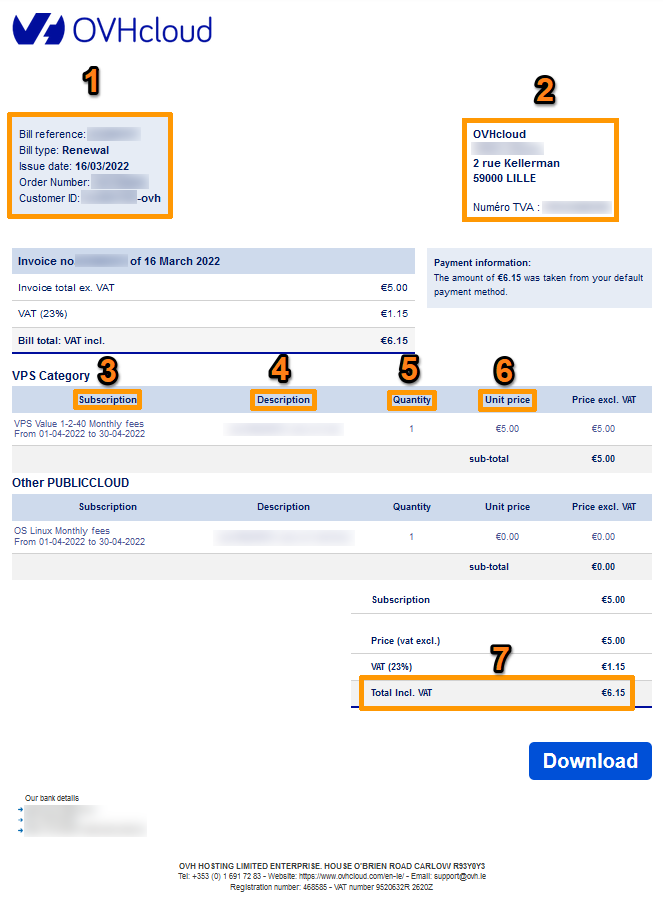
Your OVHcloud service bill is sent to you following the payment of an order or a renewal. It summarises the amounts corresponding to the purchase or renewal of your products, as well as their periods of validity.
| Number | Description |
| ------ | -------------------------------------------------------------------------------------------------------------------- |
| 1 | Invoice information: Reference, issue date, purchase order to which it refers, payment type and NIC handle concerned |
| 2 | Billing contact information |
| 3 | Subscription: A description of the service and the period billed |
| 4 | Description: The billed service reference |
| 5 | Quantity: The number of units of the service billed for |
| 6 | Unit price (ex. VAT) of a product |
| 7 | Total amount (incl. taxes) of the invoice |
### The billing section in your Control Panel
#### View and manage bills
To view your invoices, open the My bills
page.
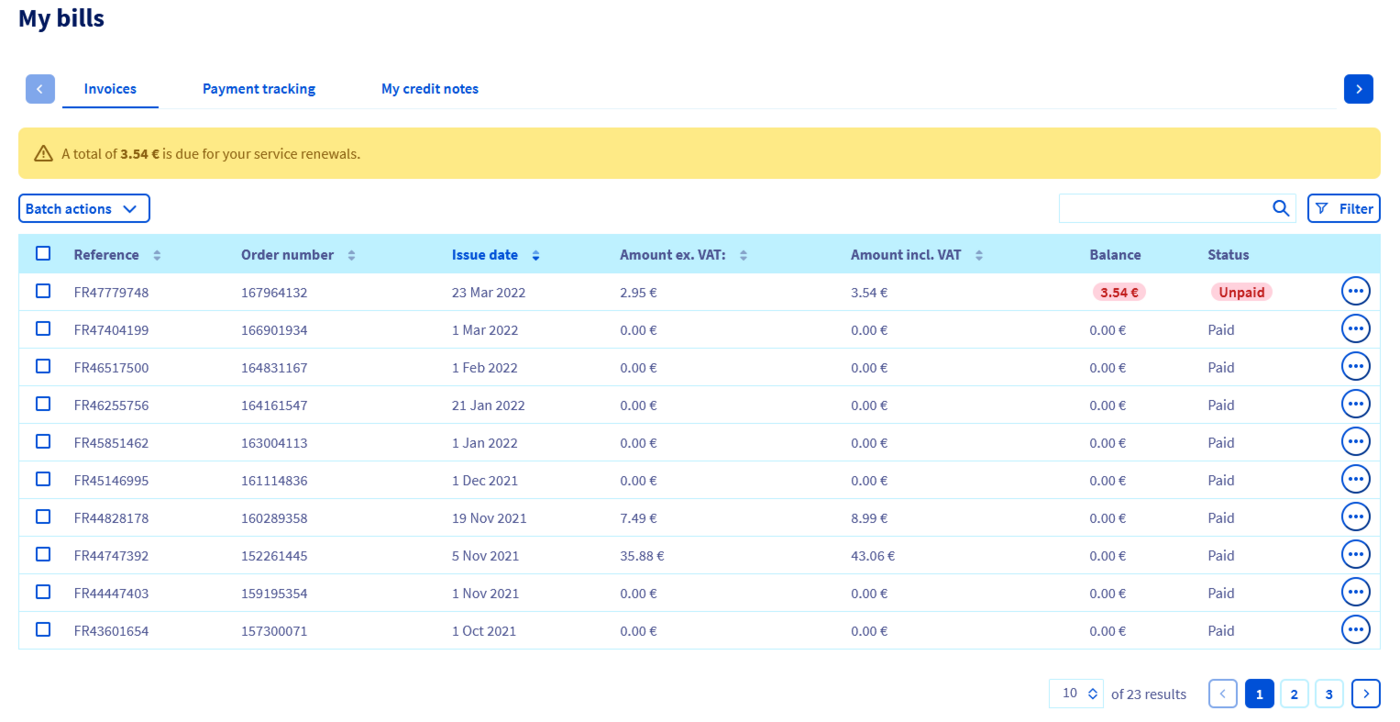
You will then land on a page summarising your bills:
:::info
If an invoice is pending payment (`Unpaid` status), the amount due will be shown in red in the `Balance` column.
:::
On each row of the table, you will see the following information:
- The invoice Reference
- The Order Number
- The Issue Date
- Its Amount ex. VAT
- Its Amount incl. VAT
- The Balance to be settled
- The invoice Status (`Unpaid` or `Paid`)
By clicking on one of the `...
` buttons to the right of the table, you can also access these functions:
- See HTML version: The bill opens in a new tab in your browser.
- See PDF version: A downloadable PDF version of your invoice will be generated automatically.

:::info
If one of your bills is awaiting payment, a `Pay balance immediately
` button will also appear by clicking on `...
`.
:::
##### **Filters**
Several filters are available:
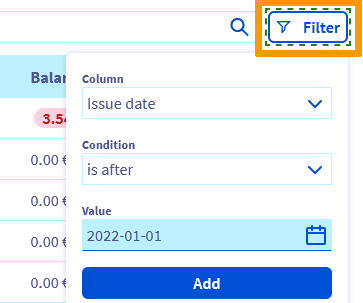
To find a specific invoice, you can enter its reference, the associated order number or its issue date.
##### **Batch actions**
Using the `Batch actions
` menu, you can export your invoice summary in _.csv_
or _.pdf_
format. The files created will show their amount, reference and issue date.
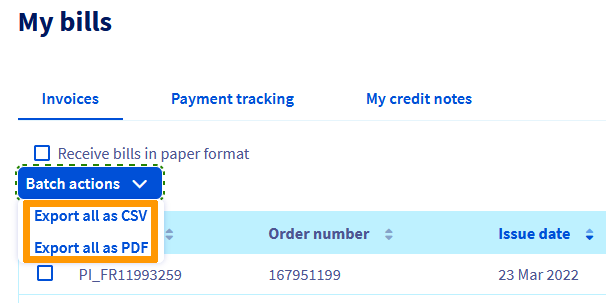
If you want to export all of your invoices, use the `Export all as CSV
` or `Export all as PDF
` button.
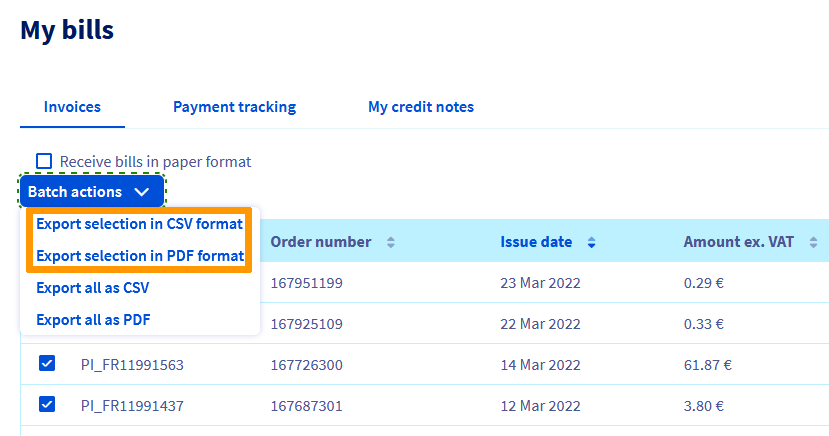
If you want to export only selected invoices, use the corresponding check boxes in the first column of the table to select the invoices you want to export. Two new actions, `Export selection in CSV format
` and `Export selection in PDF format
`, will then be available in the `Batch actions
`.
#### Pay your bills [](#)
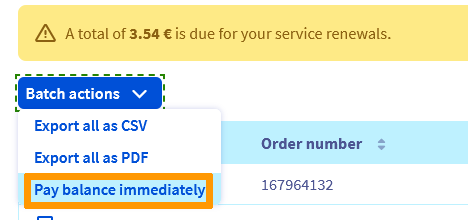
To pay bills that are awaiting payment, simply click on the `Batch actions
` menu, then select `Pay balance immediately
`.
A [settlement purchase order](/en/guides/account-and-service-management/managing-billing-payments-and-services/ovh-orders.md#purchase-order) will then be created. Once the payment has been made, your account will be balanced again.
#### Request invoice cancellation
:::info
To request that your service be cancelled on the expiry date, follow the instructions in [this guide](/en/guides/account-and-service-management/managing-billing-payments-and-services/how-to-cancel-services.md).
:::
If you have received an invoice that you do not consider to be legitimate and you wish to request a refund, or submit your claim, click on your name in the top right-hand corner of your screen, then on `Create a ticket
`.
### Track your payments
You can find the payment history in `My bills
` if you click on the `Payment tracking
` tab. You can then link each invoice to the associated payment.
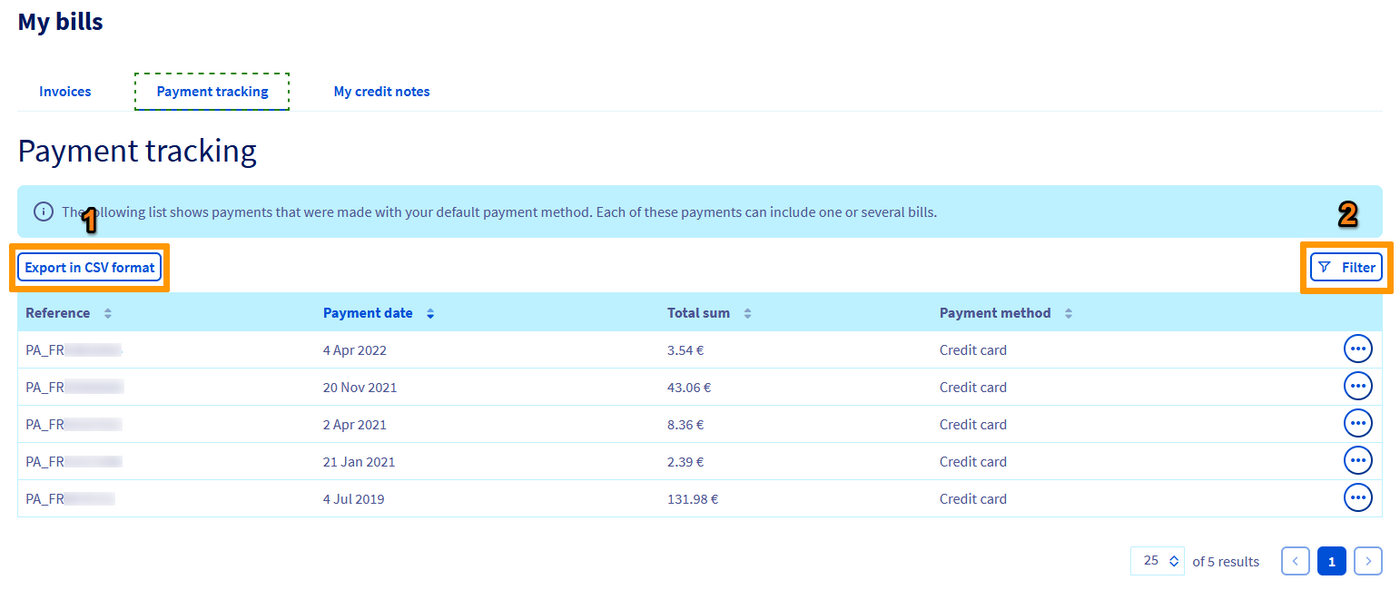
In this section, you can also export your payment receipts in _.csv_
format, by clicking on `Export in CSV format
` (1). You can also use several filters via the `Filter
` button (2).
:::info
If you notice a discrepancy between a payment and the total amount listed on a bill, it means that an account balance automatically reduced the amount debited.
:::
## Go further
[Managing renewal for your services](/en/guides/account-and-service-management/managing-billing-payments-and-services/automatic-renewal.md)
[Managing payment methods](/en/guides/account-and-service-management/managing-billing-payments-and-services/manage-payment-methods.md)
Join our [community of users](https://community.ovhcloud.com/).