---
title: "How to cancel your Private Cloud offer"
description: "Learn how to request the termination of a Private cloud infrastructure"
url: https://docs.ovhcloud.com/en/guides/account-and-service-management/managing-billing-payments-and-services/cancel-private-cloud
lang: en
lastUpdated: 2020-07-08
---
# How to cancel your Private Cloud offer
## Objective
If your Private Cloud offer no longer suits you, or if you have ordered a new infrastructure to replace the old one, you can request the termination of this infrastructure, once all your data is secured.
**Find out how to cancel your Private Cloud offer.**
## Requirements
- A [Hosted Private Cloud infrastructure](https://www.ovhcloud.com/en-gb/enterprise/products/hosted-private-cloud/)
***
### OVHcloud Control Panel Access
- **Direct link:** VMware vSphere
- **Navigation path:** Hosted Private Cloud > Managed VMware vSphere > Select your vSphere service
***
## Instructions
The Private Cloud offer is without obligation. However, as laid out in the [Special Terms of Service](https://www.ovh.co.uk/support/termsofservice/Special_Conditions_for_Dedicated_Cloud_2014.pdf), any month that has begun is due and payable in advance.
:::warning
Before cancelling your offer, please be careful to retrieve all the data you wish to keep. Indeed, termination will result in the complete deletion of your Private Cloud and all the data it contains.
:::
### Step 1: Request termination from the OVHcloud Control Panel
In the "Service management" section of the "General Information" tab, click the button `...
` (4) to the right of the renewal date. Finally, click on `Delete the service
` (5).
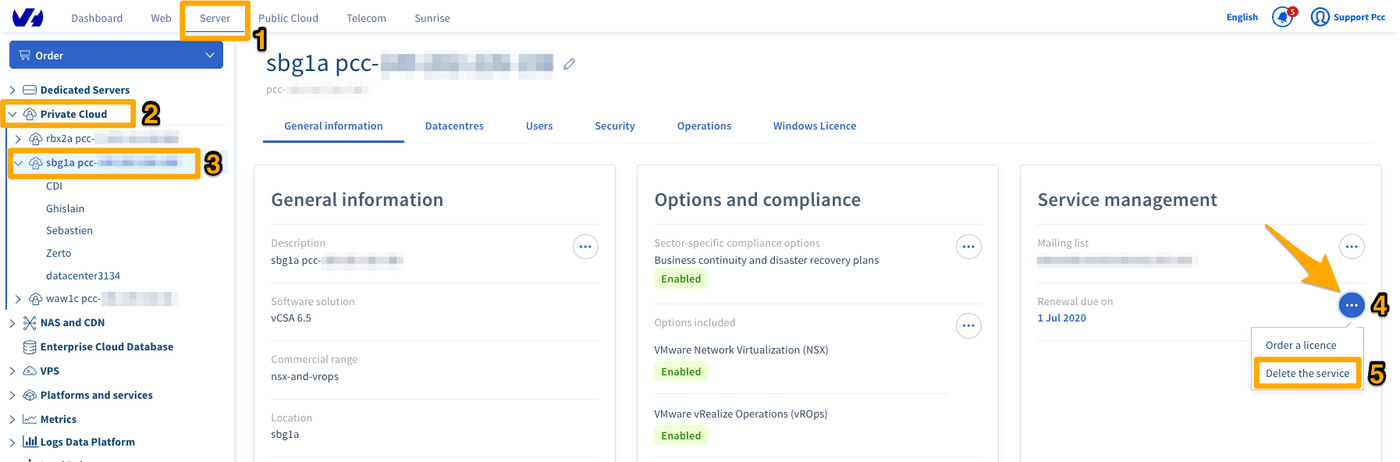
Please be aware that this action will remove any data on the infrastructure as soon as the termination is confirmed. No pro rata refund will be made if the infrastructure is terminated before the end of the month.
Click on `Confirm
` to request termination.
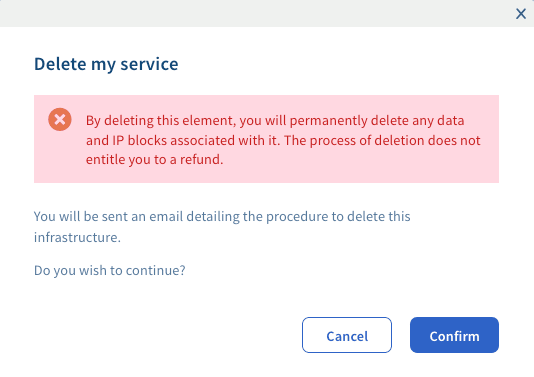
You will then receive a confirmation notice of your request. The procedure for confirming the termination is sent to you by email, to the address linked to the OVHcloud customer account.

### Step 2: Confirm termination
Following your request, a termination confirmation email is sent to you at the address linked to the OVHcloud account.
You can also find this email in your OVHcloud client space. Click on your name at the top right and then on `My messages
`.
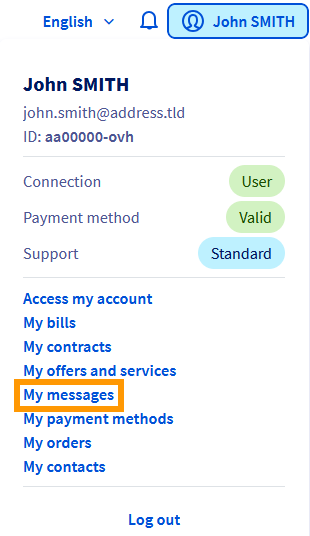
The subject of the email is:
> **Deleting your Private Cloud "pcc-xxx-xxx-xxx-xxx"**.
The email contains a clickable link that will allow you to confirm the termination of your offer.
:::info
Please note that this link is valid for **72 hours**. We therefore advise you to make your request for termination from the 25th of the month.
:::
You can also validate the termination request through the following OVHcloud API:
🇪🇺EU▾
[POST/dedicatedCloud/{serviceName}/confirmTermination](https://eu.api.ovh.com/console/?section=/dedicatedCloud&branch=v1#post-/dedicatedCloud/-serviceName-/confirmTermination)
You will then need to fill in the validation token available in the termination confirmation email.
## Go further
Join our [community of users](https://community.ovhcloud.com/).