---
title: "Adding cloud credit"
description: "Find out how to add credit or vouchers to your Public Cloud project"
url: https://docs.ovhcloud.com/en/guides/account-and-service-management/managing-billing-payments-and-services/add-cloud-credit-to-project
lang: en
lastUpdated: 2026-06-11
---
# Adding cloud credit
## Objective
With the _cloud credit_
option you can allocate a specific amount to your Public Cloud project which will serve as the default payment method for the [billing of the project](/en/guides/public-cloud/cross-functional/analyze-billing.md)
.
This means that cloud credit is debited first and any outstanding amount will then be paid by other available payment methods. (Please consult the [Public Cloud billing guides](/en/guides/account-and-service-management/managing-billing-payments-and-services/best-practices.md)
to learn more about this topic.)
**This guide explains how to add credit on to your Public Cloud account using a voucher, or by generating a purchase order.**
## Requirements
- A [Public Cloud project](https://www.ovhcloud.com/en-gb/public-cloud/) in your OVHcloud account
***
### OVHcloud Control Panel Access
- **Direct link:** Public Cloud Projects
- **Navigation path:** Public Cloud > Select your project
***
## Instructions
Open `Credit & Vouchers
` in the left-hand menu under **Settings**
.
:::warning
Note that credit added in this section cannot be transferred or refunded. It does not have monetary value, and any credit that has not been used within 13 months of purchase will be lost.
:::
### Adding credit
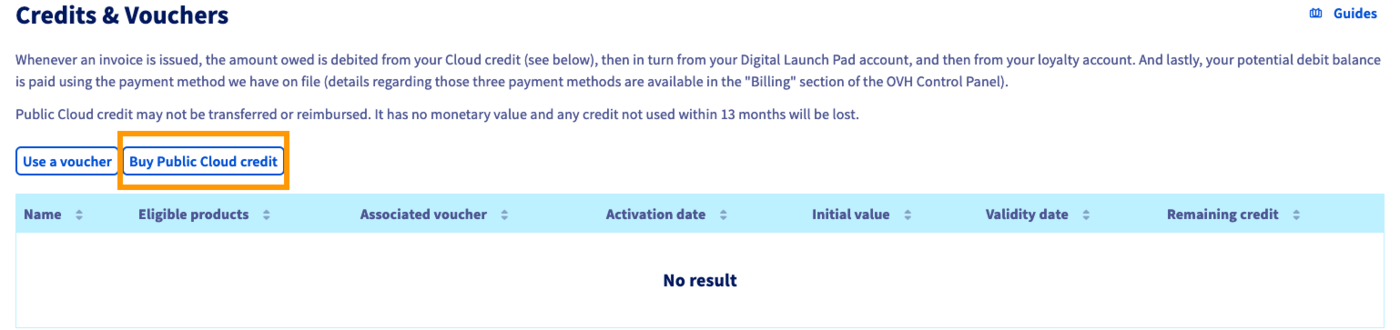
Click on the button `Buy Public Cloud credit
`.
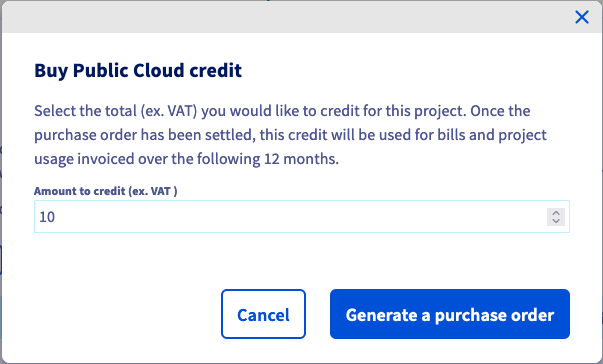
Enter the amount you wish to add, in your currency (ex VAT). Click on `Generate a purchase order
` to confirm.
A purchase order will then be generated. Click on the link in the green notification box to view it and initiate the payment.

Once the payment is processed, your credit will appear in the `Credits & Vouchers
` list.
### Redeeming a voucher
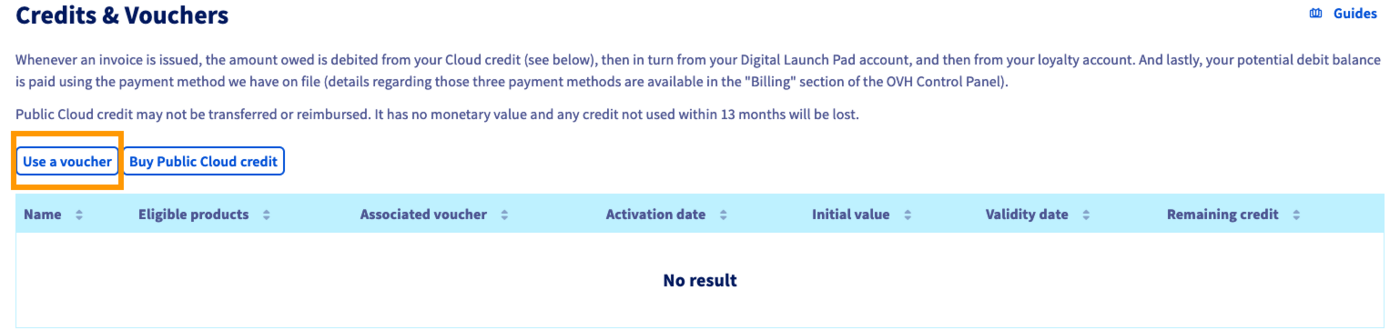
Click on the button `Use a voucher
`.
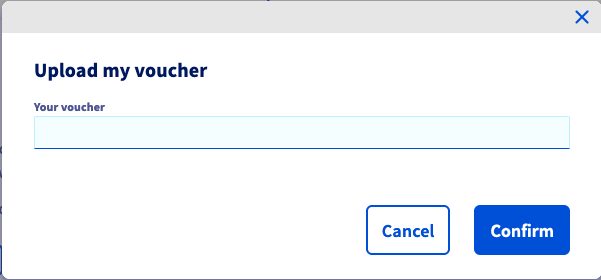
Enter your voucher code in the window that appears and click on `Confirm
`.
The voucher balance will appear in the `Credits & Vouchers
` list.
:::info
Vouchers are generally valid for only one month; you should use the voucher as soon as possible. The voucher balance will be applied before the Public Cloud credit.
:::
## Go further
:::info
New customers automatically receive £175 of free trial credit when they activate their first Public Cloud project. See our guide on [Creating your first OVHcloud Public Cloud project](/en/guides/public-cloud/cross-functional/create-a-public-cloud-project.md).
:::
Join our [community of users](https://community.ovhcloud.com/).