---
title: "Enabling Okta SSO connections with your OVHcloud account"
description: "Learn how to associate your Okta service with your OVHcloud account via SAML 2.0"
url: https://docs.ovhcloud.com/en/guides/account-and-service-management/account-information/ovhcloud-account-connect-saml-okta
lang: en
lastUpdated: 2025-05-15
---
# Enabling Okta SSO connections with your OVHcloud account
## Objective
You can use **Single Sign-On** (SSO) to connect to your OVHcloud account. To enable these connections, your account and your Okta accounts have to be configured using SAML (_Security Assertion Markup Language_) authentications.
**This guide explains how to associate your OVHcloud account with an external Okta service.**
## Requirements
- Being an administrator of an Okta service
- An [OVHcloud account](/en/guides/account-and-service-management/account-information/ovhcloud-account-creation.md)
***
### OVHcloud Control Panel Access
- **Direct link:** SAML SSO
- **Navigation path:** Identity, Security & Operations > Users > SSO connection
***
## Instructions
:::info
In order for a service provider (i.e. your OVHcloud account) to establish an SSO connection with an identity provider (i.e. your Okta service), the key is to establish a mutual trust relationship by registering the SSO connection in both services.
:::
### Registering OVHcloud into Okta
Your Okta service acts as an identity provider. Requests to authenticate your OVHcloud account will only be accepted if you have first declared it as a trusted third party.
This means that it must be added to `Applications`.
Log in to the Okta administration interface with your administrator account.
Go to `Applications
` then again `Applications
`.
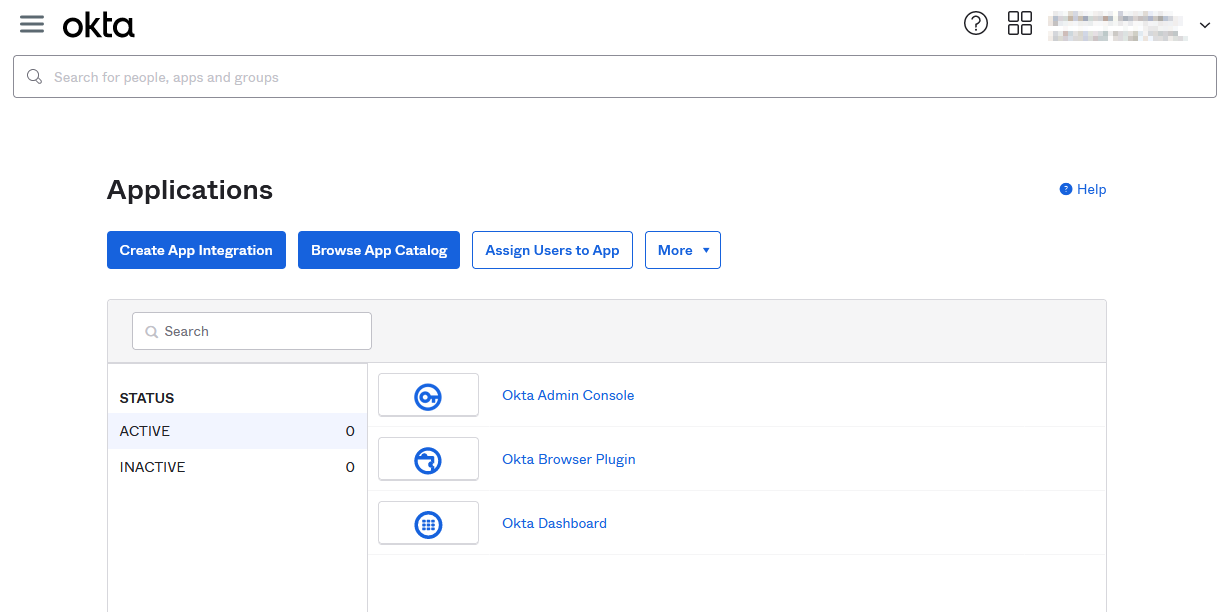
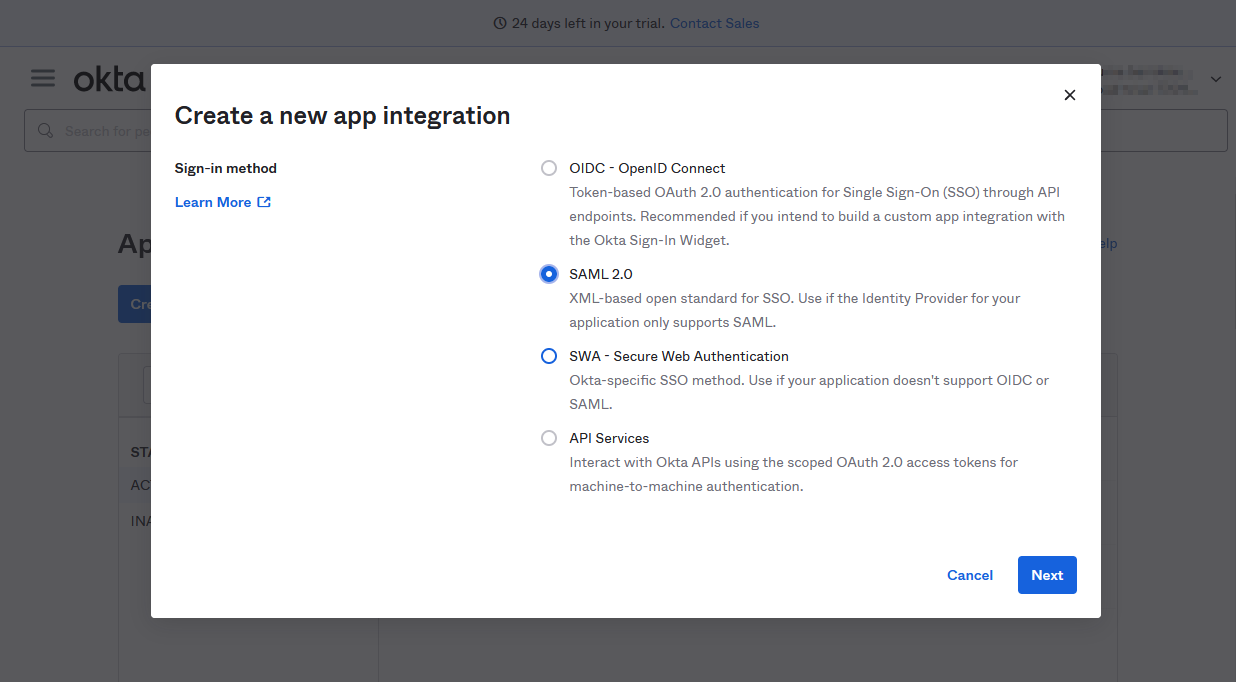
Click `Create App Integration
` and select `SAML 2.0
`.
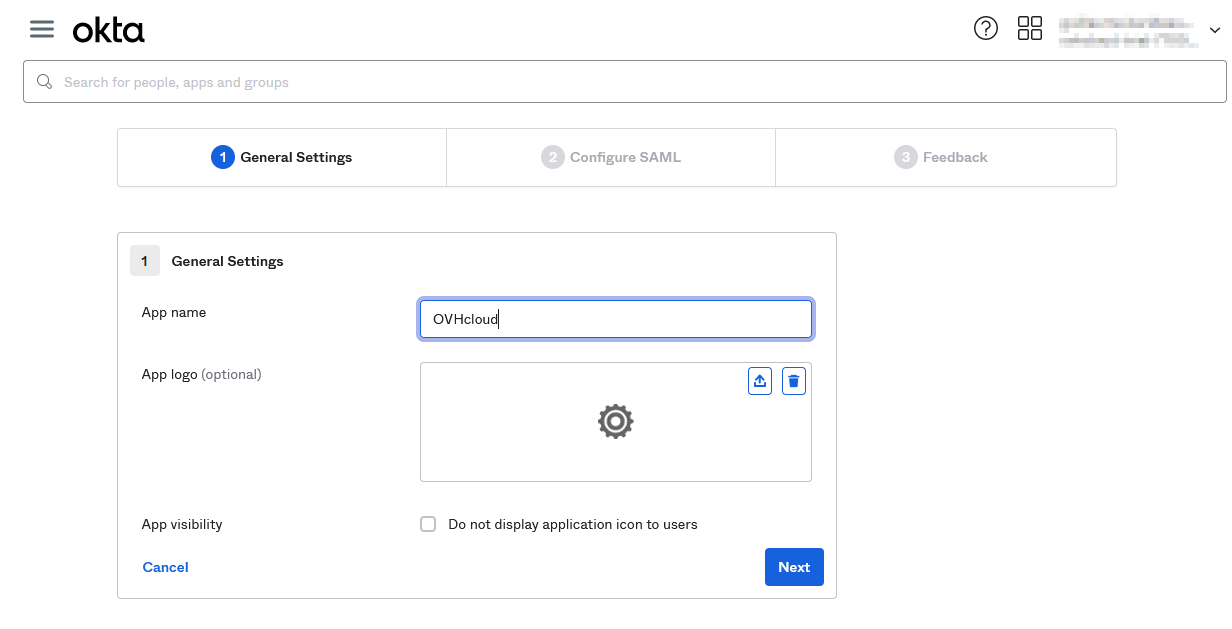
In the "General Settings" step, add a name for this application, **OVHcloud**
for example, and a logo if you want. Click `Next
`.
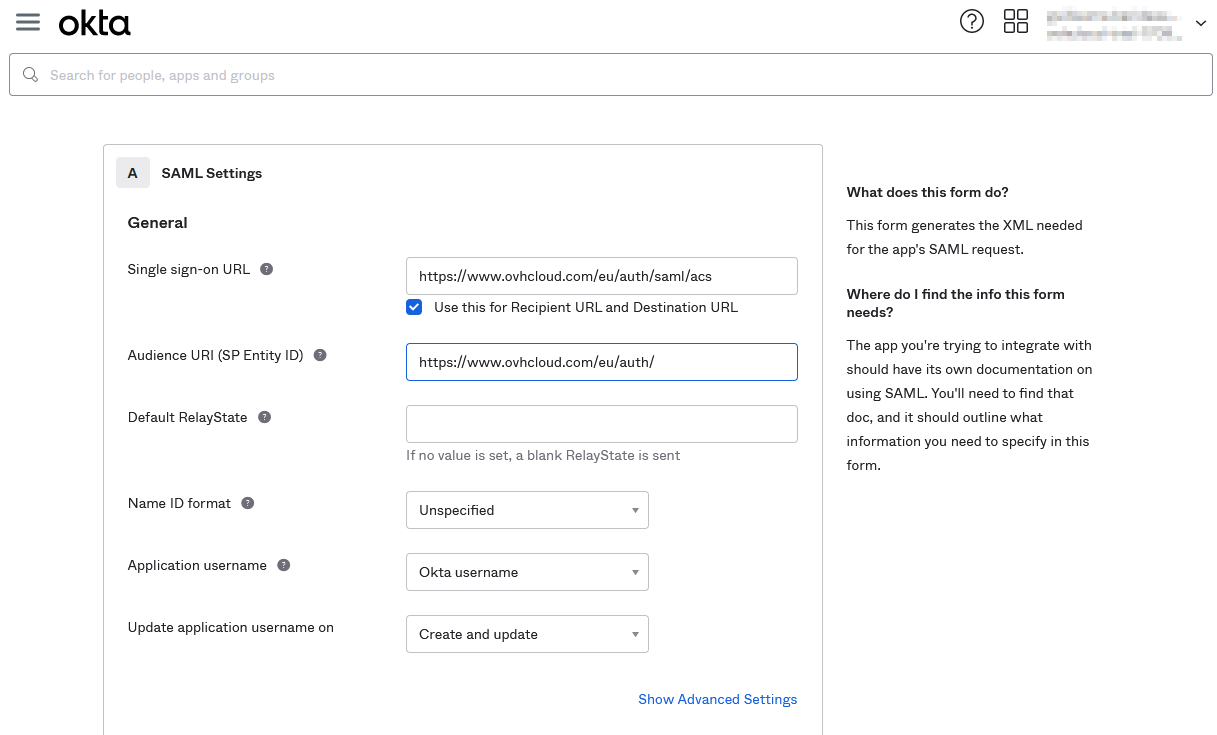
In the step "Configure SAML", complete the `Single sign-on URL` and `Audience URI` fields with the values for your region:
- EU region: **Single sign-on URL**: `https://www.ovhcloud.com/eu/auth/saml/acs` and **Audience URI**: `https://www.ovhcloud.com/eu/auth/`
- CA region: **Single sign-on URL**: `https://www.ovhcloud.com/ca/auth/saml/acs` and **Audience URI**: `https://www.ovhcloud.com/ca/auth/`
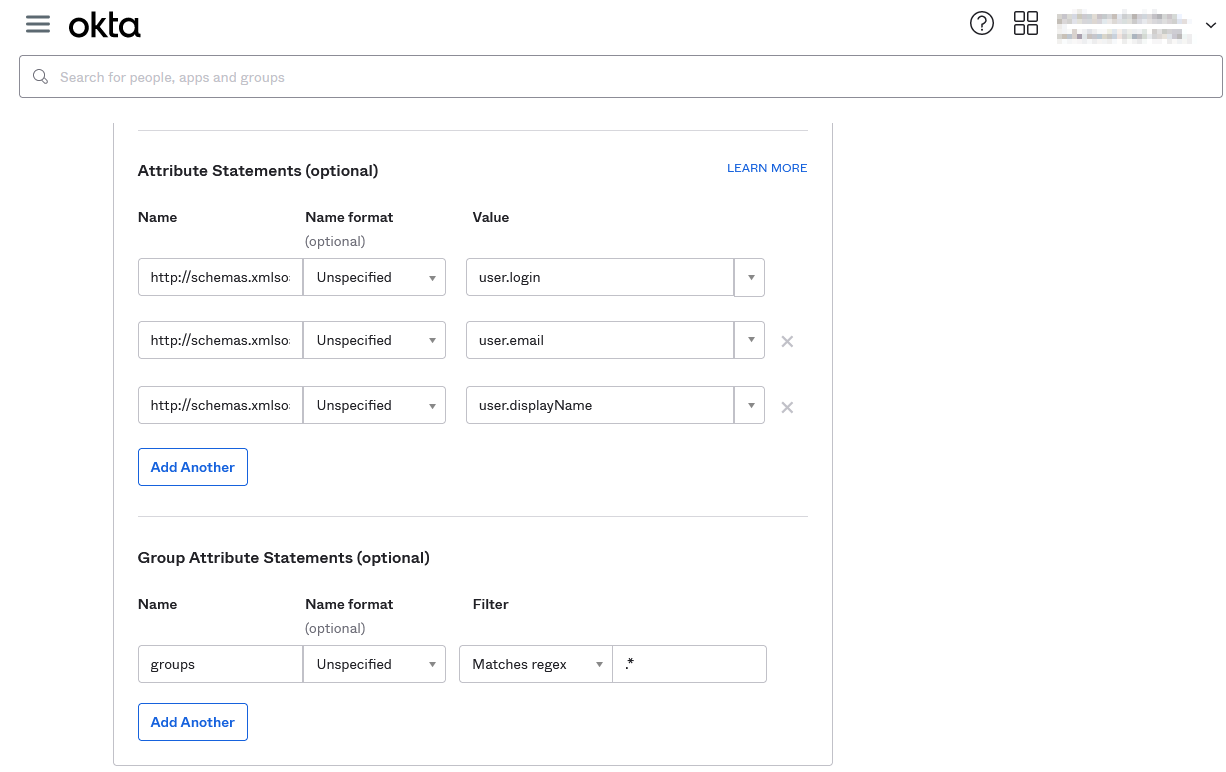
Then set the following `Attribute Statements`:
- **Name**: `http://schemas.xmlsoap.org/ws/2005/05/identity/claims/upn` and **Value**: `user.login`
- **Name**: `http://schemas.xmlsoap.org/ws/2005/05/identity/claims/emailaddress` and **Value**: `user.email`
- **Name**: `http://schemas.xmlsoap.org/ws/2005/05/identity/claims/name` and **Value**: `user.displayName`
Set these `Group Attribute Statements`:
- **Name**: `groups` and **Filter**: `Matches regex:.*` (Adapt the filter if you want to be more specific)
Click `Next
`.
In the "Feedback" step, select the according option and click `Finish
`.
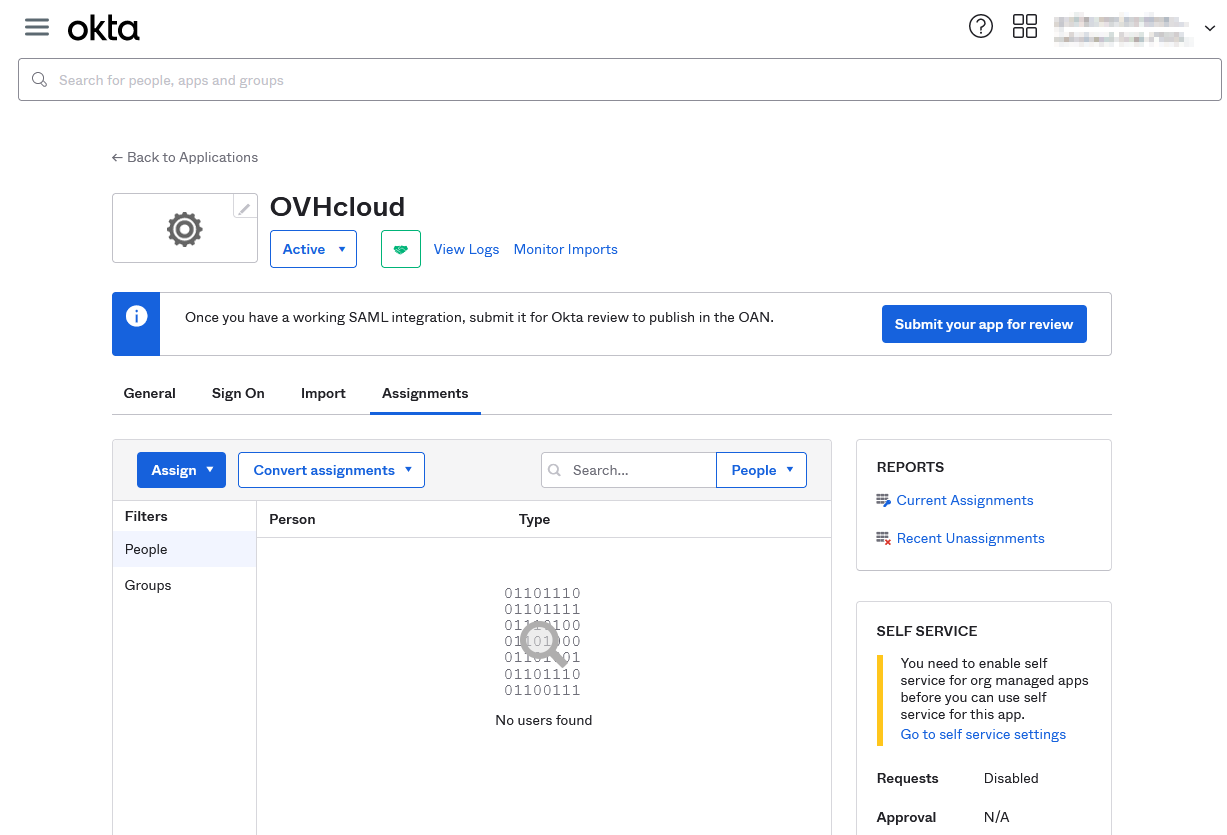
Then open the application and go to the "Assignments" tab and assign users or groups to the application.
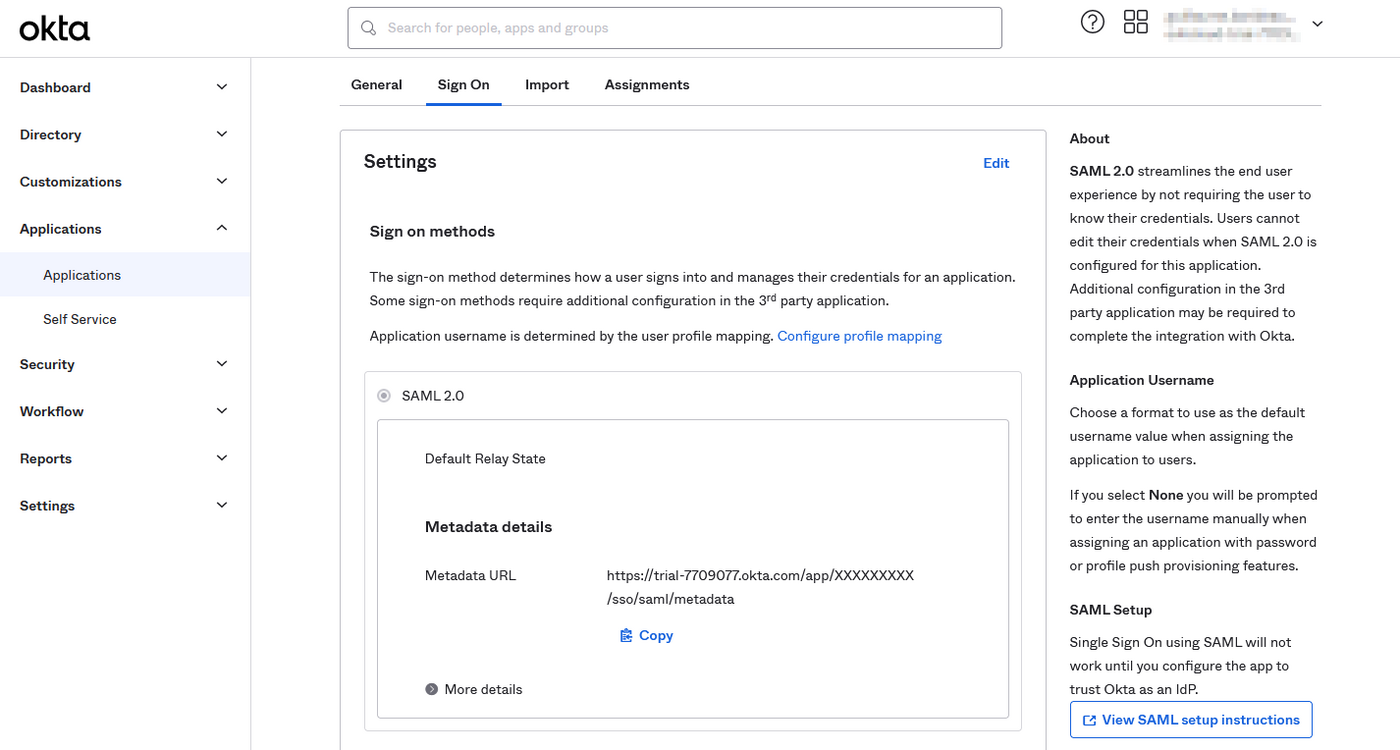
Before going to the next section, go to the "Sign On" tab, and access to the **Metadata URL** and save the provided XML file.
Your Okta service now trusts OVHcloud as a service provider. The next step is to ensure that the OVHcloud account trusts your Okta as an identity provider.
### Registering Okta into the OVHcloud account and configuring the connection
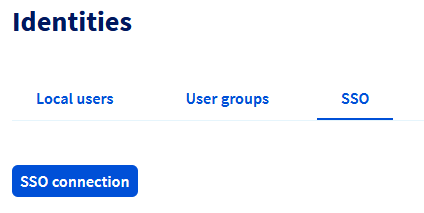
To add Okta as a trusted identity provider, you need to provide the identity provider metadata. Open the SAML SSO
page and click the `SSO connection
` button.
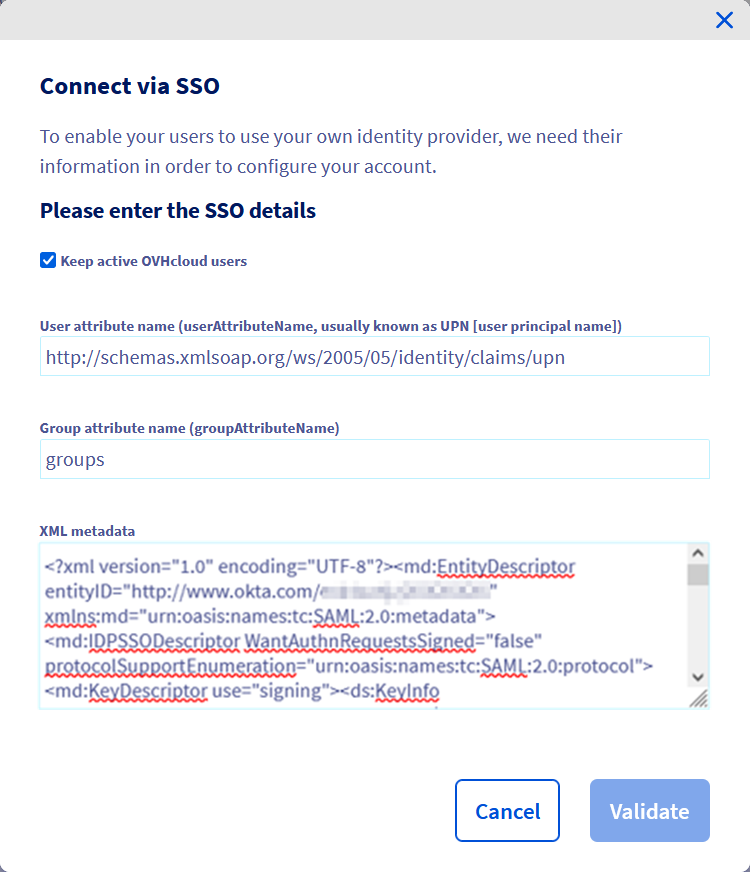
Fill in the XML metadata of your Okta service. Enter `http://schemas.xmlsoap.org/ws/2005/05/identity/claims/upn`
as the "User Attribute Name" and `Group`
as the "Group Attribute Name". Click on `Confirm
`.
You can keep local users by ticking the `Keep active OVHcloud users` box.
Now you need to retrieve your Okta as identity provider, as well as default groups.
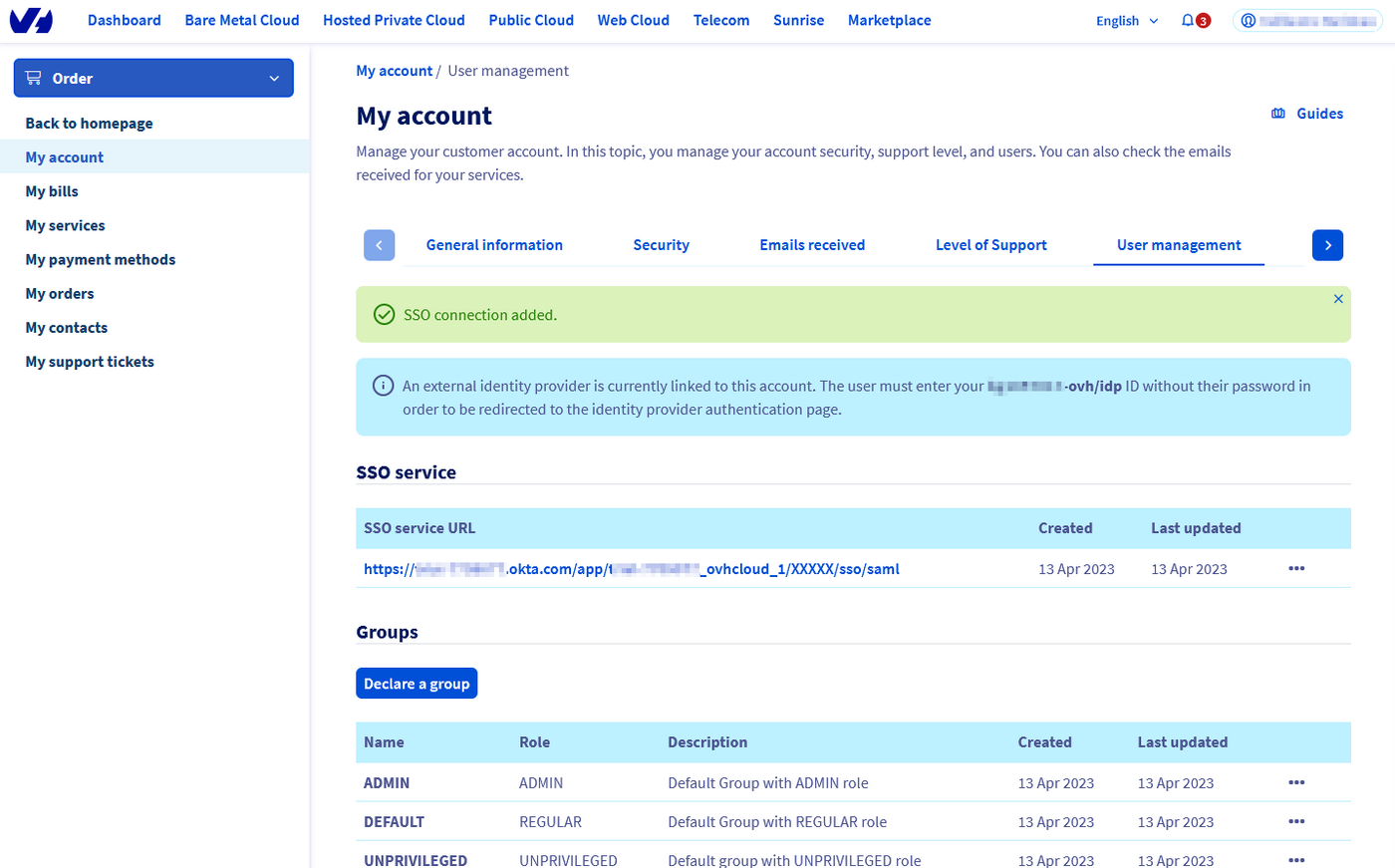
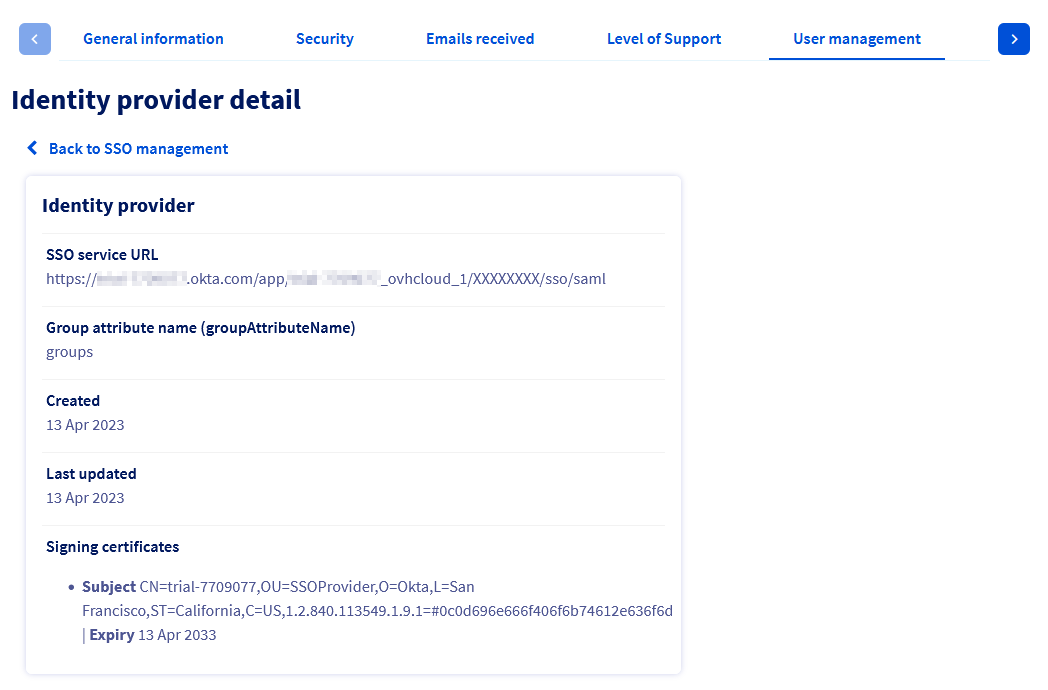
For more information, click on the link under “SSO Service URL”.
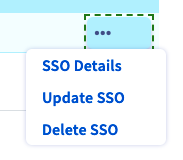
The `...
` button allows you to update or delete the SSO, and view its details.
Your Okta service is now considered a trusted identity provider. However, you still need to add groups to your OVHcloud account.
:::warning
If you try to connect via SSO at this point, you will probably receive a `Not in valid groups` error message.
That is because your OVHcloud account checks whether the authenticating user belongs to an existing group on the account.
:::
You must then assign **roles** to Okta user groups at OVHcloud. Otherwise, your OVHcloud account does not know what the user is allowed to do and, by default, no rights are assigned.
In the `Identities
` section, open the `User groups
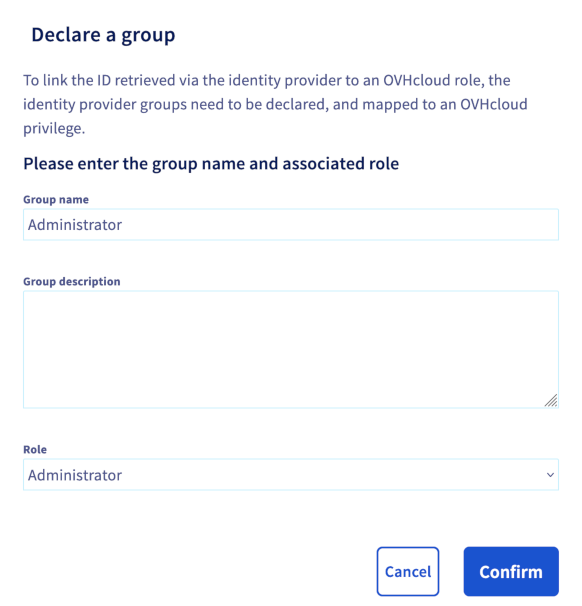
` tab. Then click the `Declare a group
` button and fill in the fields:
- **Group name**: Group name within Okta
- **Role**: Level of rights granted to this group

You can then verify that the group is added to your OVHcloud account in the "Groups" section:
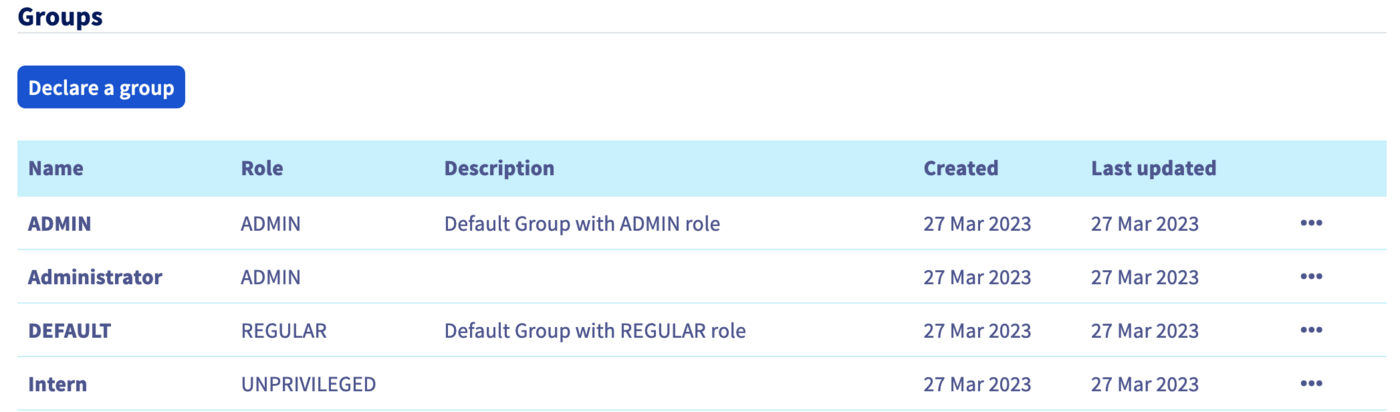
When you later log in with a user from the **Intern** group, your OVHcloud account will recognise that the user has the role "UNPRIVILEGED" specified by his group.
Warning: if you give the `NONE` role, you will need to assign permissions to this group via the [IAM policies](/en/guides/account-and-service-management/account-information/iam-policy-ui.md).
You will then be able to log out of your account and log back in with your Okta as an identity provider.
### Connecting via SSO
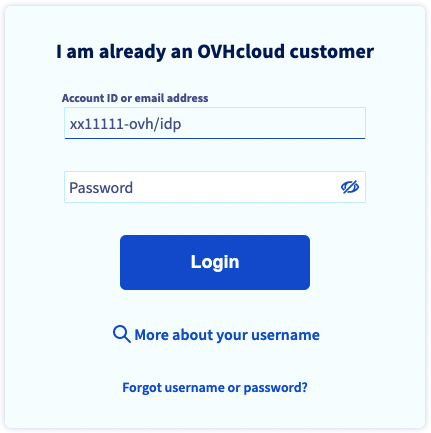
On the OVHcloud login page
, enter your [login](/en/guides/account-and-service-management/account-information/ovhcloud-account-creation.md#what-is-my-nic-handle)
followed by **/idp**
without a password and click the `Login
` button.
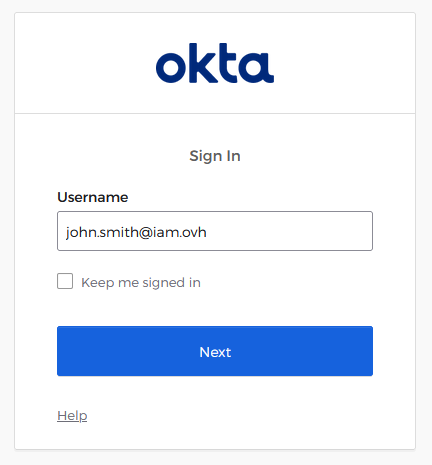
You are then redirected to your Okta login page. Enter the login and password for a user of your Okta, then click the `Sign in
` button.
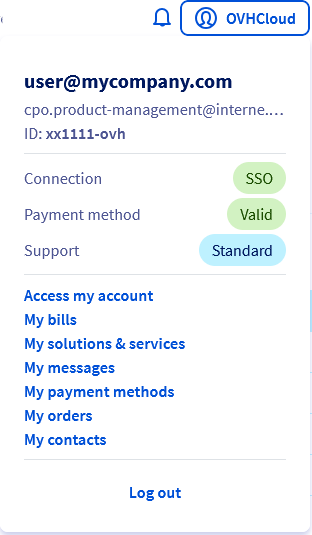
You are now logged in with the same customer ID, but through your Okta user.
## Go further
[Creating an OVHcloud account](/en/guides/account-and-service-management/account-information/ovhcloud-account-creation.md)
[Securing my OVHcloud account and managing my personal information](/en/guides/account-and-service-management/account-information/all-about-username.md)
[Setting and managing your account password](/en/guides/account-and-service-management/account-information/manage-ovh-password.md)
[Securing your OVHcloud account with two-factor authentication](/en/guides/account-and-service-management/account-information/secure-ovhcloud-account-with-2fa.md)
[How to use IAM policies using the OVHcloud Control Panel](/en/guides/account-and-service-management/account-information/iam-policy-ui.md).
Join our [community of users](https://community.ovhcloud.com/).