---
title: "Enabling Active Directory Federation Services (AD FS) SSO connections with your OVHcloud account"
description: "Find out how to link your Active Directory Federation Services (AD FS) to your OVHcloud account using SAML 2.0"
url: https://docs.ovhcloud.com/en/guides/account-and-service-management/account-information/ovhcloud-account-connect-saml-adfs
lang: en
lastUpdated: 2025-05-15
---
# Enabling Active Directory Federation Services (AD FS) SSO connections with your OVHcloud account
## Objective
You can use **Single Sign-On** (SSO) to connect to your OVHcloud account. To enable these connections, your account and your Active Directory Federation Services (AD FS) have to be using SAML (_Security Assertion Markup Language_) authentications.
**This guide explains how to link your OVHcloud account to an external Active Directory.**
## Requirements
- Active Directory Federation Services (AD FS) running on your server
- An [OVHcloud account](/en/guides/account-and-service-management/account-information/ovhcloud-account-creation.md)
***
### OVHcloud Control Panel Access
- **Direct link:** SAML SSO
- **Navigation path:** Identity, Security & Operations > Users > SSO connection
***
## Instructions
:::info
In order for a service provider (i.e. your OVHcloud account) to perform an SSO connection with an identity provider (i.e. your AD FS), the essential part is to establish a mutual trust relationship.
:::
### Establishing AD FS trust
Your AD FS acts as your identity provider. Authentication requests by your OVHcloud account will only be accepted if it is declared as a trusted party first.
In the Active Directory context, this means adding it as `Relying Party Trust`.
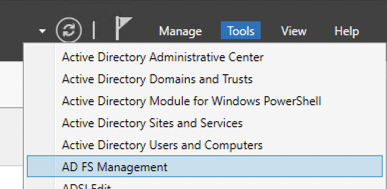
From your Server Manager, open the `Tools
` menu and select `AD FS Management
`.
Click on `Relying Party Trusts
`.
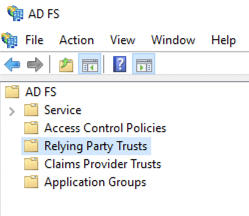
Then click on `Add Relying Party Trust...
`.

Select `Claims aware
` and confirm with the `Start
` button.
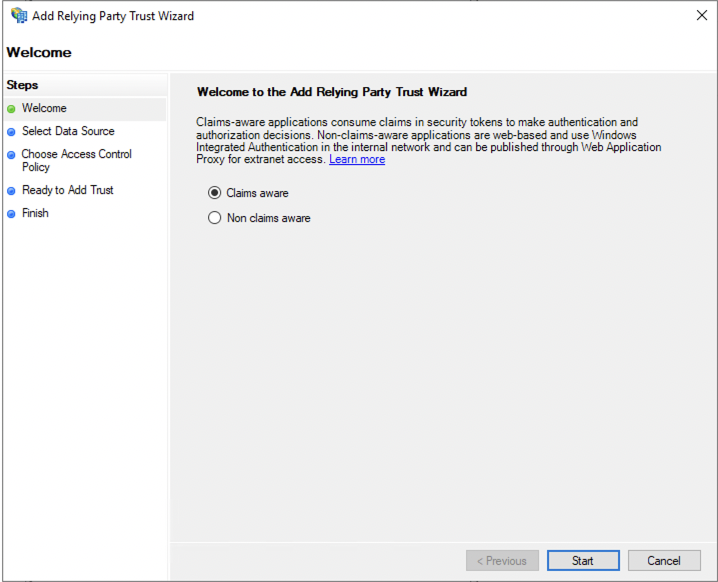
Here you can enter the relying party information manually or import it from a metadata file.
#### Importing the OVHcloud SP metadata
You can obtain the appropriate metadata file via the following links:
- [EU region metadata](https://www.ovh.com/auth/sso/saml/sp/metadata.xml)
- [CA region metadata](https://ca.ovh.com/auth/sso/saml/sp/metadata.xml)
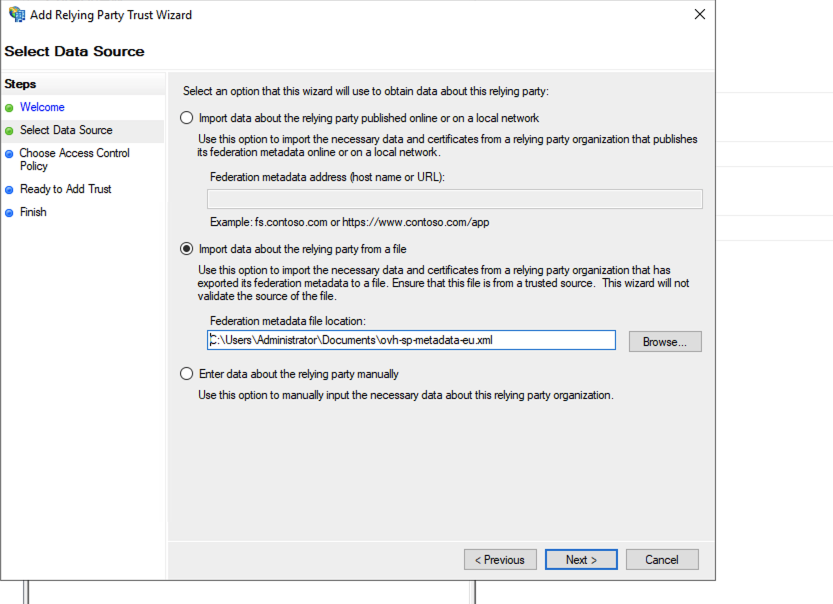
Select `Import data about the relying party from a file
` and select your metadata file.
Then click the `Next
` button.
Enter a display name for the relying party and click the `Next
` button.
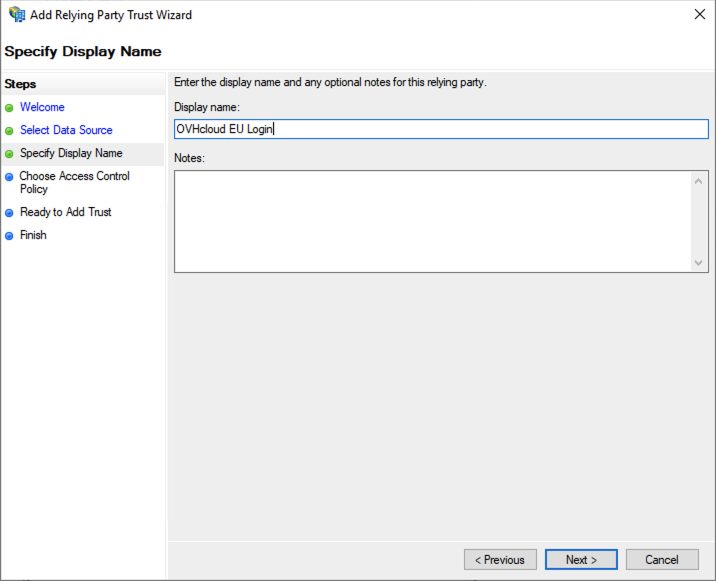
Click `Next
` in the Access Control window.
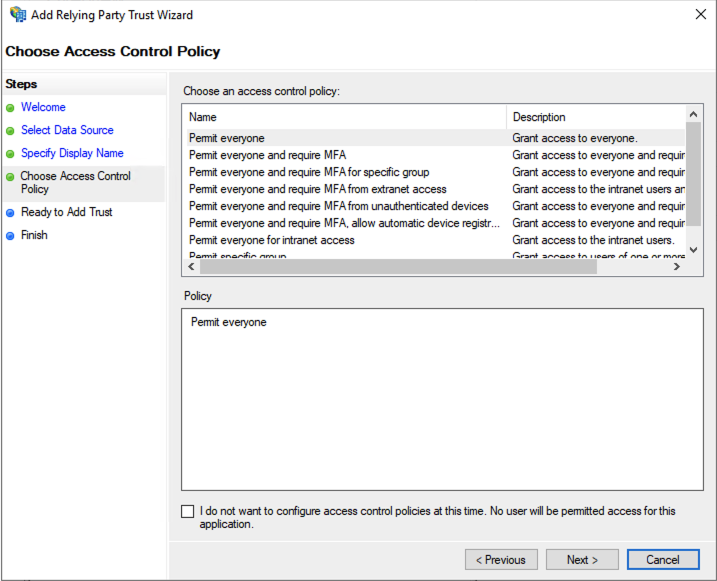
Click `Next
` again to proceed.
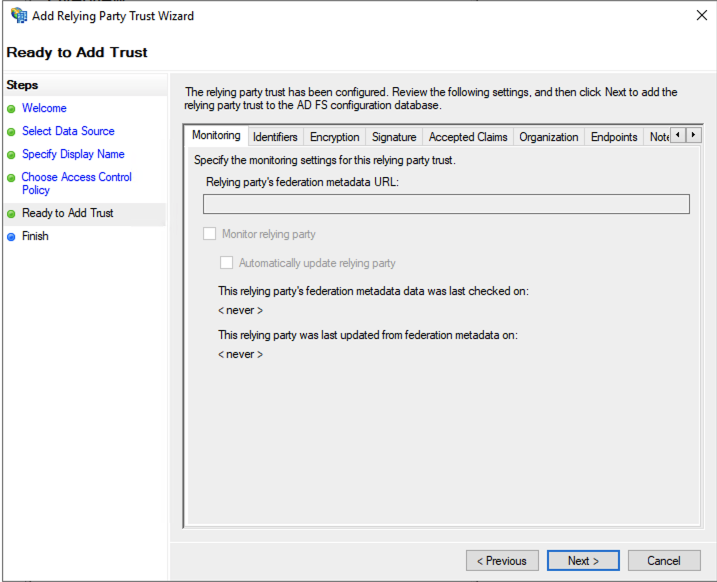
Click the `Close
` button in the last window. The OVHcloud relying party trust is now added to your AD FS.

:::info
With OVHcloud added as trusted relying party, you should be able to log in via an SSO connection already. However, any information about the identity of the user (in terms of the SAML "assertion") will remain unavailable until you configure a policy to map Active Directory LDAP fields to the attributes in the SAML assertion.
:::
#### Mapping LDAP attributes to SAML attributes
Click on the OVHcloud relying party trust entry.

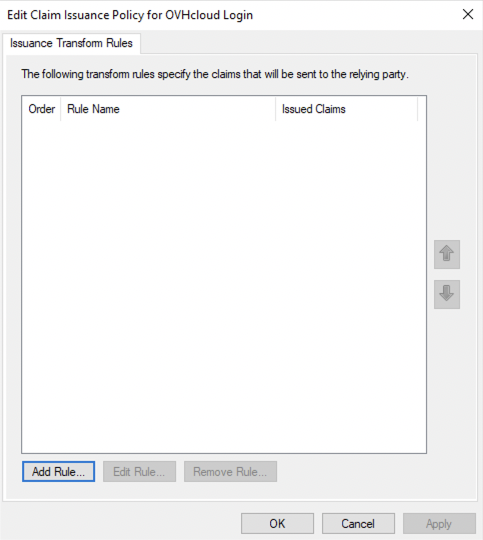
Then click on `Edit Claim Issuance Policy...
`.
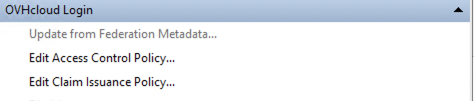
Click the `Add Rule...
` button.
Click `Next
`.
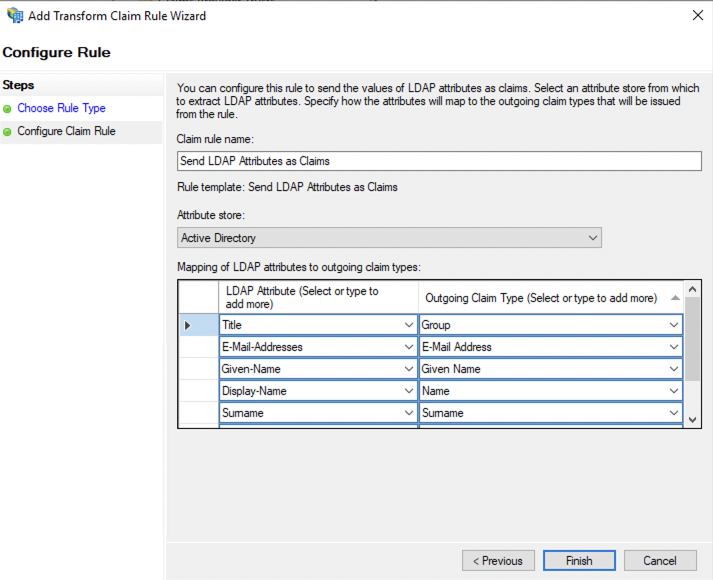
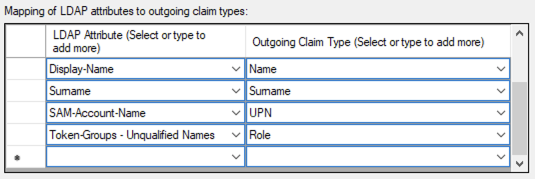
Enter a rule name, then define your mapping.
Select "Active Directory" as "Attribute store".
:::info
The following settings can be configured freely in order for the Active Directory LDAP data to be read correctly by the service provider. You can refer to the image below as an example.
:::
When you are done, click the `Finish
` button.
Click the `Apply
` button and confirm with `OK
`.
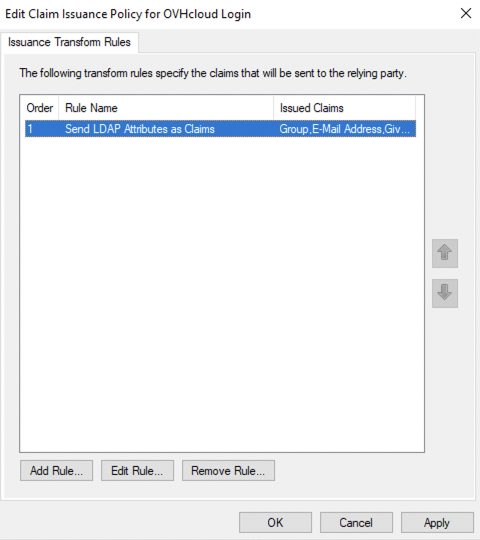
With the mapping completed, your AD FS now trusts OVHcloud as a service provider. The next step is to ensure that the OVHcloud account trusts your AD FS as identity provider.
### Establishing OVHcloud account trust and configuring the connection
Adding your AD FS as a trusted identity provider is done in the OVHcloud Control Panel
where you can provide the identity provider metadata.
Open the SAML SSO
page.
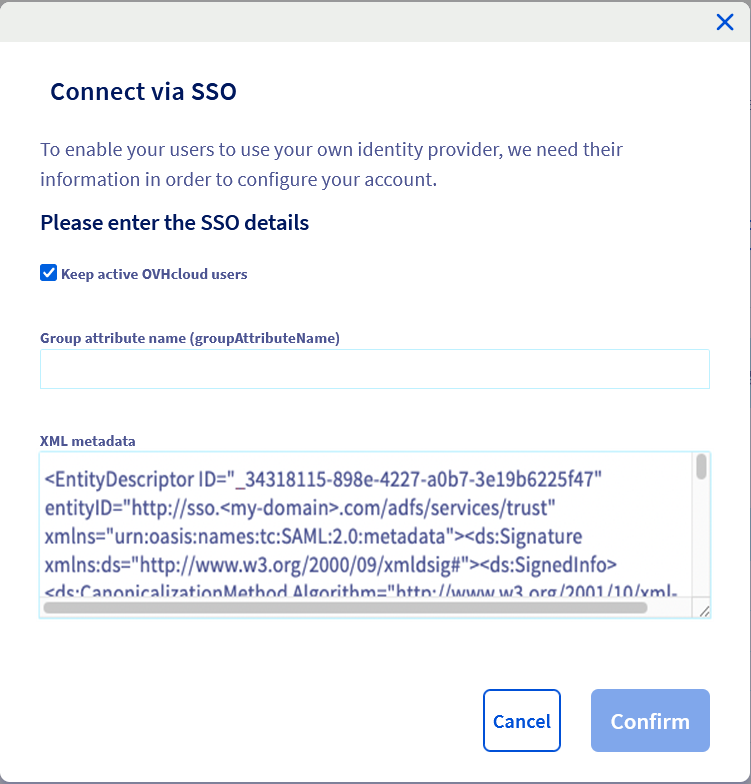
In the `SSO connection
` section, fill in the XML metadata of your AD FS. The "Group Attribute Name" is optional in this case. Click on `Confirm
`.
You can keep local users by ticking the `Keep active OVHcloud users` box.
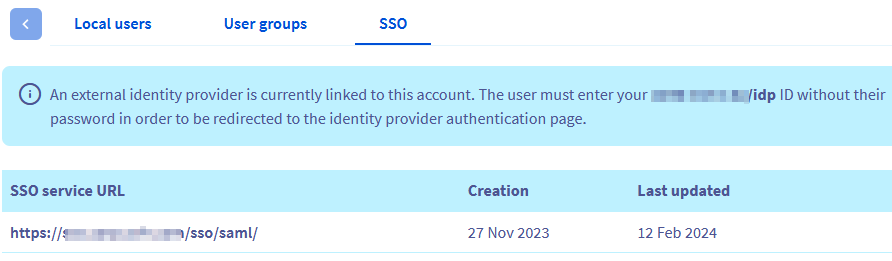
You should now see your AD FS as identity provider, as well as the default groups.
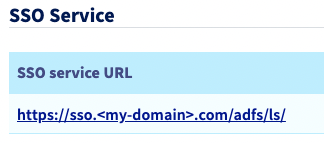
Click the link below `SSO service URL` to view more information on it.
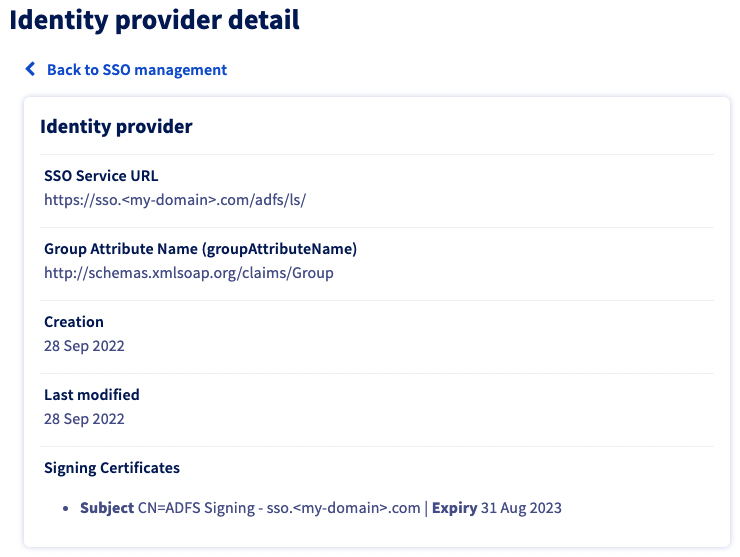
The `...
` button enables you to update or delete the SSO, and to see details.
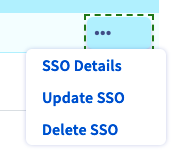
The trust of your AD FS as identity provider is thus established but you still have to add groups to your OVHcloud account.
:::warning
If you try to connect at this stage via SSO, you will probably receive a `Not in valid groups` error message.
That is because your OVHcloud account checks if the authenticating user belongs to a group that actually exists on the account.
:::
To resolve this, verify which information is mapped to the "Group" attribute that your AD FS returns.
Consider the following example of the user "John Doe" from your Active Directory as shown in the image below.
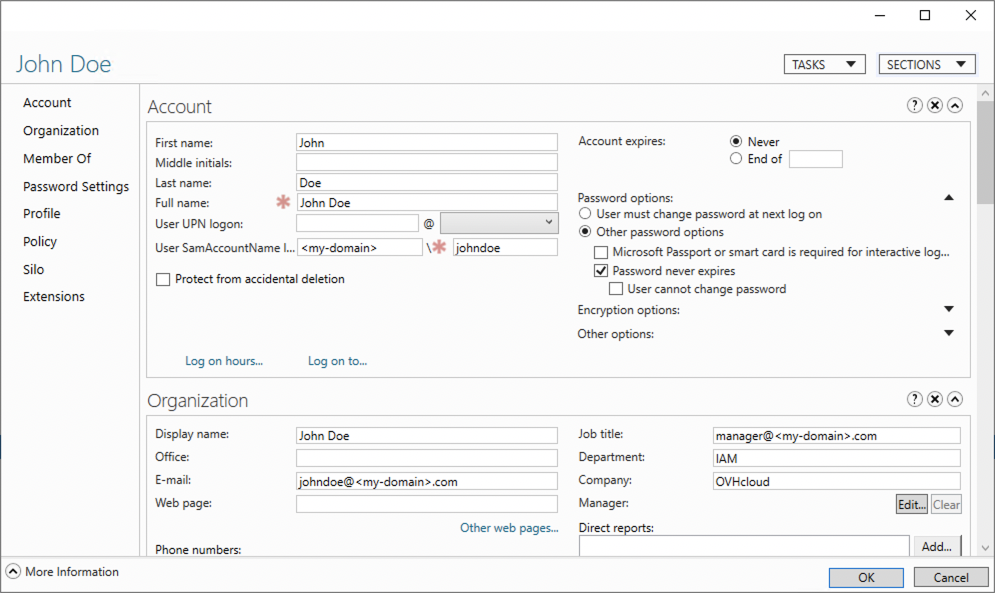
Next, check the mapping in AD FS:

In this example, the "Group" attribute sent back by the Active Directory for the user "John Doe" is "title". This corresponds to the "job title" which is `manager@.com`.
You can also verify this in the SAML assertion:
```xml
manager@.com
...
```
This means that you need to add the `manager@.com` group to your OVHcloud account, attaching a role to it. Otherwise, your OVHcloud account wouldn't know what is the user allowed to do.
To add this group, go to the `Identities
` section, then to the `User groups
` tab. Then click the `Declare a group
` button, enter the name of the group and select the associated role:

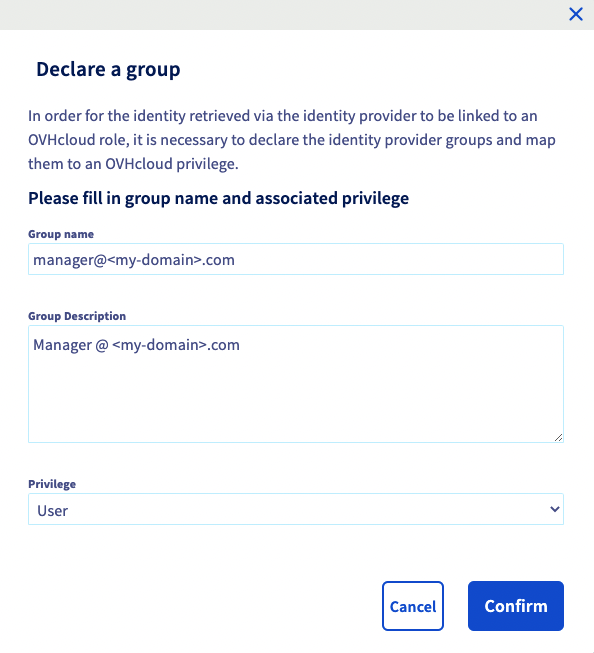
You can then check that the group is added to your OVHcloud account in the `Groups` section:
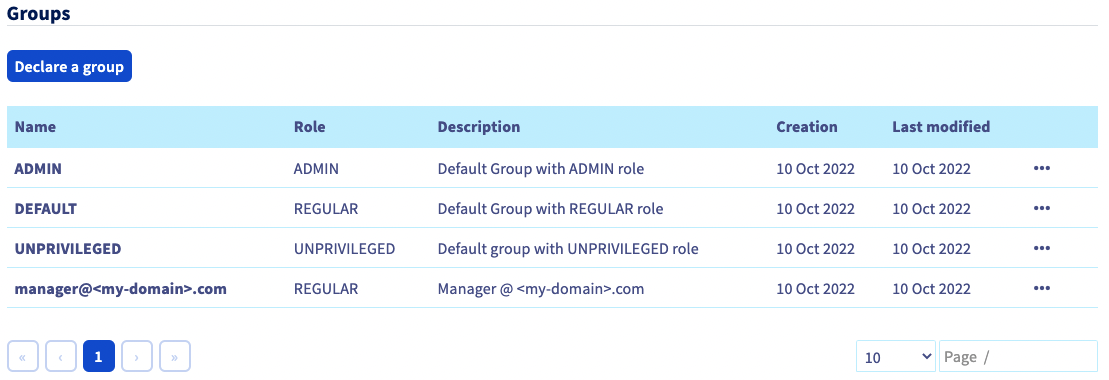
When you connect with the Active Directory user "johndoe" now, your OVHcloud account will recognize that the user has the "REGULAR" role, specified by its group.
Warning: if you give the `NONE` role, you will need to assign permissions to this group via the [IAM policies](/en/guides/account-and-service-management/account-information/iam-policy-ui.md).
You can then disconnect from your account and log in again with your AD FS as identity provider.
### Connect via SSO
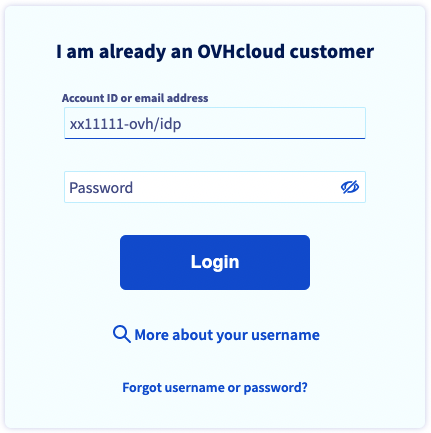
On the OVHcloud login page
, enter your [NIC handle](/en/guides/account-and-service-management/account-information/ovhcloud-account-creation.md#what-is-my-nic-handle)
followed by **/idp**
without entering a password, and click the `Login
` button.
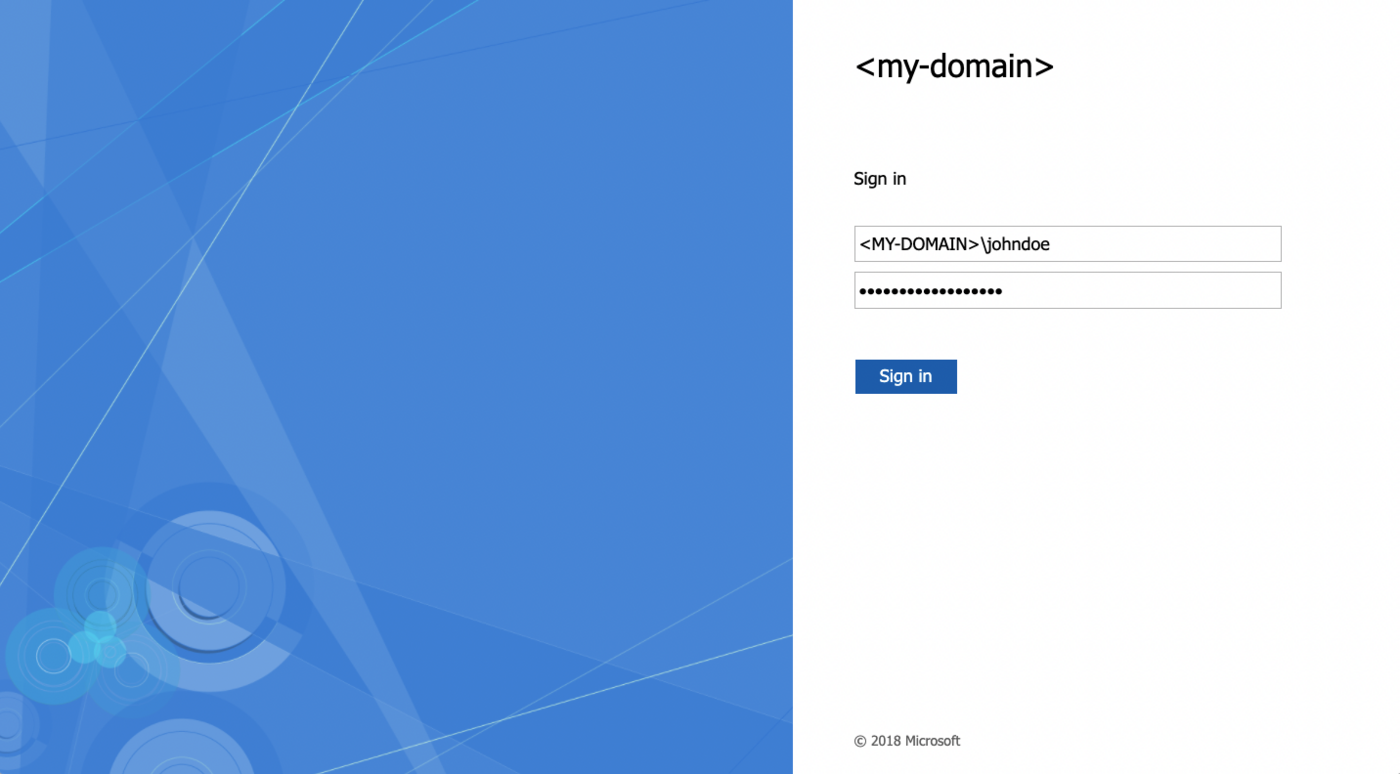
You are then redirected to your AD FS login page. Enter a login/password of a user of your LDAP Active Directory, then click the `Sign in
` button.
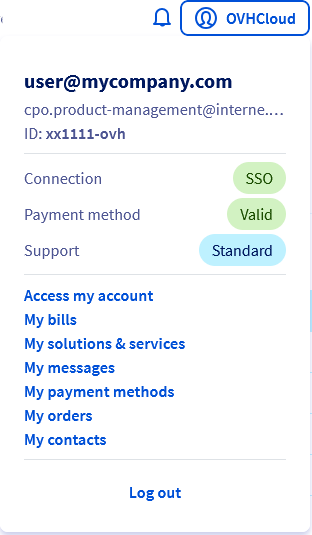
You are now logged in with the same NIC handle, but via your Active Directory user and using your AD FS SSO.
## Go further
[Creating an OVHcloud account](/en/guides/account-and-service-management/account-information/ovhcloud-account-creation.md)
[Securing my OVHcloud account and managing my personal information](/en/guides/account-and-service-management/account-information/all-about-username.md)
[Setting and managing an account password](/en/guides/account-and-service-management/account-information/manage-ovh-password.md)
[Securing your OVHcloud account with two-factor authentication](/en/guides/account-and-service-management/account-information/secure-ovhcloud-account-with-2fa.md)
[How to use IAM policies using the OVHcloud Control Panel](/en/guides/account-and-service-management/account-information/iam-policy-ui.md).
Join our [community of users](https://community.ovhcloud.com/).