---
title: "Managing contacts for your services"
description: "Find out how to manage contacts for your OVHcloud services"
url: https://docs.ovhcloud.com/en/guides/account-and-service-management/account-information/managing-contacts
lang: en
lastUpdated: 2026-02-11
---
# Managing contacts for your services
## Objective
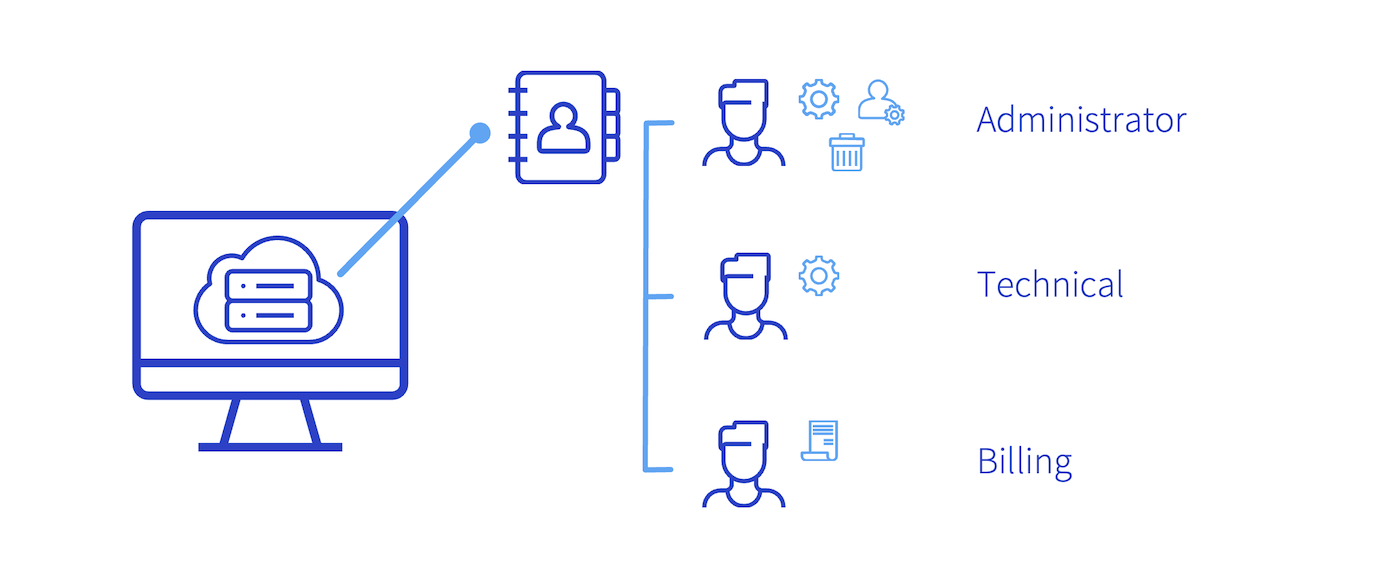
Most services created with OVHcloud are managed by several contacts. Each of these contacts is linked to a unique NIC handle (Customer ID).
**Find out how to manage contacts for your OVHcloud services.**
:::info
OVHcloud offers an [IAM policy](/en/guides/account-and-service-management/account-information/iam-policy-ui.md) system allowing to delegate access to other customer accounts.\
IAM policies enable precise access control while keeping traceability of the actions.
:::
## Definition
There are three different contact types:
- **The administrative contact** manages a service’s administrative and technical aspects. They have rights to modify all contacts, and can make changes to information belonging to the holder of a service, such as domain names, for example.
- **The technical contact** only manages the technical aspects of a service.
- **The billing contact** only manages the billing aspects of a service. Notably, this contact receives renewal notifications for services.
The NIC handle is a personal username that you receive via email when you create a customer account with OVHcloud. It is usually made up of two letters followed by numbers, in the format **aa00000-ovh**. When you order services, this NIC handle is used as a contact.
## Requirements
- Access to the email address linked to any relevant customer account.
- Appropriate rights for the service concerned.
- The new contact’s NIC handle (the contact you want to add).
- No outstanding payments on billing contacts.
- The new billing contact must have a valid payment method in their OVHcloud account.
***
### OVHcloud Control Panel Access
- **Direct link:** Contact management
- **Navigation path:** Click your name in the top right > My contacts
***
## Instructions
:::info
Contact management is only possible between two OVHcloud accounts located in the same geographical zone.
For example, it is impossible to manage contacts between an account in Europe and an account in Canada.
:::
### Access contact management [](#)
Open the My contacts
page.
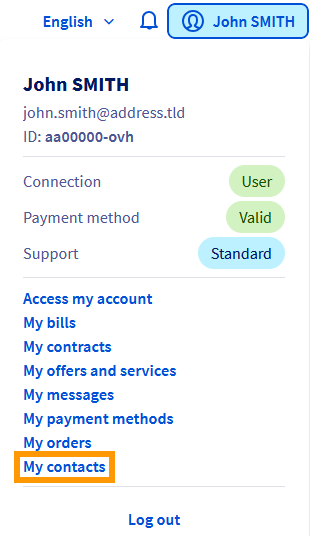
The table that appears will show all of the services your NIC handle is registered with as a contact.

### Change the contacts for a service.
Once you are on the Contacts page, click `...
` to the right of the service you want to modify, then `Modify contacts
`. Enter the new contact(s) you want to add, then click `Confirm
`.

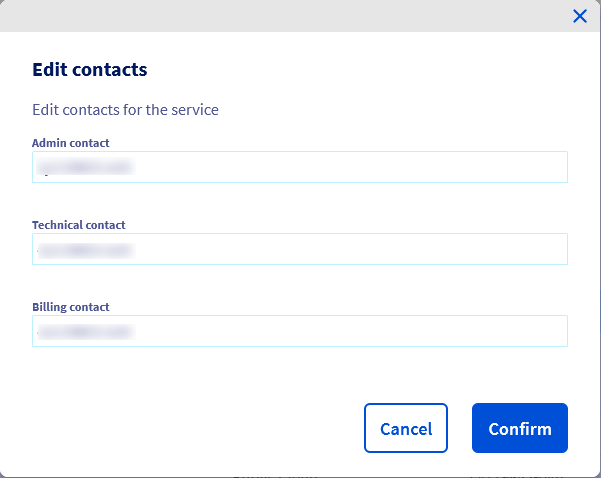
An email will be sent to the contacts you have added once you confirm this change.
:::warning
No change of contact will be allowed if the old or new customer account concerned has one or more unpaid invoices.
:::
#### Administrative contact [](#)
As an administrator, you can make several changes to contacts for a service. This includes:
- Naming a new technical and/or billing contact. Validation is required from both you and the new contact. The previous contact will receive an email informing them of this change, if it is successful.
- Managing technical and/or billing aspects. You need to confirm this request. The previous contact will receive an email informing them of this change.
- Naming a new administrative contact to replace you. Confirmation is required from both you and the new contact.
#### Technical contact [](#)
You can only add another technical contact to replace you. Confirmation is required from both you and the new contact.
#### Billing contact
You can only add another billing contact to replace you. Confirmation is required from both you and the new contact.
### Confirm, decline or track a contact change.
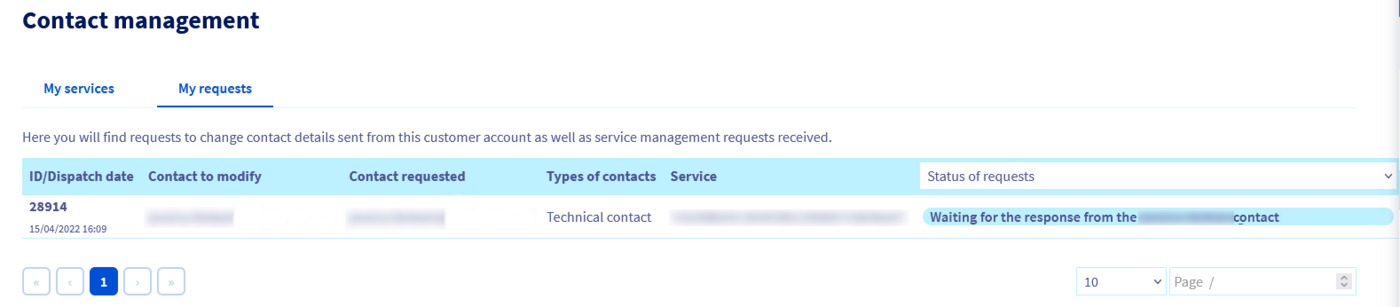
To track and manage ongoing requests, click on the `My requests
` tab. Here, you can accept or decline a request.
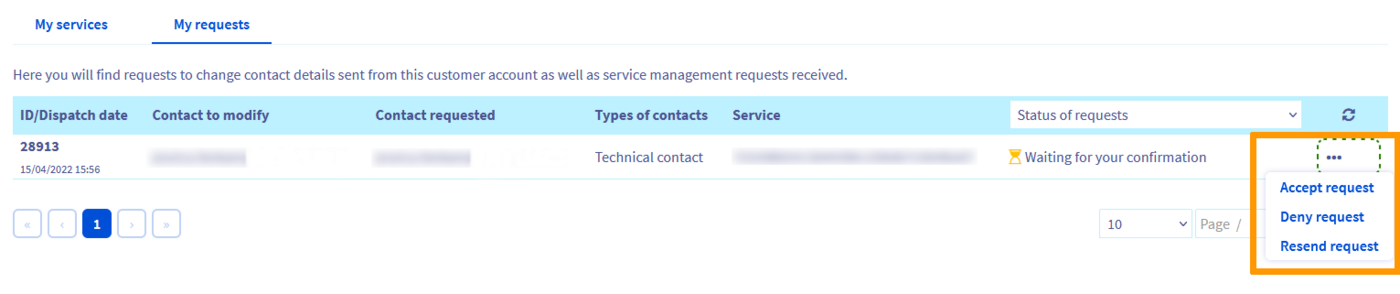
To do this, you must have a validation code (also called a token) contained in the email to confirm or decline the request.
:::info
This code is personal, can only be used once, and it will be different for the other two contacts.
:::
The email you receive will also contain a link directing you to the page where you can validate or decline the request. If you click the link in the email, the validation code (token) will be inserted automatically.
If one of the contacts has not received this email, the contact email address linked to the profile may not be up-to-date. You can check this in your profile, change it if required, and request for the email to be sent again by clicking `Resend request
`.
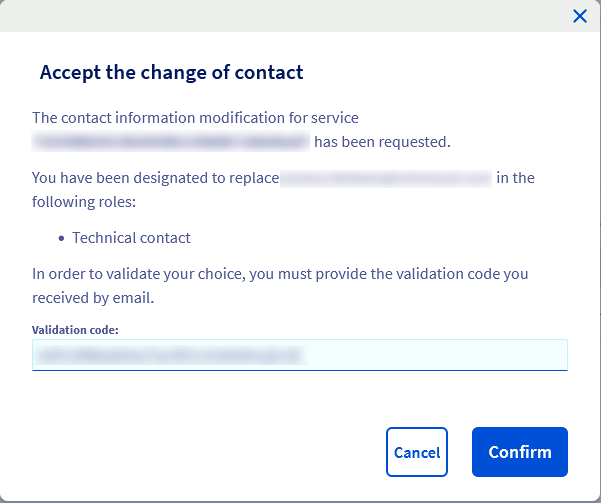
If only one contact has confirmed the change, a message will appear confirming that the request is still pending validation from the other contact. If one of the contacts has just confirmed the request, it will take a few minutes for the information to be updated and appear correctly in the OVHcloud Control Panel
.
The contact change will take effect a few minutes after both contacts have validated the request. They will then receive an email informing them that the request has been processed.
### Example: Providing access for a website's technical administration to your webmaster
You have just subscribed to an OVHcloud service with the purpose of hosting your own [online store](https://www.ovhcloud.com/en-gb/web-hosting/ecommerce-website/). You have contacted one of our [partners](https://partner.ovhcloud.com/en-gb/directory/) and they are requesting access rights to your OVHcloud services in order to start building your website.
:::warning
We do not recommend that you give any third parties access credentials to your OVHcloud Control Panel
.
:::
In this situation, you can grant your service provider the role "[technical contact](#gestion_des_contacts)" on your OVHcloud Web Hosting plan. With this access, they can carry out the operations required to put your website online (adding a domain or subdomain to the multisite, installing a 1-click module, changing the FTP and database passwords, creating SSL certificates, etc.).
If your domain name is not linked to your hosting plan, and you wish to entrust the necessary operations to your webmaster, give them the role "[technical contact](#gestion_des_contacts)" on your [domain name’s DNS zone](/en/guides/web-cloud/domains/dns-zone-edit.md).
You cannot change a service’s admin or billing contacts when logged in as "[technical contact](#gestion_des_contacts)". This access right will not give your webmaster access to your invoices, orders, service renewals or payment methods. They will not be able to [transfer the management of your domain name](/en/guides/web-cloud/domains/transfer-outgoing-domain.md) to another hosting provider or [change its holder](/en/guides/web-cloud/domains/trade-domain.md) to another holder. Finally, as the [administrative contact](#administrateur) of your services, you can change the "[technical contact](#technique)" at any time.
### Special case of a domain name holder
When you ordered an OVHcloud service, you defined a holder for it. If the domain name holder has no access to the OVHcloud account(s) associated with the respective service, they can transfer the domain name to a third-party holder, or obtain domain administration, via the following procedures:
[Change the holder of a service](https://www.ovh.co.uk/cgi-bin/en/procedure/procedureChangeOwner.cgi)
[Change your domain contacts](https://www.ovh.co.uk/cgi-bin/en/procedure/procedureChangeContacts.cgi)
Each procedure is carried out by email and an identity check will be required. Detailed instructions will be provided throughout each procedure.
## Go further
For specialised services (SEO, development, etc.), contact [OVHcloud partners](https://partner.ovhcloud.com/en-gb/directory/).
If you would like assistance using and configuring your OVHcloud solutions, please refer to our [support offers](https://www.ovhcloud.com/en-gb/support-levels/).
Join our [community of users](https://community.ovhcloud.com/).